





Your cart is empty
Looks like the spiders padded through here. Pick a plugin and it will show up here. Continue shoppingEvery option on this page is saved to the category's own file inside the shop's folder in shops.
Trading, Sale and Actions are grouped under Trading & Actions. Every other option is on the category editor itself. The back button returns to the category list.
The unique id of the category inside its shop, and the name of its file. Spaces are not allowed, and two categories of the same shop cannot share one.
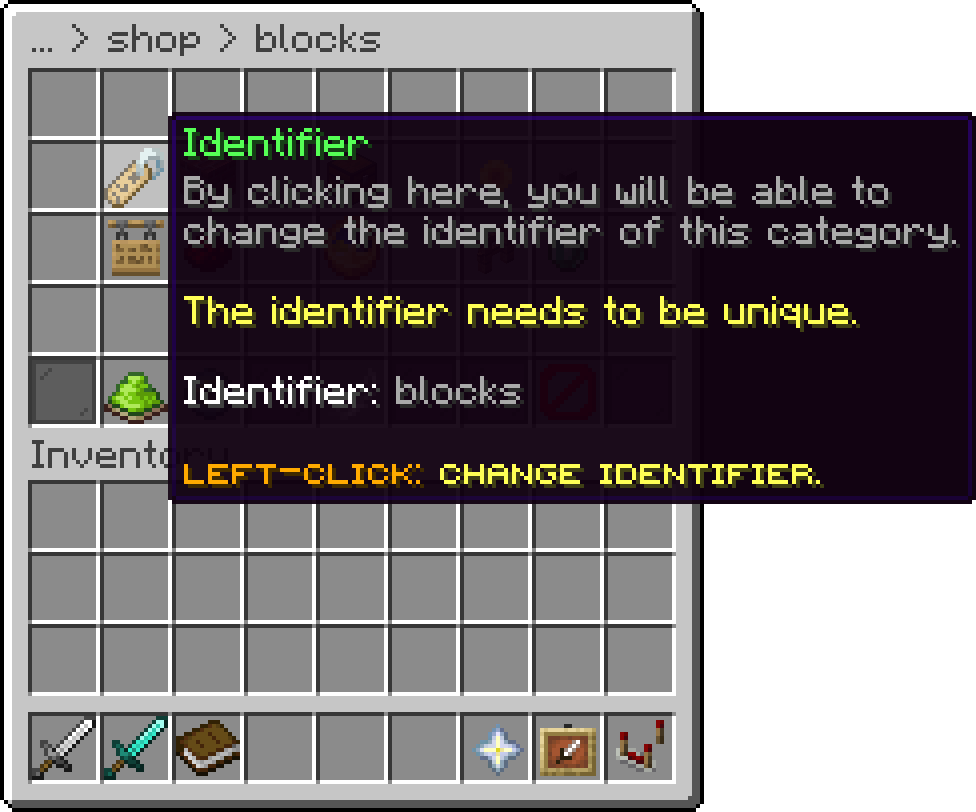
Edit Category (Identifier)
Stock counts are stored against the category's identifier. Changing it starts the stock of every item in the category over.
The icon of this option is the category's own icon. Clicking it opens the two settings that decide how the category looks in the shop's main menu.
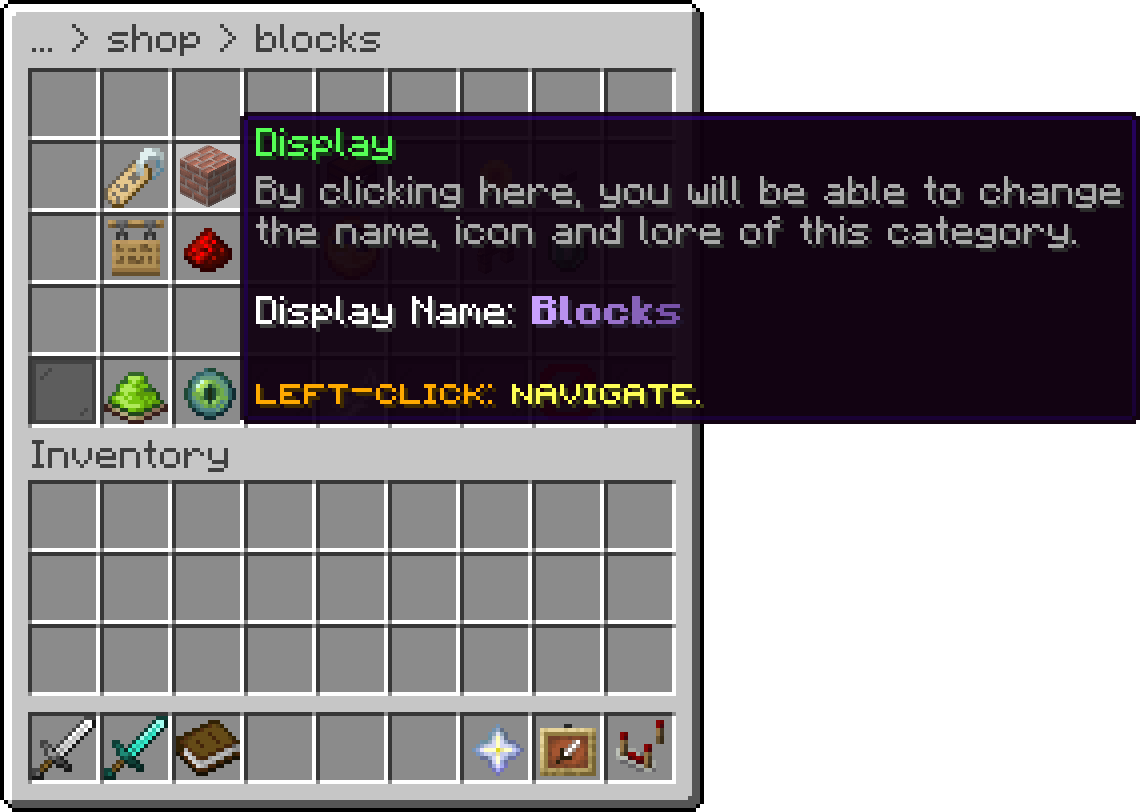
Edit Category (Display)
Drop an item on the slot to use it as the category's icon.
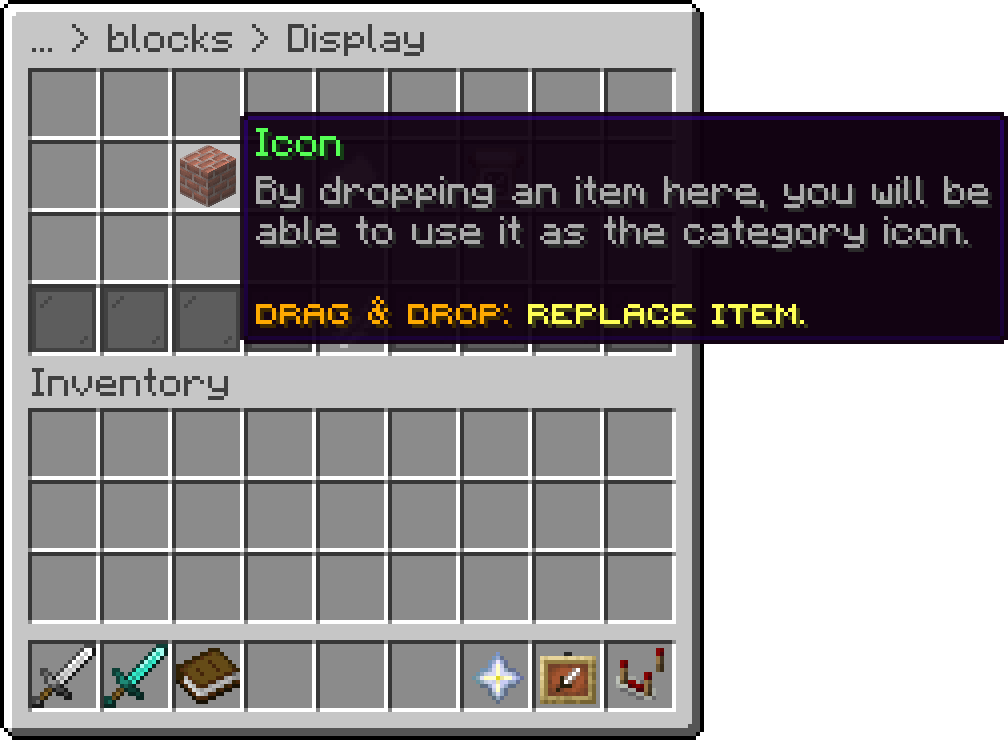
Display (Icon)
The title of the category, shown on its icon in the main menu. Color codes are supported. It cannot be empty.
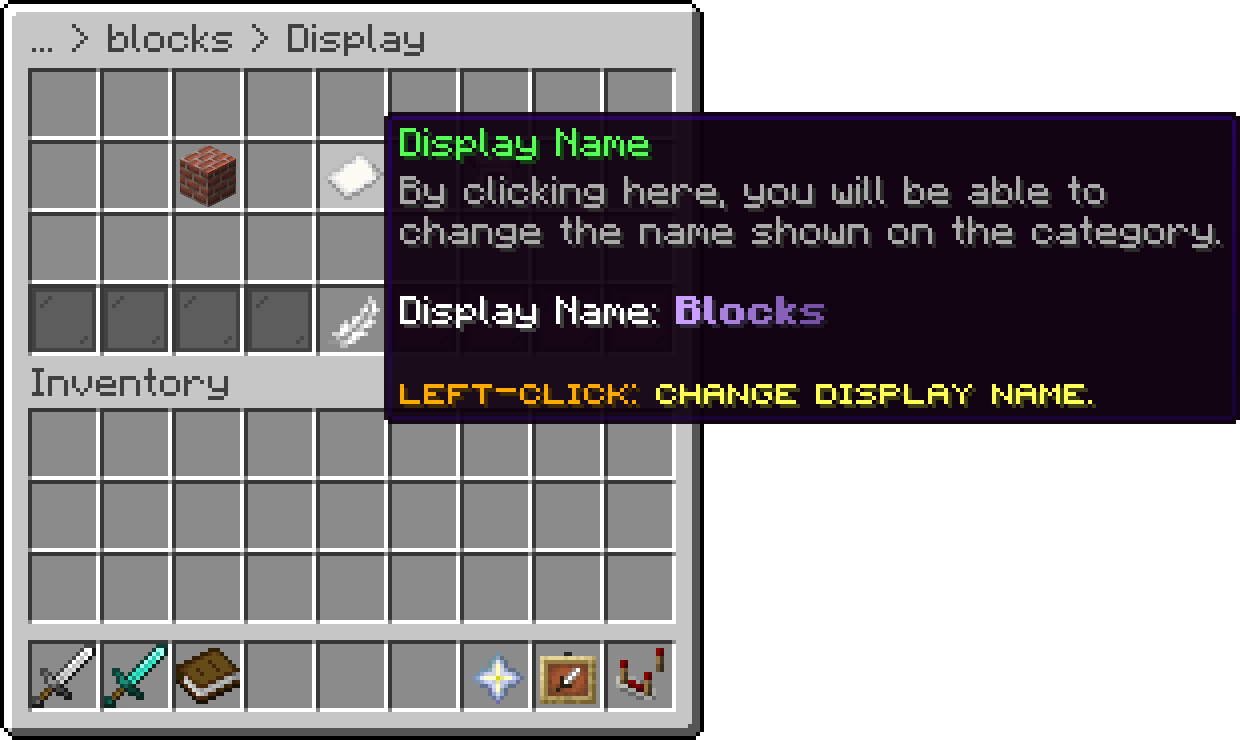
Display (Display Name)
The lines shown under the category's name in the main menu, wherever %category_lore% is used. When set, it overrides the lore of the icon item. Left empty, the icon item's own lore is used.
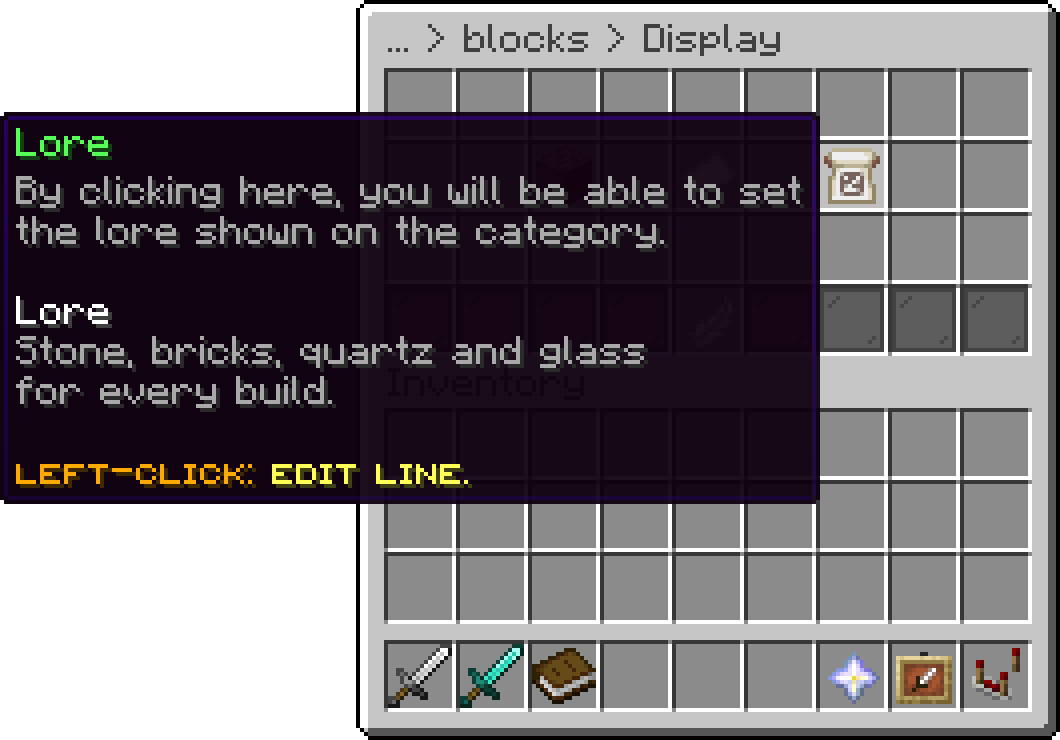
Display (Lore)
Prices every item of this category in another currency than the shop's. Items that set their own currency still use theirs. Left-click swaps between the currency types, starting at the shop's own, and right-click opens the chosen type to pick the currency. The types are listed on Currencies.
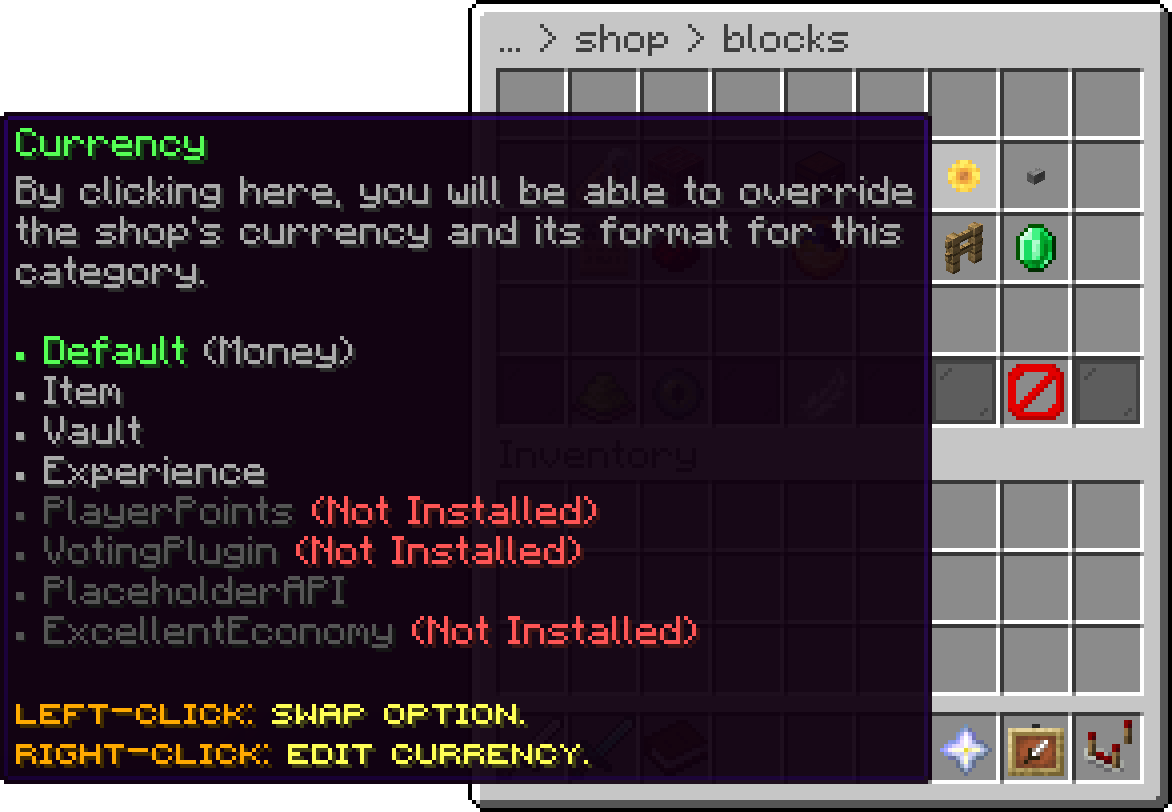
Edit Category (Currency)
This feature is only available with the Premium Plan.
How the prices of this category are written, with the same patterns as the shop's format. It is set from the right-click menu of the Currency option, also while the category keeps the shop's currency. Left empty, the shop's format is used. Items that set their own currency keep the shop's format.
A command of its own that opens this category directly, without the slash. Leave it empty for no command. It works like the shop's open command: adding a player's name opens it for them, and a command another plugin, shop or category already uses is skipped and the console says so.
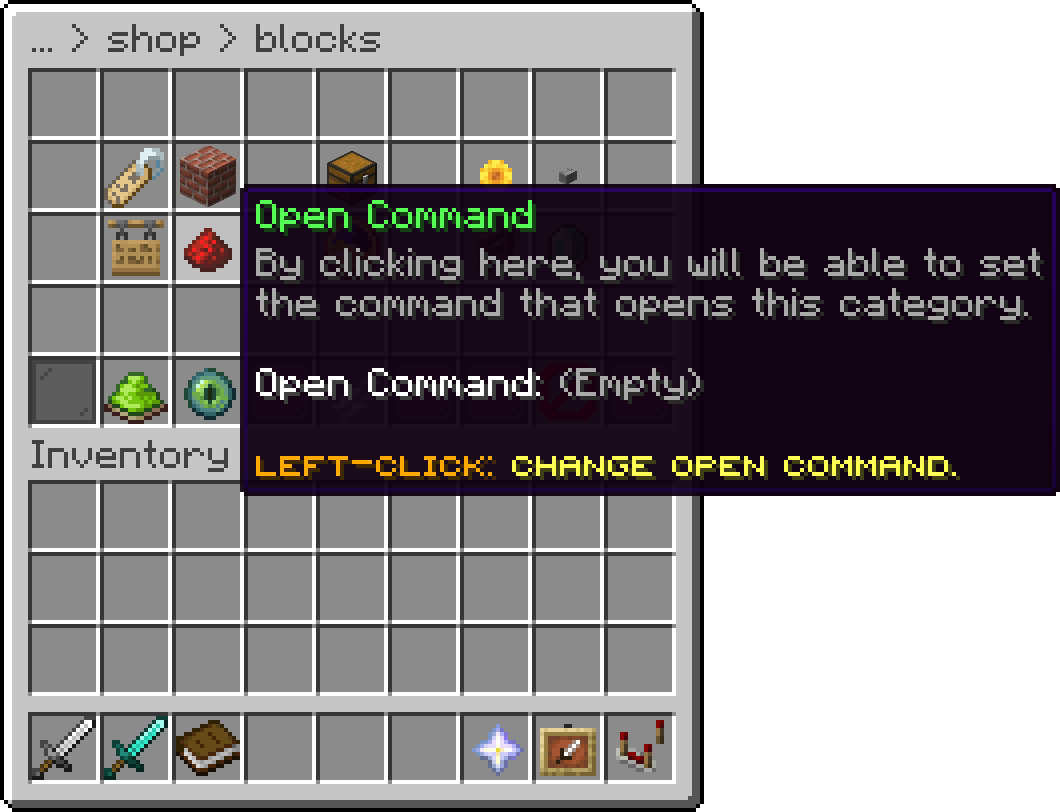
Edit Category (Open Command)
The shop's and the category's conditions are checked as on a normal opening, and a disabled category does not open. A hidden category still opens. The back button leads to the parent category, or to the shop's main menu.
A hidden category is left out of the shop's main menu and of search results, but stays reachable through its open command, /pshop open, the CATEGORY action and its parent category.
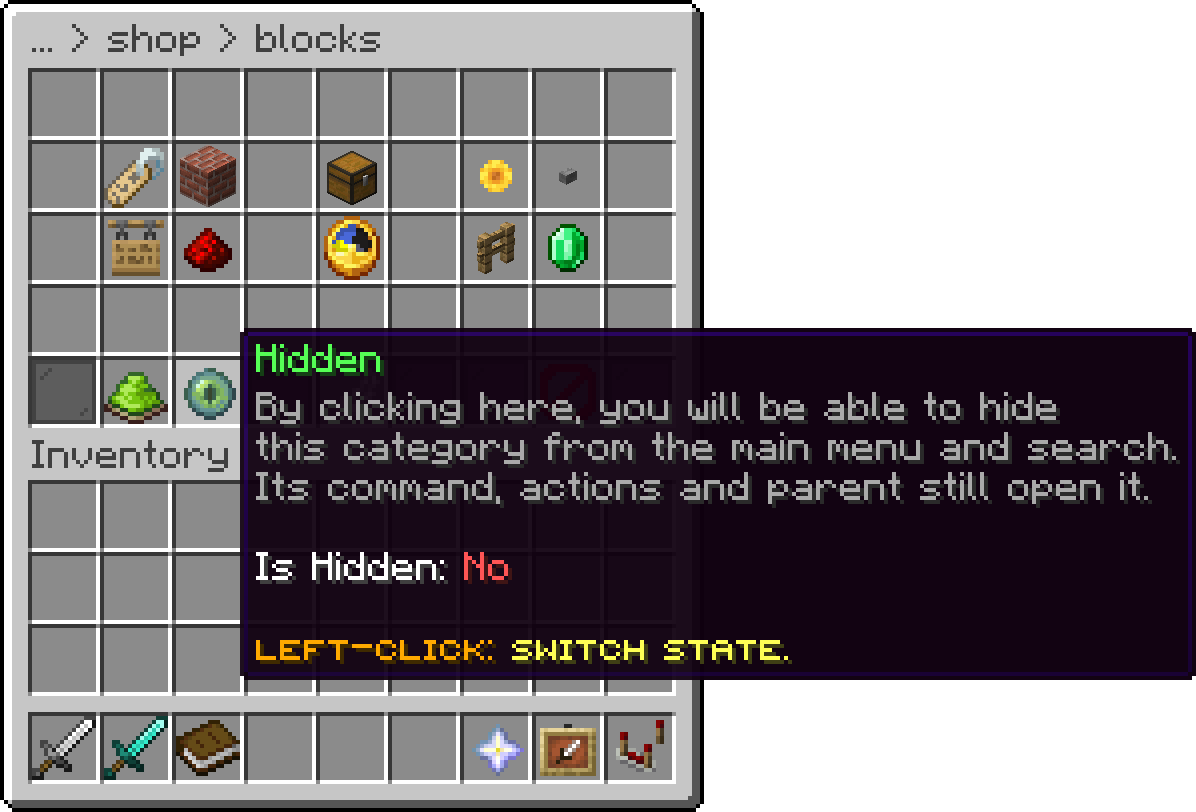
Edit Category (Hidden)
Places this category inside another category of the same shop instead of the main menu. Sub-categories are shown with their icon, name and lore at the start of the parent's item list, ordered by their order, and share its pages. Their back button returns to the parent, and they can be nested to any depth.
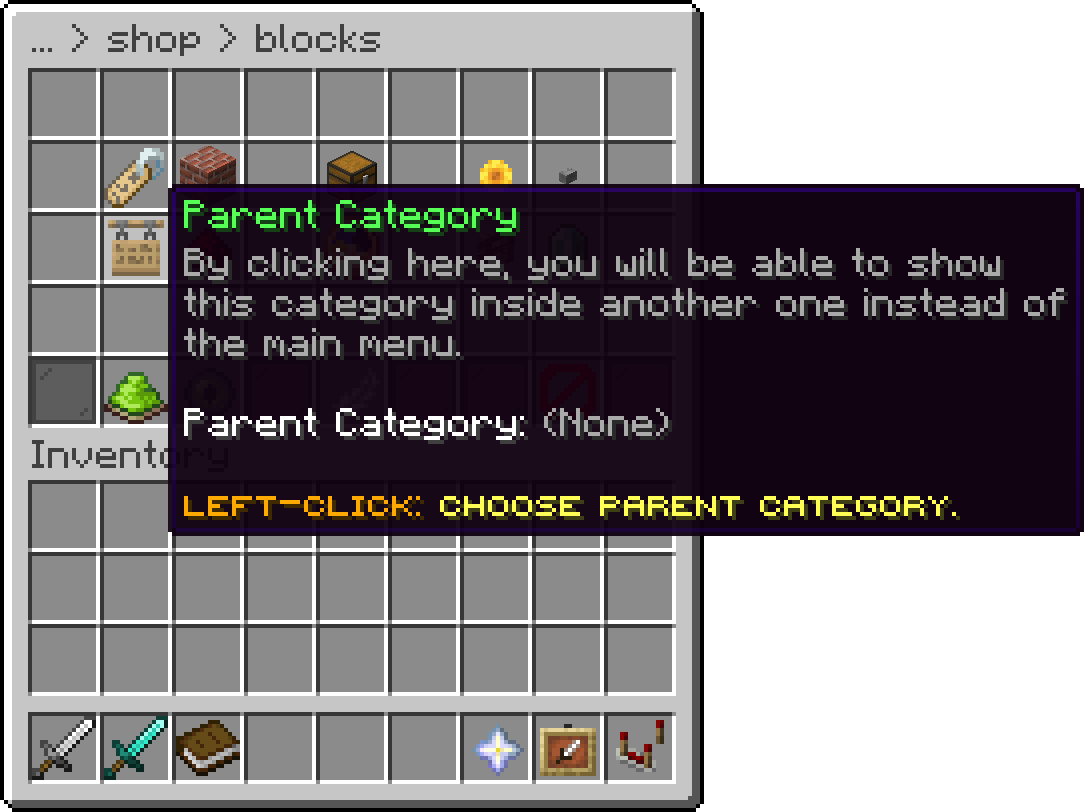
Edit Category (Parent Category)
The list only offers categories that would not make this one its own ancestor. A file that sets such a parent, or one that does not exist, is shown at the top level and the console says so. Deleting a category moves its sub-categories to the top level.
Opens the items of this category. The option shows how many there are. See Items.
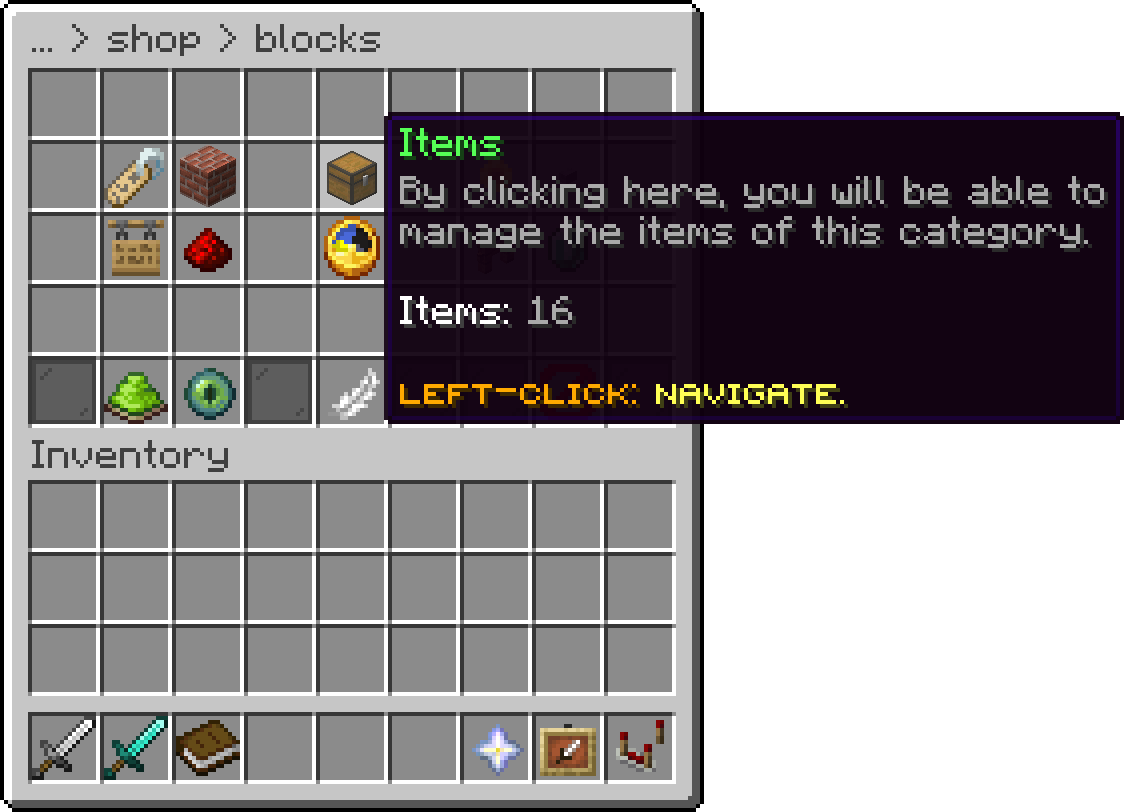
Edit Category (Items)
Lists of actions run at moments in this category, such as a message, a sound, a title or a command: Open and Close, Buy and Sell when a purchase or sale goes through, Deny when one is refused, Click when an item is clicked, and Previous Page and Next Page. In Buy, Sell and Deny, %item%, %amount%, %price%, %currency% and %balance% are filled in.
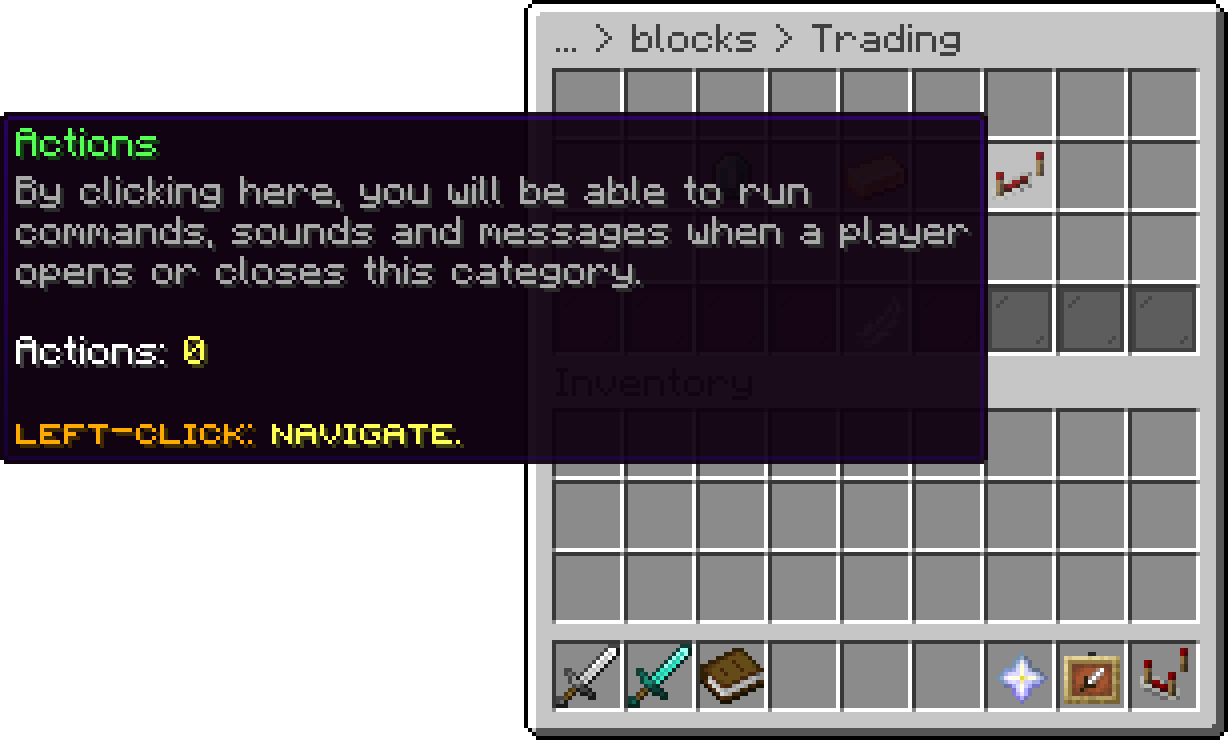
Trading (Actions)
Open runs when the player enters the category and Close when they leave it: closing the menu, going back, logging out or opening another category, a subcategory included. The buy, sell, bulk, confirm and preview screens of its items count as inside the category, so going into one and back runs neither.
Buy, Sell, Deny, Click and the page lists replace the shop's matching actions for this category. Leave one empty to keep the shop's.
This feature is only available with the Premium Plan.
What each click does on this category's items, such as Shift + Right-Click selling everything. Each click can be left on Default, which uses the global click mappings, or set to its own action.
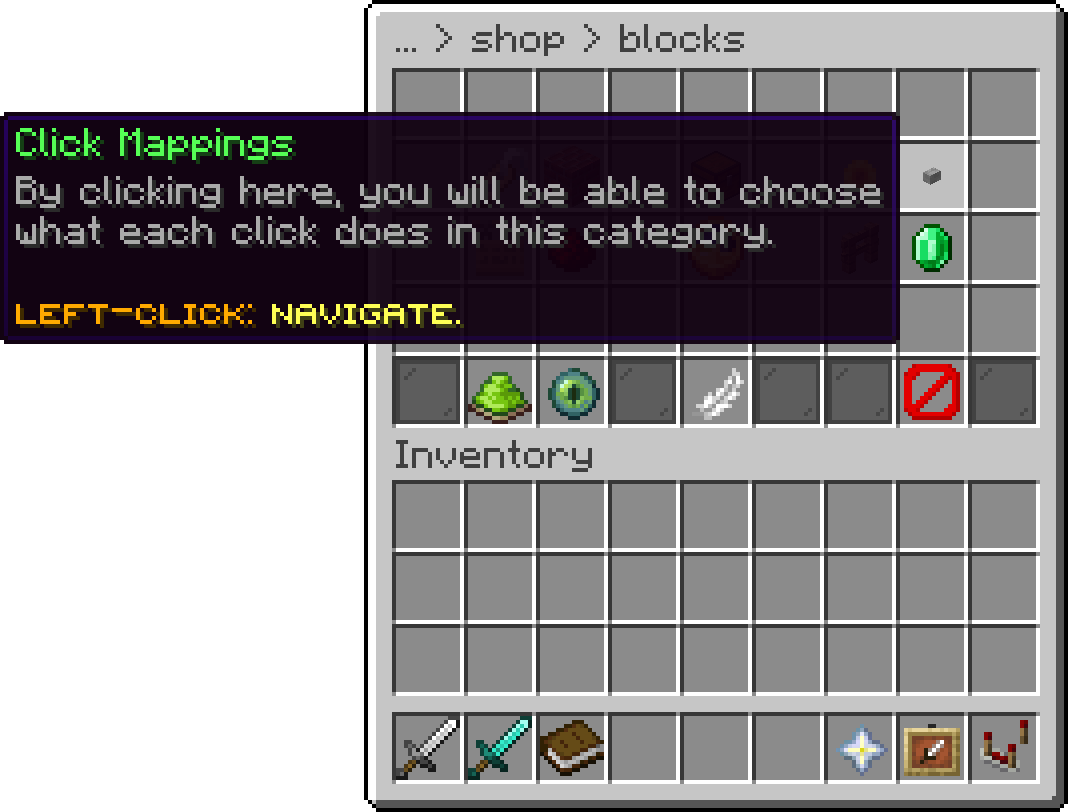
Edit Category (Click Mappings)
Who can open this category and buy or sell in it, with the same checks as the shop's conditions. A player who fails them gets the deny actions of the failed checks, or a message when there are none, whether they come from the main menu, search, a quick buy or sell command, a sign, a stand or an NPC. /sell and the other sell-everything features skip the category for them.
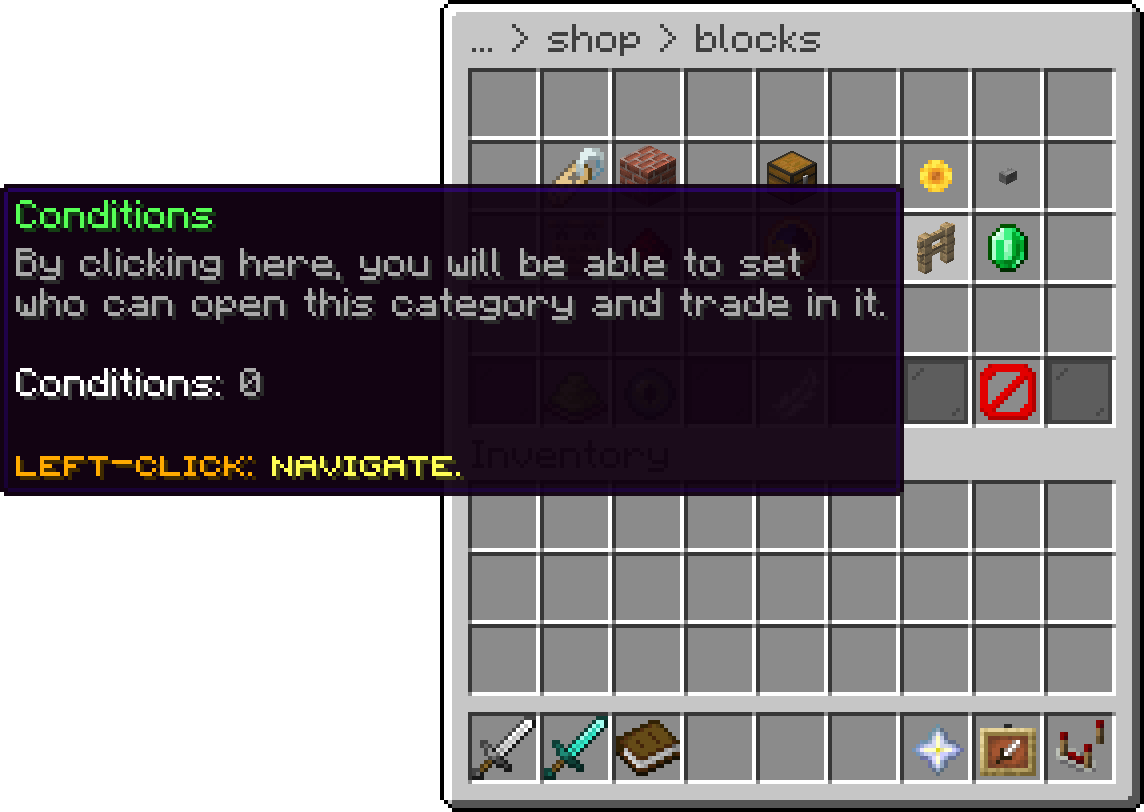
Edit Category (Conditions)
In the main menu a locked category is either shown with a locked line under its lore or hidden, depending on Locked Categories.
This feature is only available with the Premium Plan.
Makes this category show only some of its items at a time, picked again on a schedule. Turn Rotating on to start it, then set the rotation settings. Turning it off shows every item again and forgets the settings. Needs the Rotating Shop add-on.
Turns Buying and Selling on or off for this category, each ticked in the list. Right-click the highlighted one to switch it.
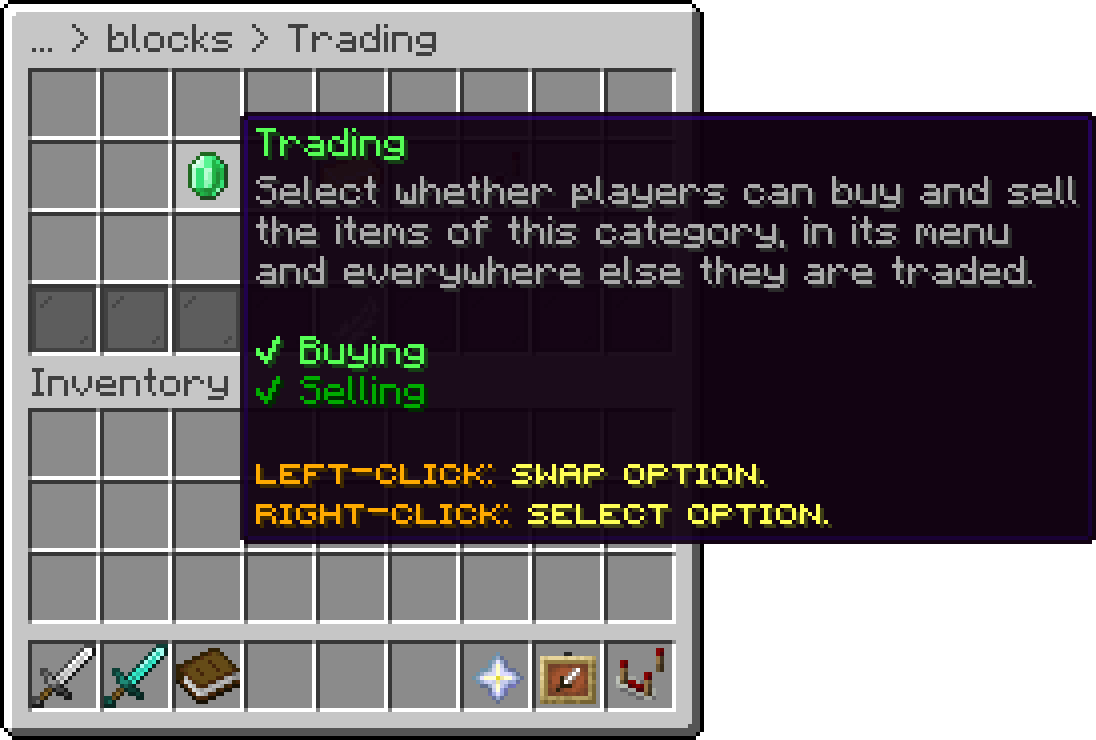
Trading
Turned off, nothing in this category can be bought anywhere: menus, quick buy commands, signs, stands and NPC trades all refuse, and the buy lines and buy click hints disappear from the items.
Turned off, nothing in this category can be sold anywhere: menus, quick sell commands, /sell, sell-all, sell wands, AutoSell, signs and stands all skip or refuse it, and the sell lines and sell click hints disappear from the items.
Takes a percentage off the buy price of every item in the category. The discount goes through the same price pipeline as price modifiers and stacks with them, so the struck-through price and every price placeholder stay correct. While this category has no running sale of its own, a shop-wide sale applies to it.
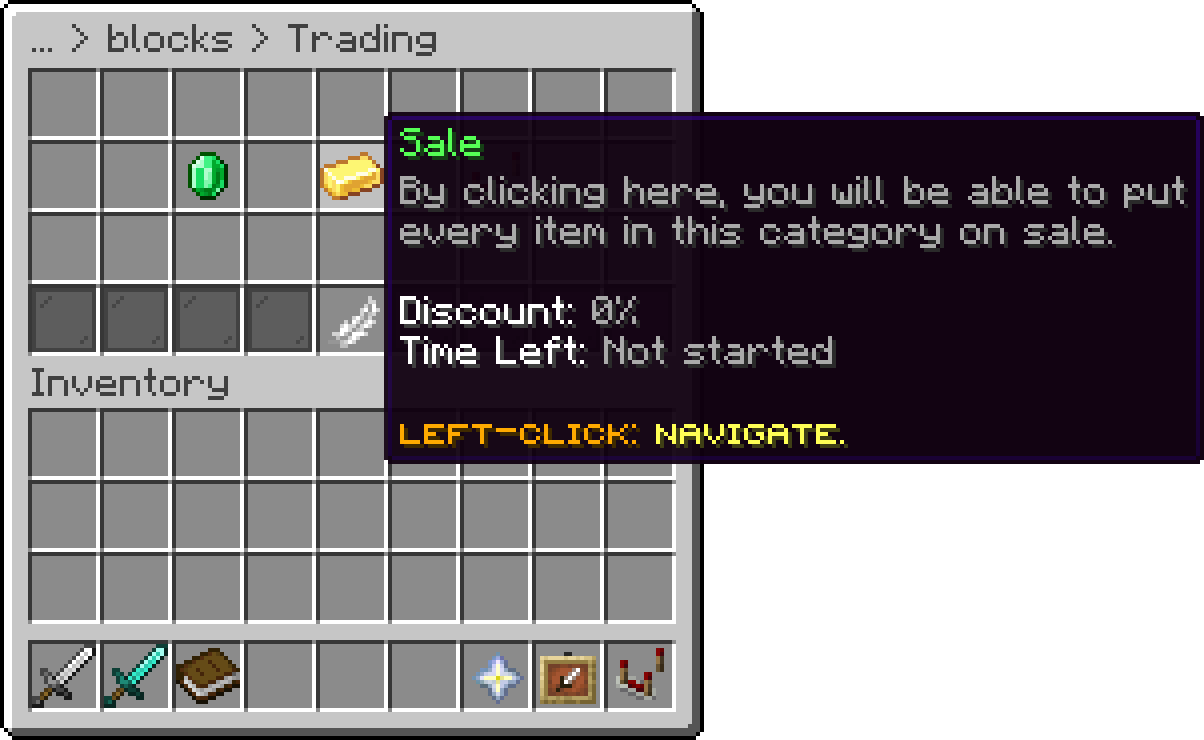
Trading (Sale)
The %sale% badge shows on discounted items and on the category's icon in the main menu while the sale runs. Under it, the icon counts down every second to the moment the discount stops: Ends, or the end of its day or time window, whichever comes first.
| Option | Description |
|---|---|
| Starts | When the sale starts. Not set starts it right away. |
| Ends | When the sale ends. Not set keeps it running. |
| Days | The days of the week it runs on. No day picked runs it every day. |
| Time Window | The time of day it runs between. An end before the start runs past midnight, so 22:00 to 02:00 is a night sale. Not set runs it all day. |
All four have to match for the discount to apply. Times use the server's clock and time zone.
Nothing on the Sale screen reaches players until Start Sale is clicked, so a sale can be set up in full before it goes live. Starting needs a discount above 0, and setting the discount back to 0 stops the sale. Stop Sale ends it at once and keeps every setting for the next start. The button, and the Sale button one screen up, show where the sale stands:
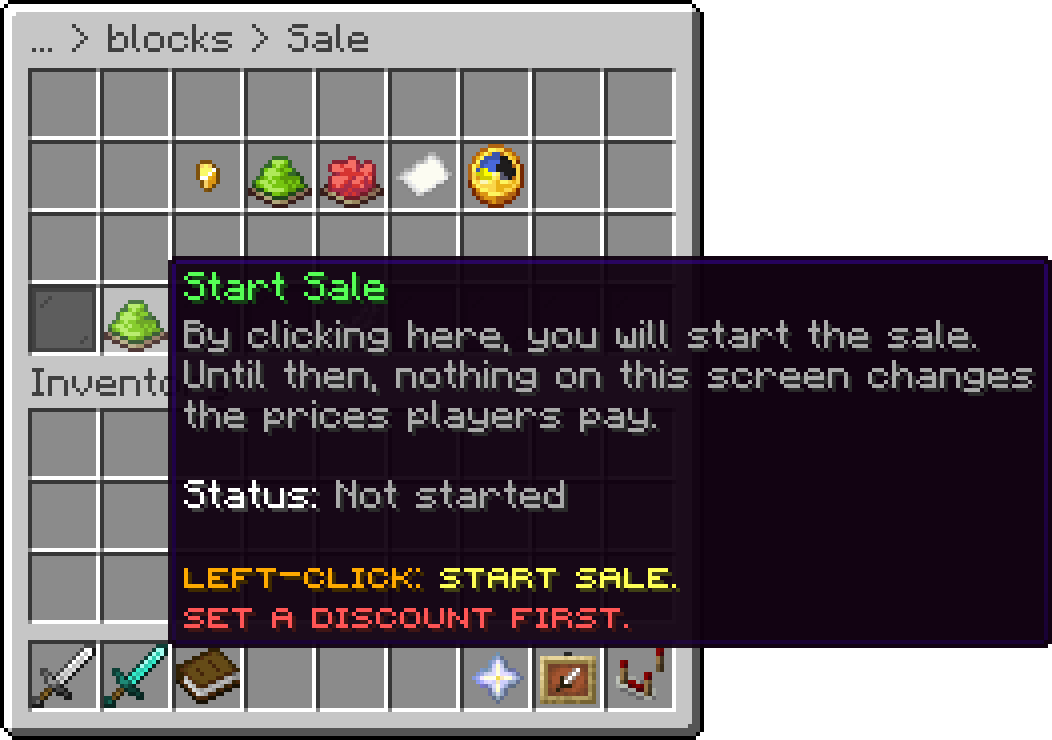
Sale (Stop Sale)
| Status | Meaning |
|---|---|
| Not started | The sale is stopped. |
| Starts in | Started, but before Starts or outside its Days and Time Window. Counts down to the next moment the discount applies, with its date. |
| Running | The discount applies right now. The Sale button one screen up counts down the time left instead. |
| No end | Running with no Ends, Days or Time Window to stop it. |
| Ended | Ends has passed, or no later moment matches. Move Ends or clear it to run the sale again. |
A sale saved before this button existed with a discount above 0 is started once on load, so it keeps running after an update.
Starts and Ends open a date picker with a button each for year, month, day, hour and minute. Left-click adds 1 and right-click takes 1 away; with shift held they move by 10 years, 6 months, 7 days, 6 hours or 5 minutes. Each part wraps around on its own, and the day is kept inside the length of the month, leap years included. Now picks the current server time, Clear removes the date, Confirm saves it and the back button leaves without saving.
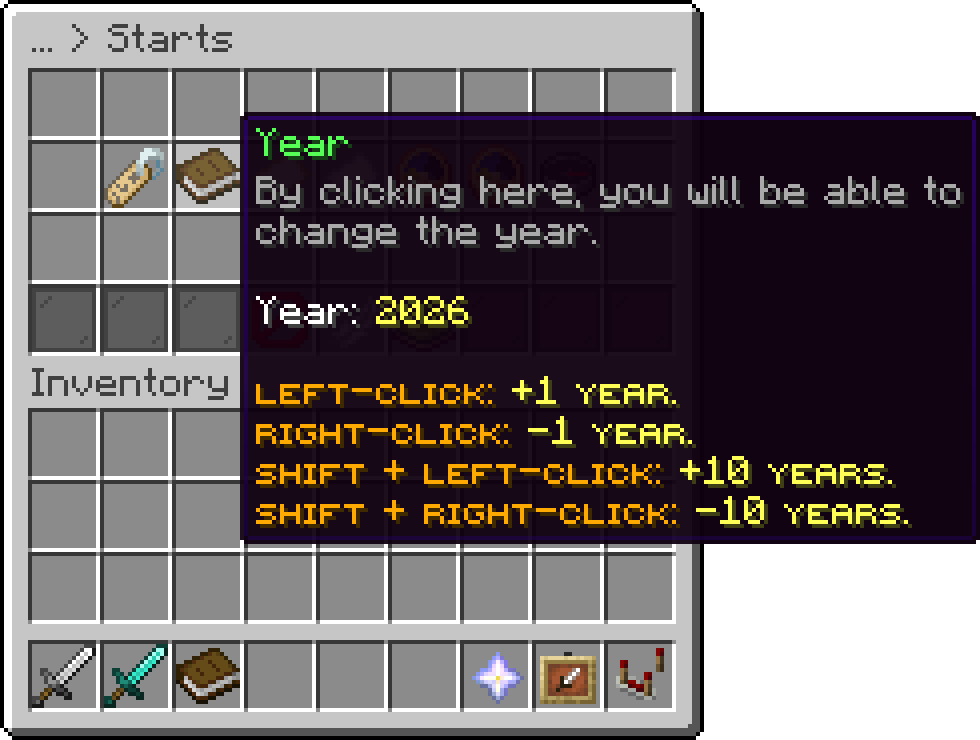
Starts (Year)
Time Window opens a screen with a Start and an End time picker, which work the same way with hour and minute only, and is saved once both are set. Days opens seven day toggles with buttons to turn every day on or off.
Right-click on any of these fields to type the value instead, as 2026-10-25 18:00, 18:00-22:00 or SATURDAY, SUNDAY.
This feature is only available with the Premium Plan.
A disabled category keeps its items but is hidden from the shop's main menu and its parent category, cannot be opened by command or action, and nothing in it can be bought or sold: /sell, sell wands, AutoSell and sign shops all skip it.
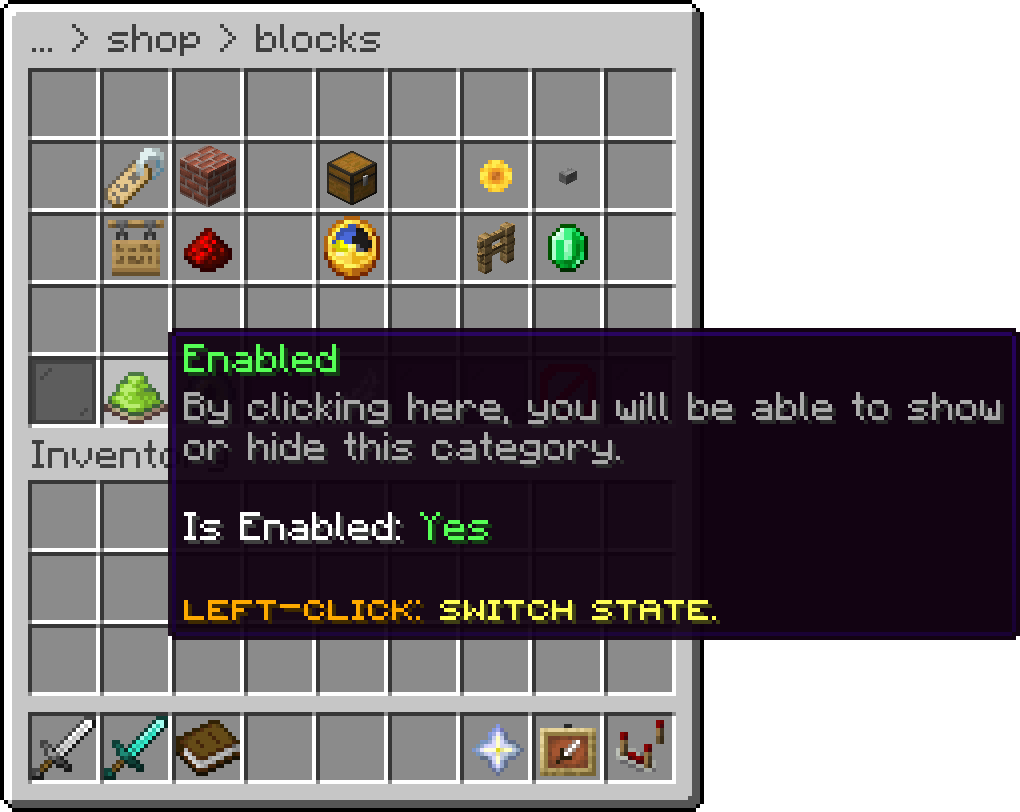
Edit Category (Enabled)
Deletes the category together with its file and all of its items, after a confirmation.
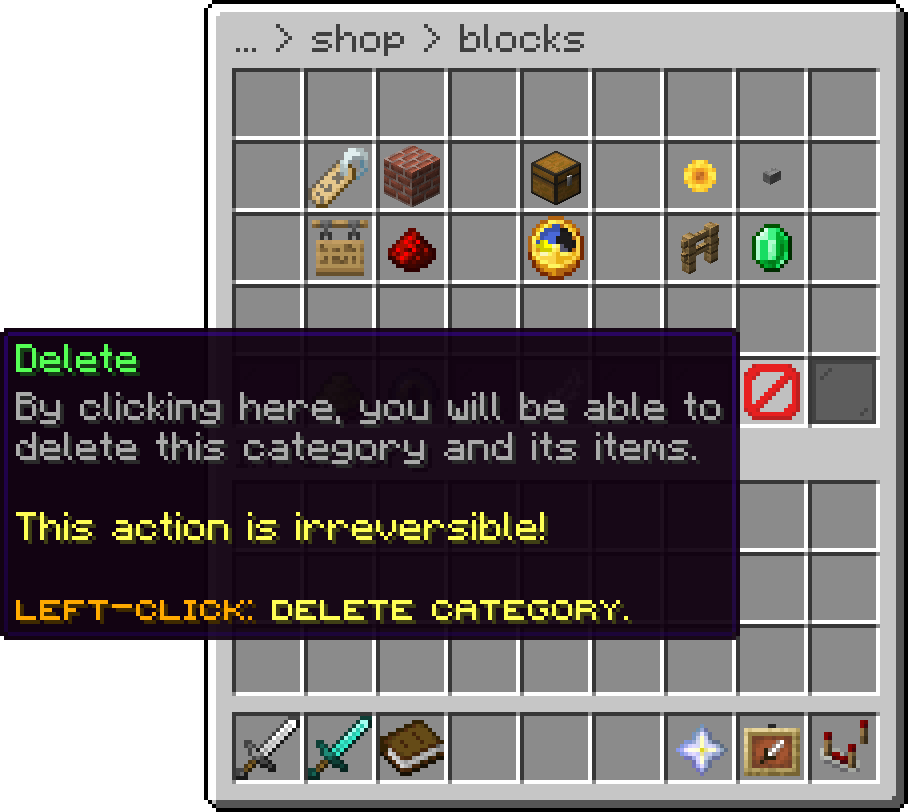
Edit Category (Delete)
This option is permanent, and categories can't be restored.
Your guide to the docs
Ask me anything about Phoenix Shop. I know these docs inside out, check the latest versions and changelogs, and can read your server logs.
Try asking
Your cart is empty
Looks like the spiders padded through here. Pick a plugin and it will show up here. Continue shopping