



Your cart is empty
Looks like the spiders padded through here. Pick a plugin and it will show up here. Continue shoppingOn this page, you will find all the information on how to add a key to the plugin.
Keys have their own category that you can easily access from the in-game editor to create and manage your existing keys.
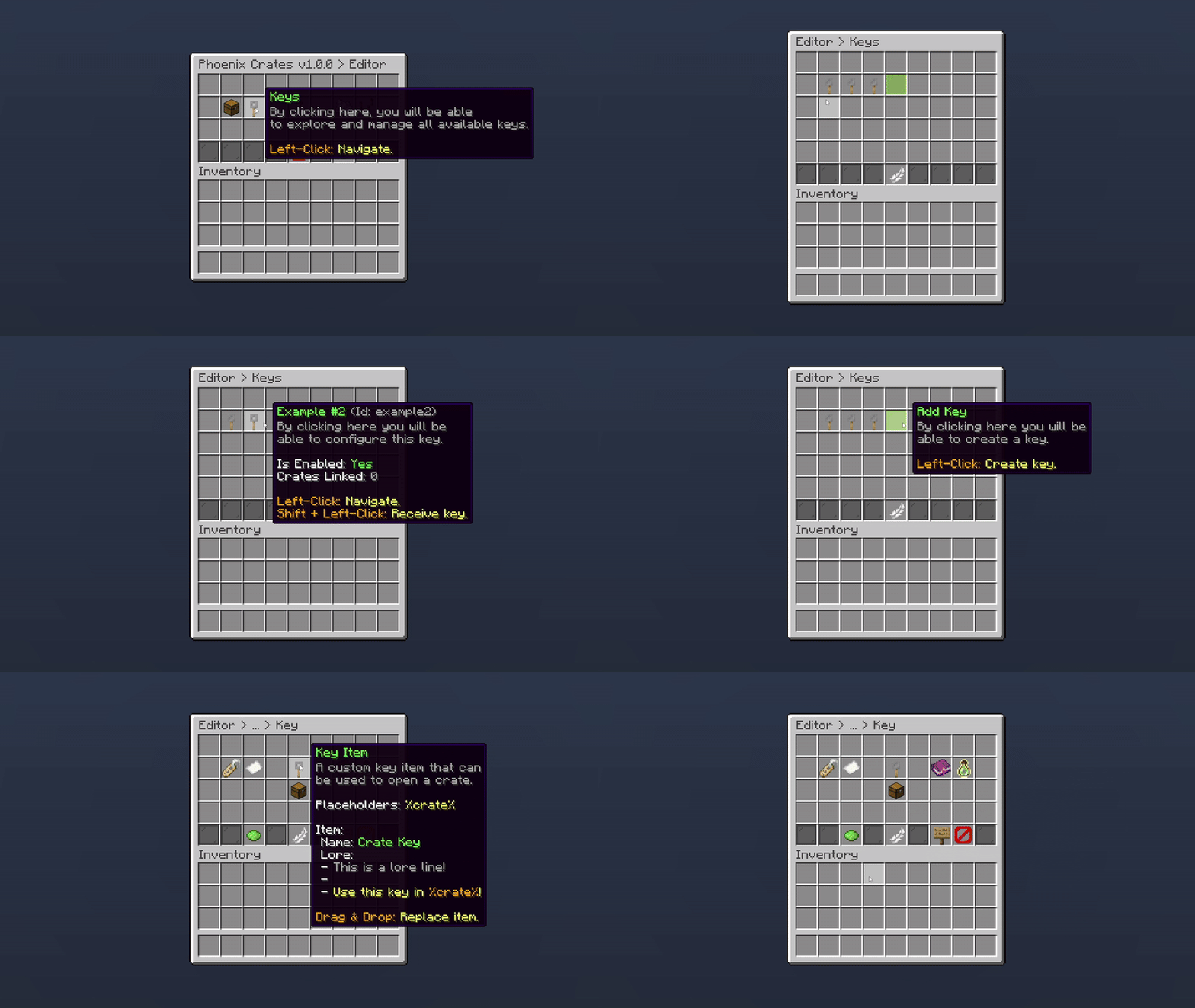
Editor > Keys
Our crate plugin offers a variety of features to let you customize your keys exactly how you want. It is highly versatile and easy to manage using our in-game editor.
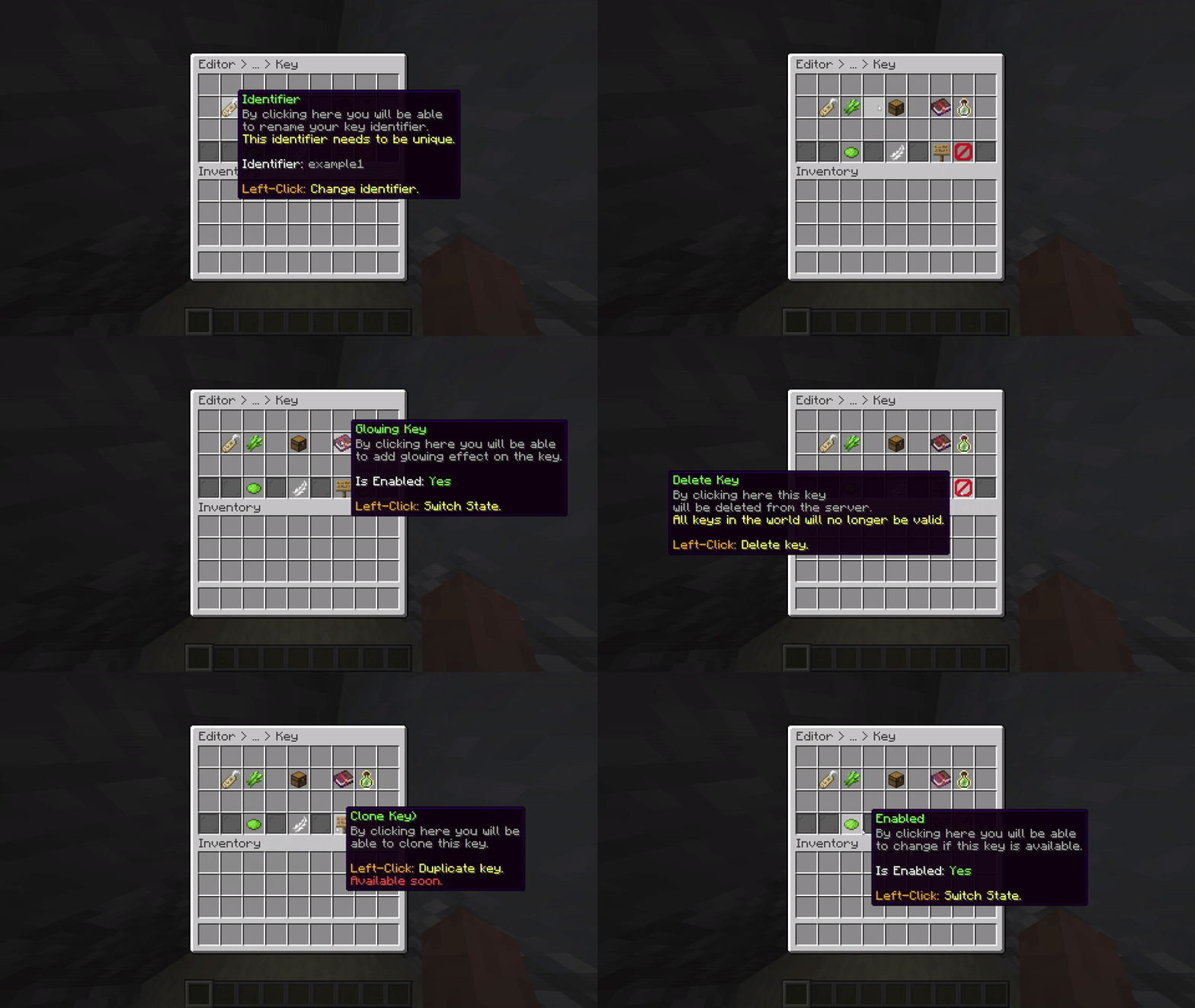
Editor > Keys
Click on the following features to be directed to their respective wiki pages.
From here, you can quickly navigate to a specific feature related to keys.
| Features | Description |
|---|---|
| Identifier | Set a unique ID for your key. |
| Display Name | Change the display name for the key. |
| Key Material | Set the item material for the crate. |
| Glowing Key | Make your key glow. |
| Virtual Key | Set the crate as virtual. |
| Link Crates | Link your key to a crate(s). |
| Enabled | Swap the status of the key. |
| Clone Key | Duplicate your key. |
| Delete Key | Quick Delete the key |
| Key Requirement (Selective Rewards) | The required amount of keys for a reward. |
| Key Priority | Arrange which key will get consumed first. |
| Link Keys | Link your crate to a key(s). |
| Key Rarity |
Your cart is empty
Looks like the spiders padded through here. Pick a plugin and it will show up here. Continue shopping