



Your cart is empty
Looks like the spiders padded through here. Pick a plugin and it will show up here. Continue shoppingKeys have their own category in the in-game editor, next to crates and rewards.
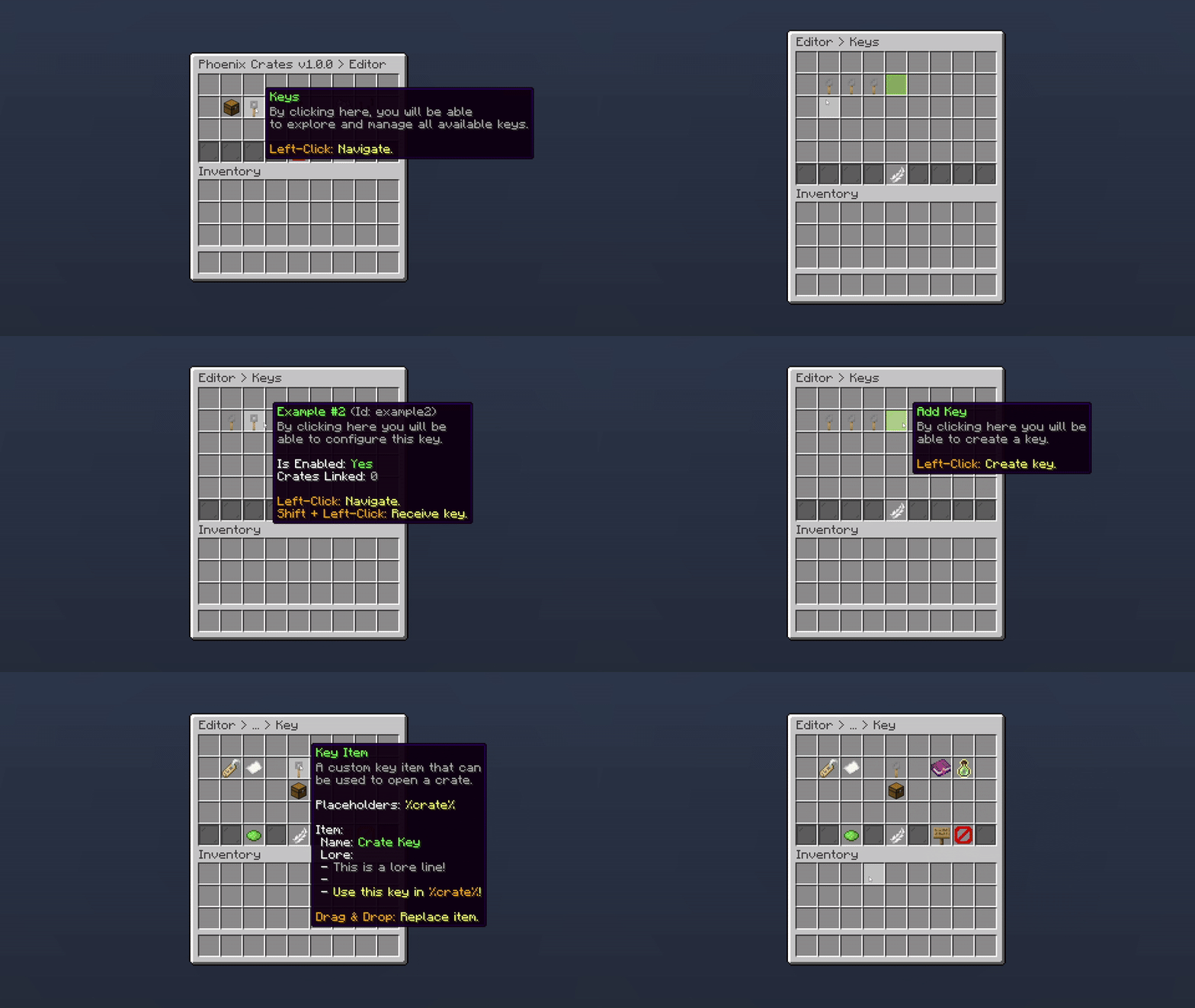
Editor > Keys
Key settings that live on the crate or reward side are documented there: Key Priority, Link Keys and the Key Requirement of selective rewards.
The unique ID the plugin uses internally. It is not the name players see.
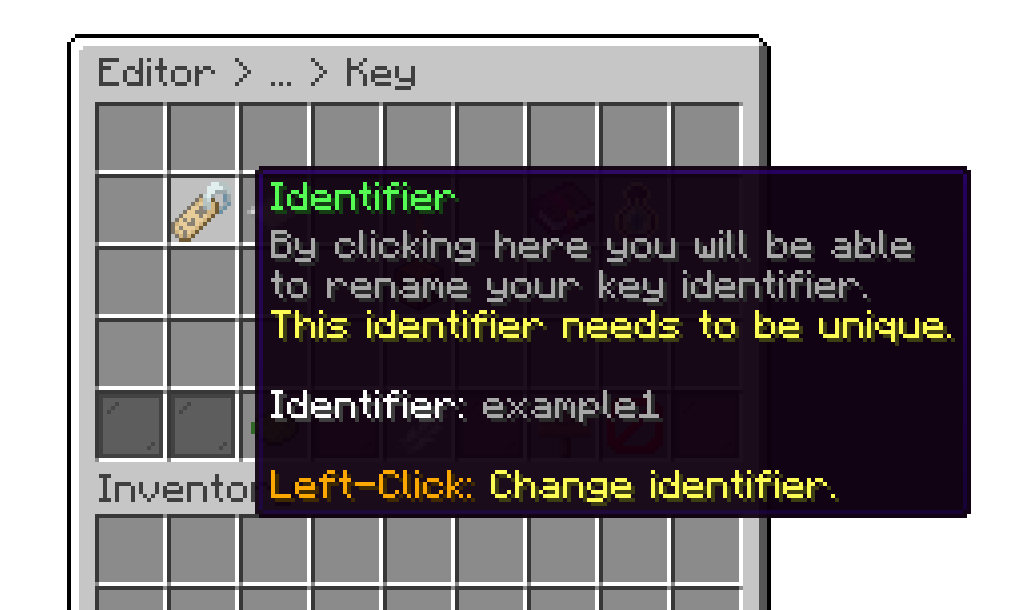
Editor > Keys > Key
Changing the identifier disconnects every player's progress tied to the key.
The name shown in messages when a crate is opened. Supports Minecraft color codes and hex colors in the &#D6D045 format.
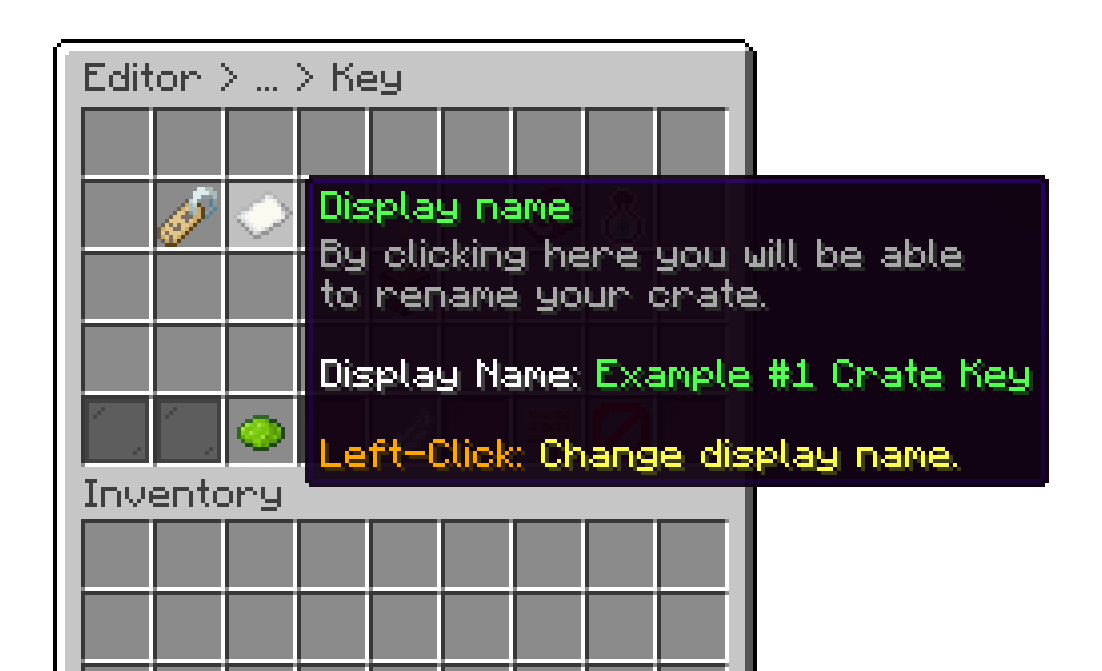
Editor > Keys > Key
The item used as the key, a Tripwire Hook by default. Drop any item on it to copy its material, name and lore. Keys players already hold keep working after the item is changed; only a new identifier breaks them.
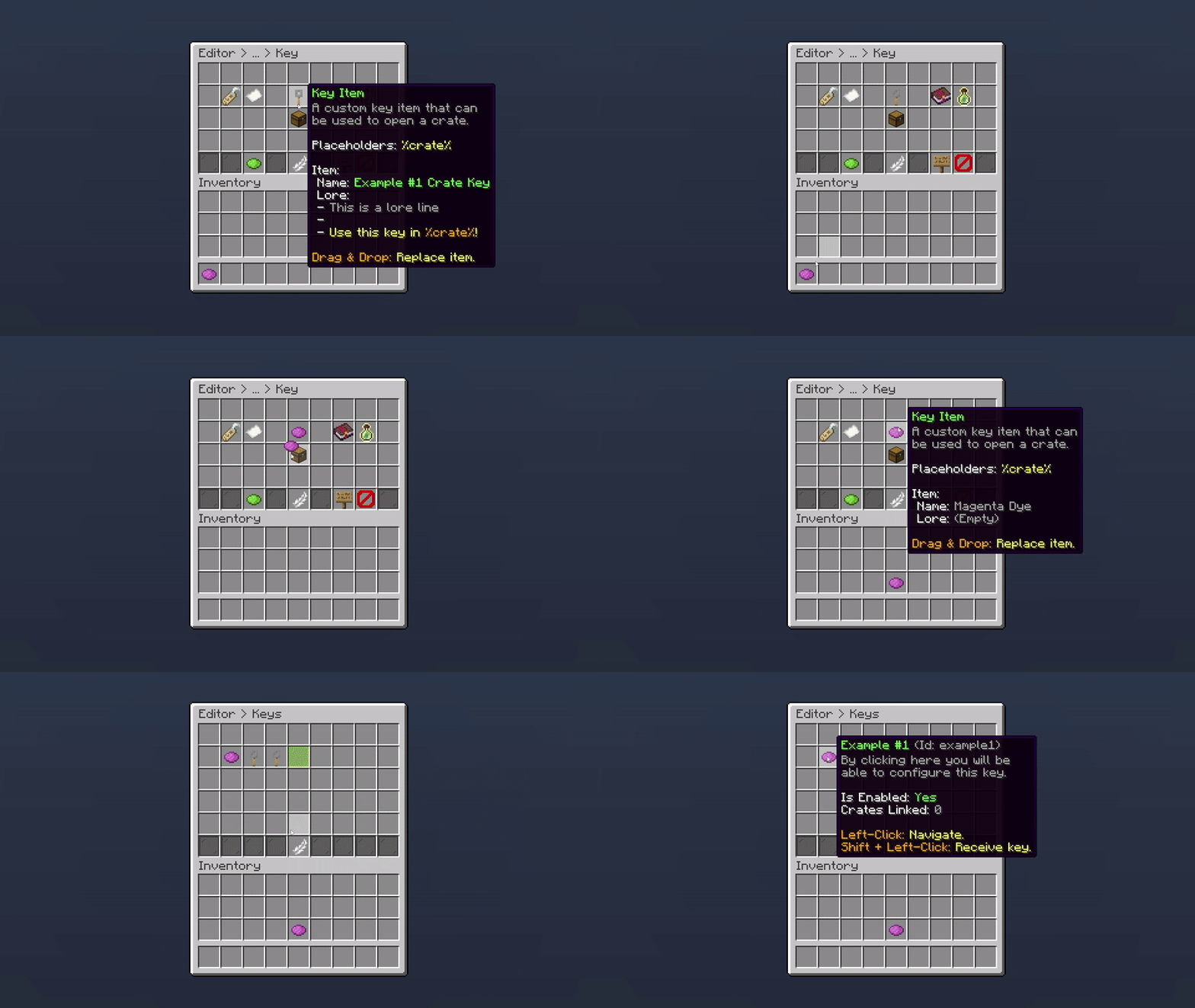
Editor > Keys > Key
Adds the enchantment glint by applying an enchantment with the hide enchantments flag.
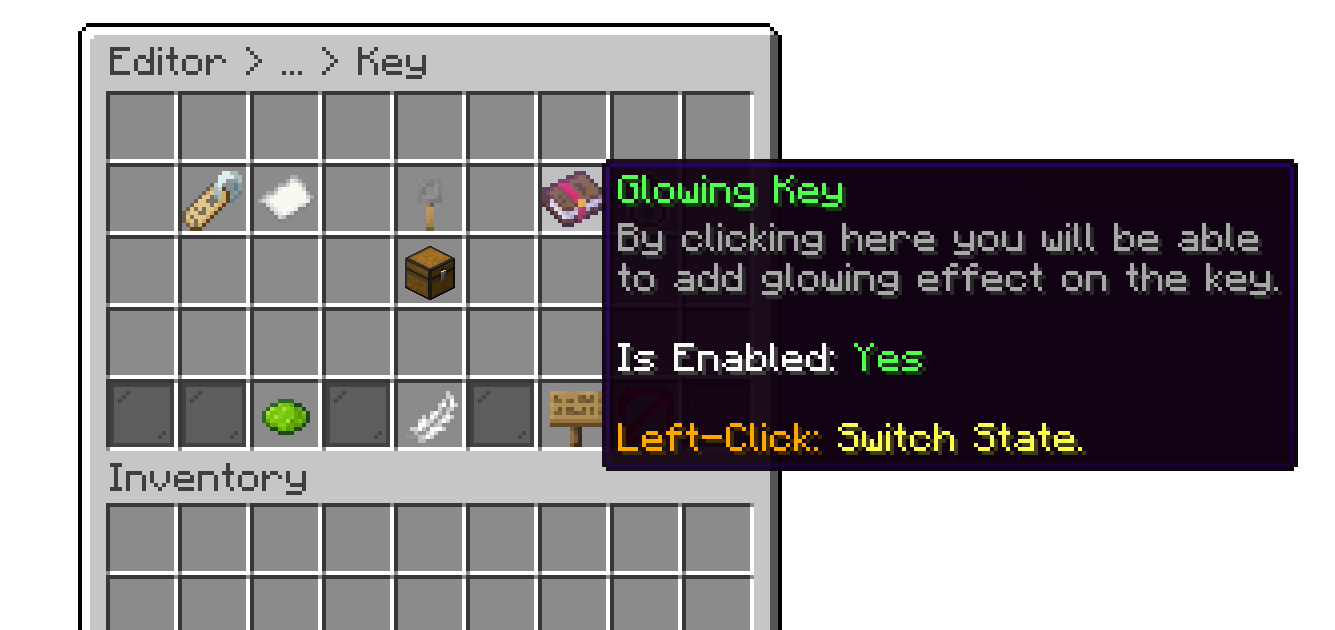
Editor > Keys > Key
Stores the key on the player instead of as an item, so it cannot be duplicated. When enabled, physical copies of the key stop working.
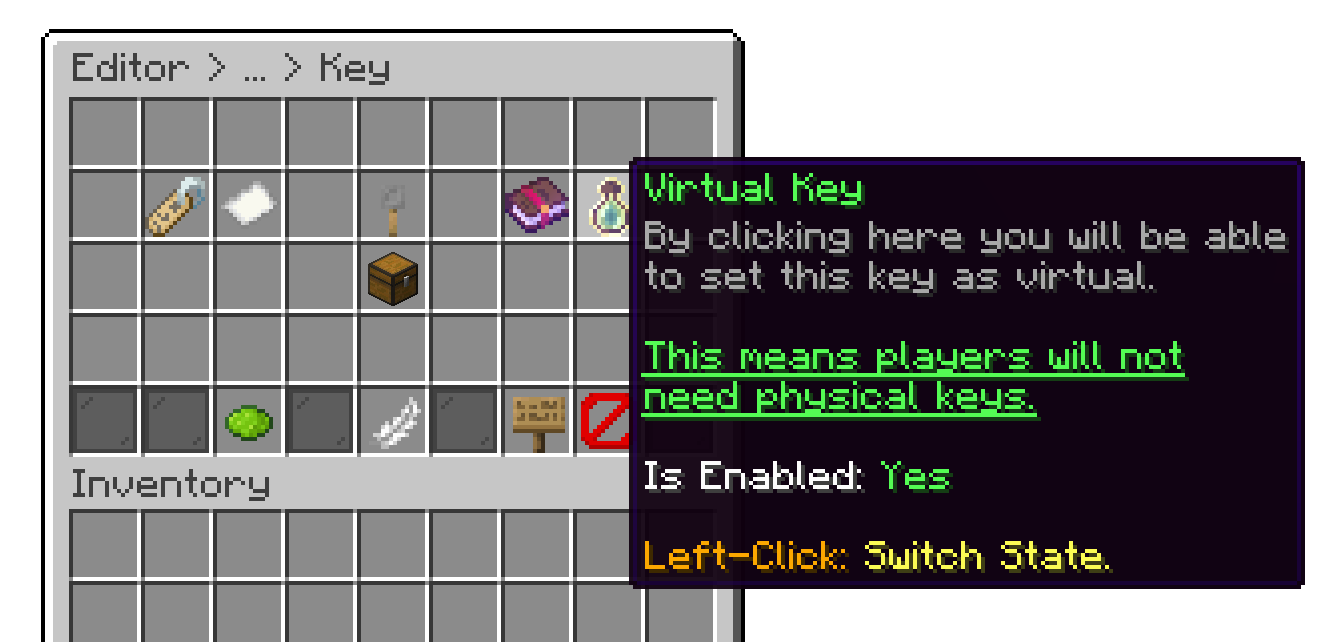
Editor > Keys > Key
Assigns rarities to the key so every opening with it gives a reward from one of them. Needs the Rarity add-on.
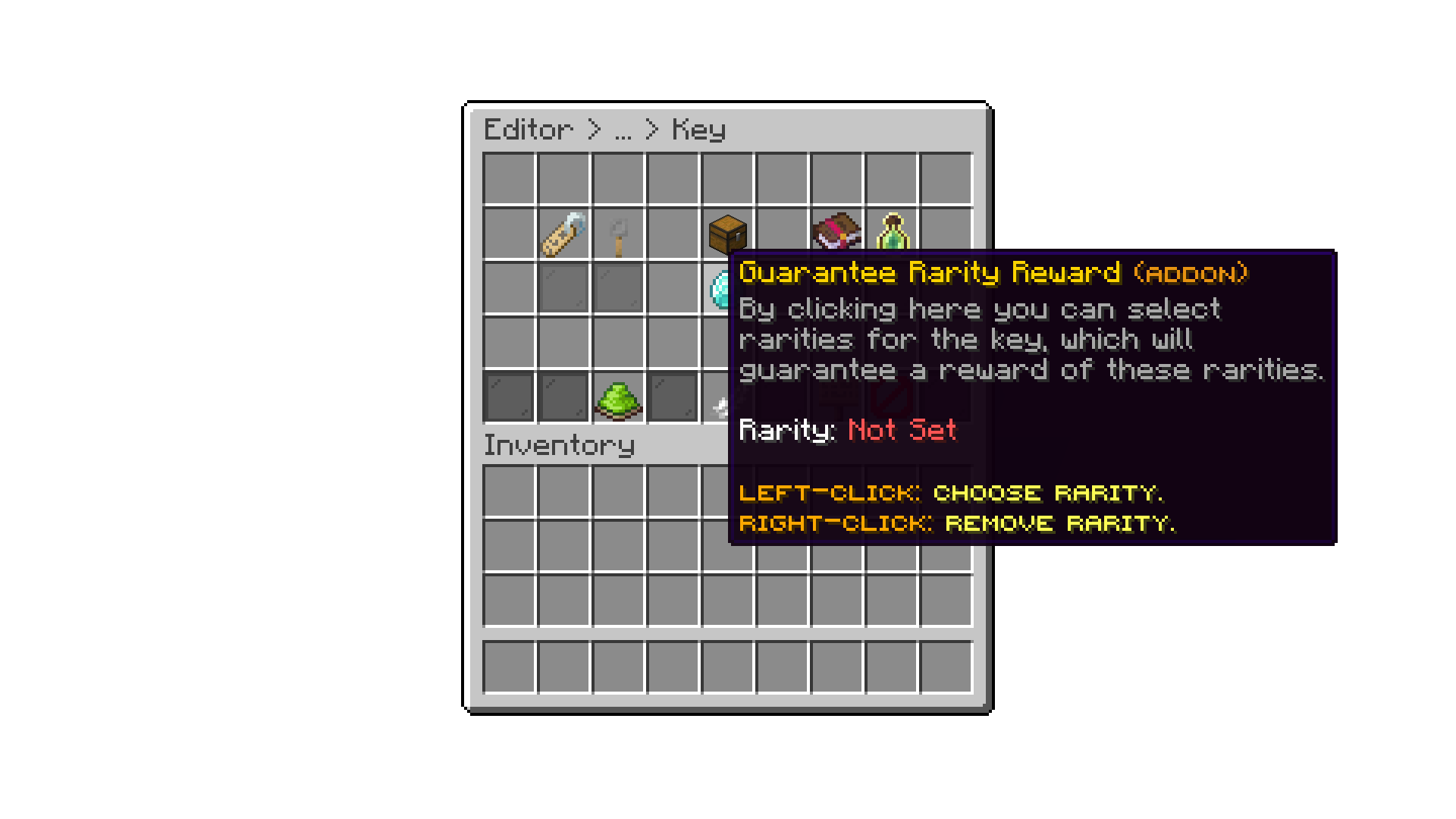
Editor > Keys > Key
A disabled key stays on the server but cannot be given or used.
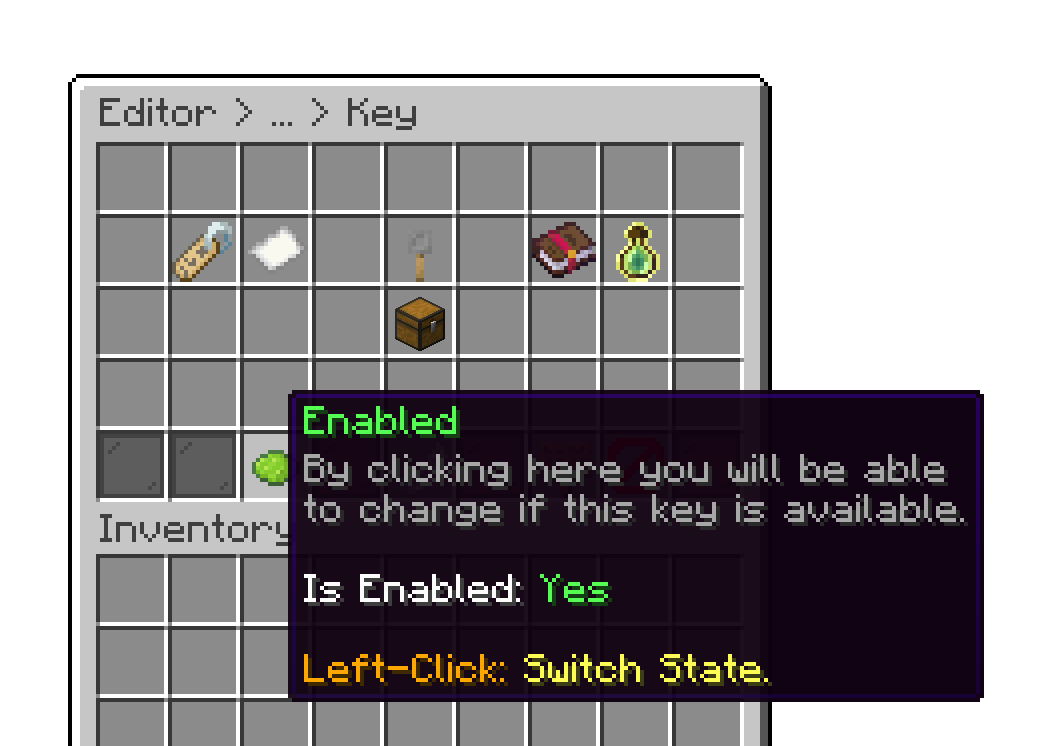
Editor > Keys > Key
Deletes the key after a confirmation menu.
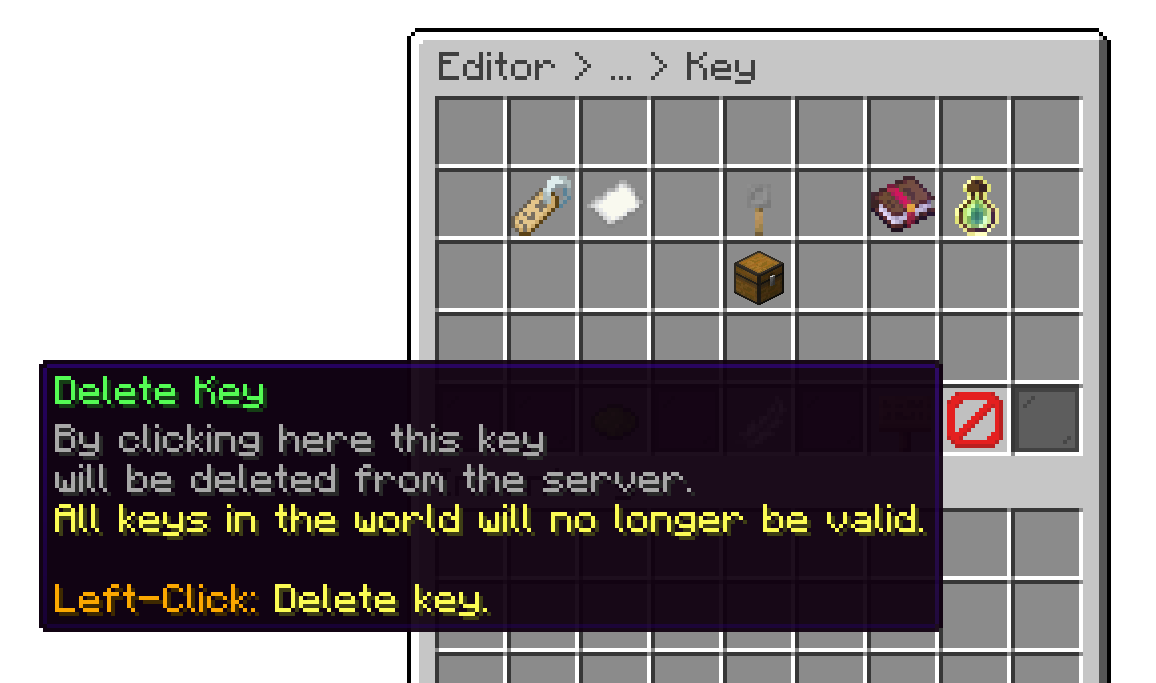
Editor > Keys > Key
Deleted keys cannot be restored.
Choose which crates this key opens. The same link can be made from the crate side with Link Keys.
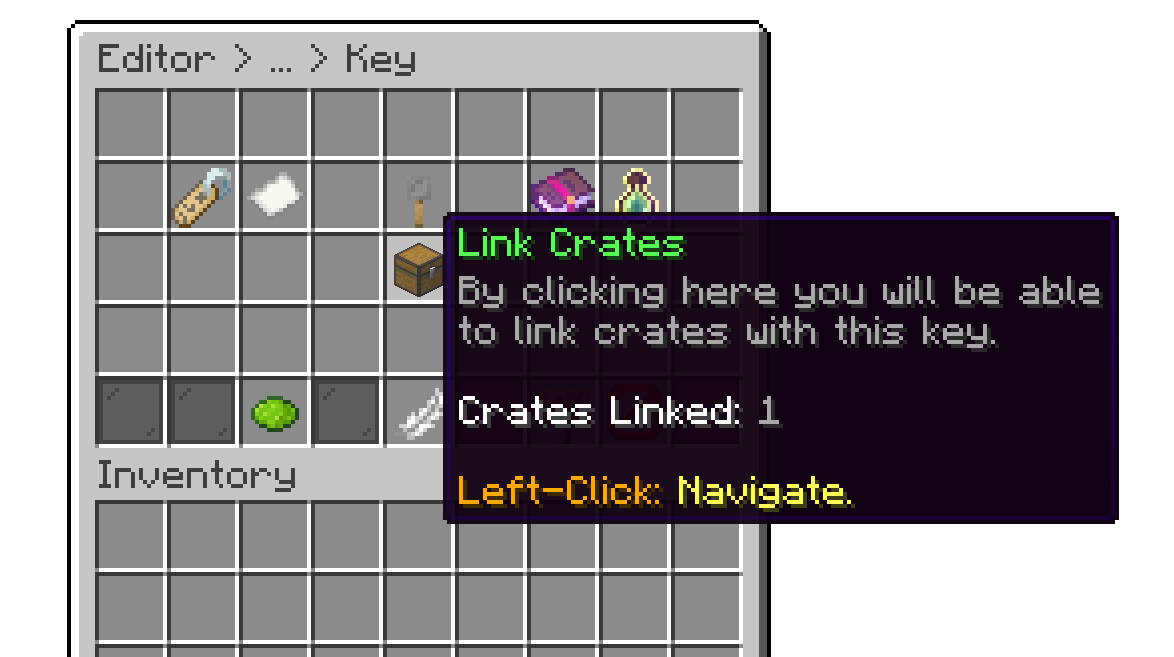
Editor > Keys > Key
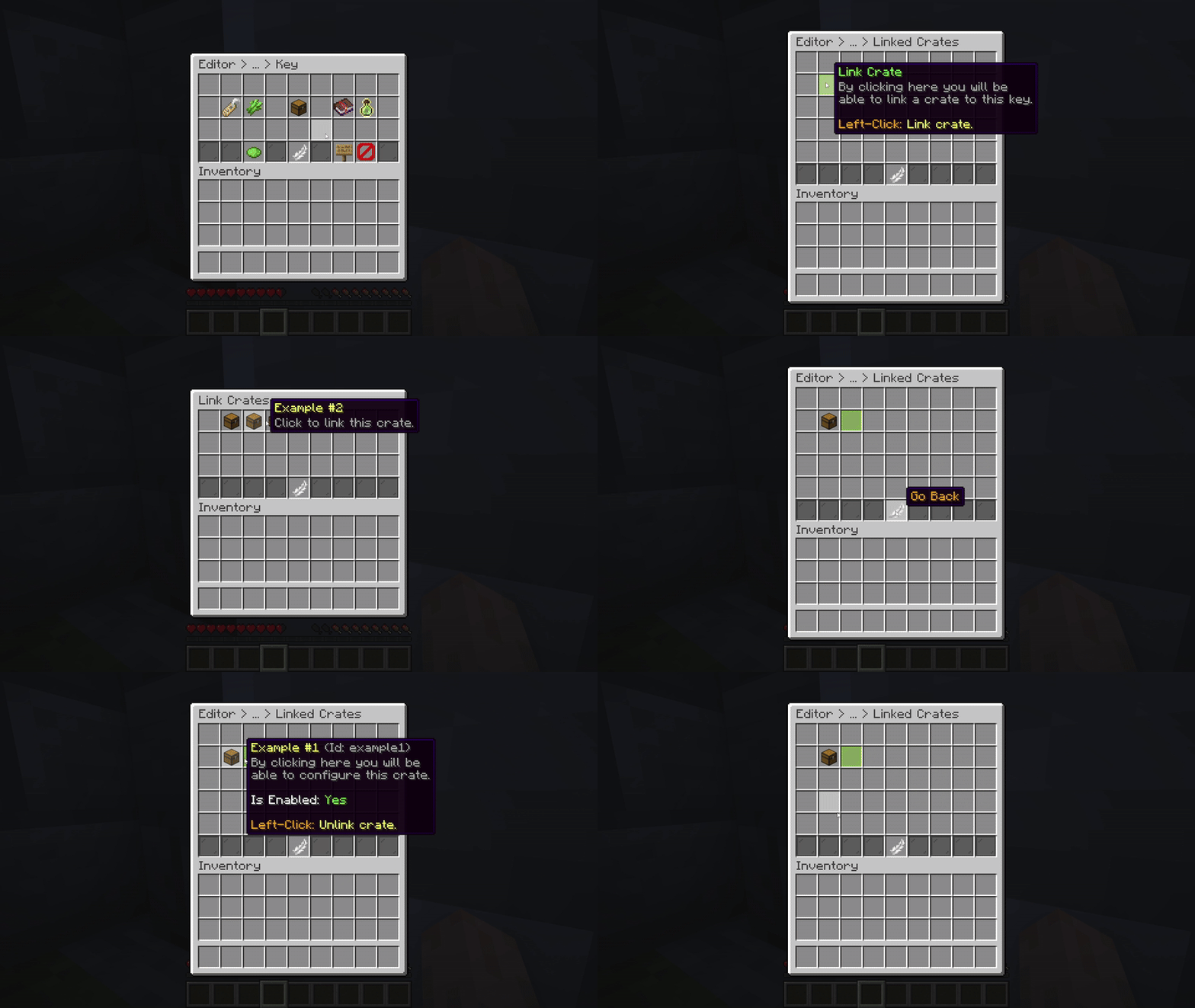
Editor > Keys > Key > Link Crates
Your guide to the docs
Ask me anything about Phoenix Crates. I know these docs inside out, check the latest versions and changelogs, and can read your server logs.
Try asking
Your cart is empty
Looks like the spiders padded through here. Pick a plugin and it will show up here. Continue shopping