Oops... looks like the spiders padded through here
Add products to your cart and remove them from here Lets buy

On this page, you will find all the information about the hologram displayed above a crate.
Every crate can show a hologram floating above it. Phoenix Crates has its own built-in hologram system, so it does not depend on any external plugins, and everything about it belongs to the crate itself, which means two crates can look completely different.
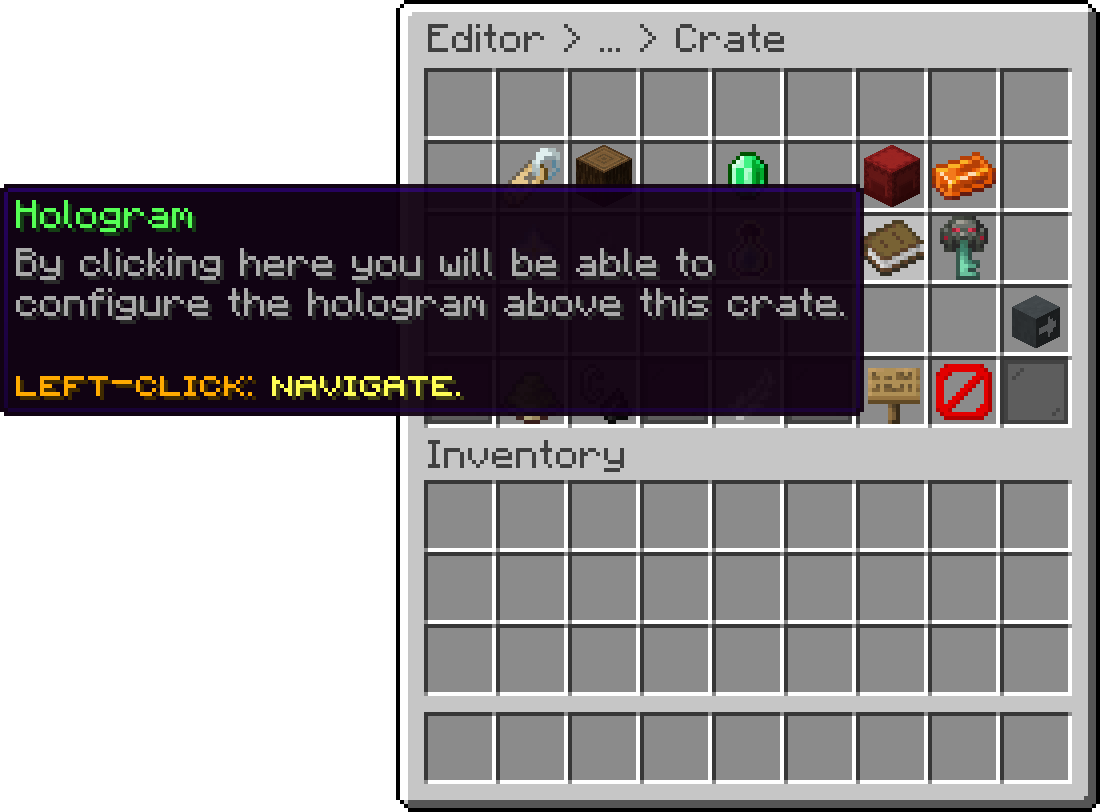
Editor > Crates > Crate
The lines are the text shown above the crate. Clicking them opens a menu with every line at once, where you can write, reorder and remove them together, then confirm to apply them all.
Alongside PlaceholderAPI placeholders, the lines understand %name% for the crate's display name, %cooldown% for the player's remaining open cooldown, and %virtual_keys% for how many virtual keys they hold for this crate.
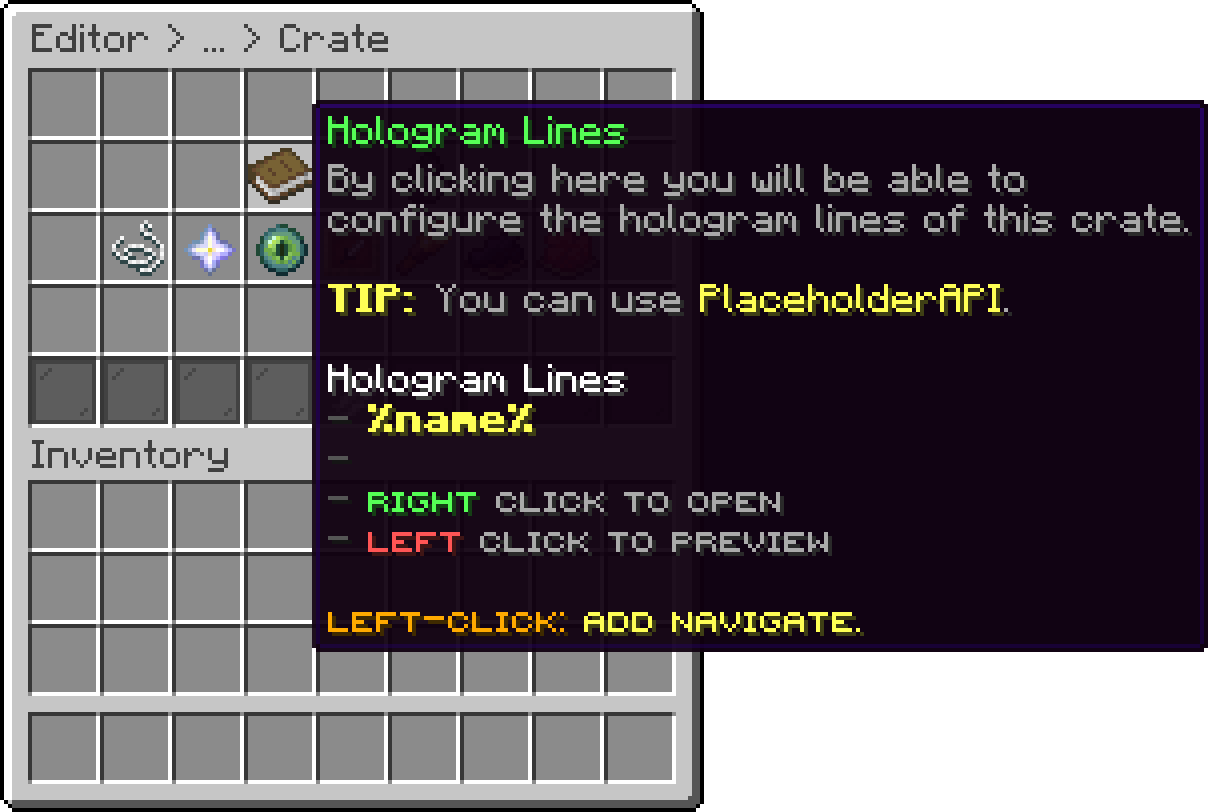
Editor > Crates > Crate > Hologram
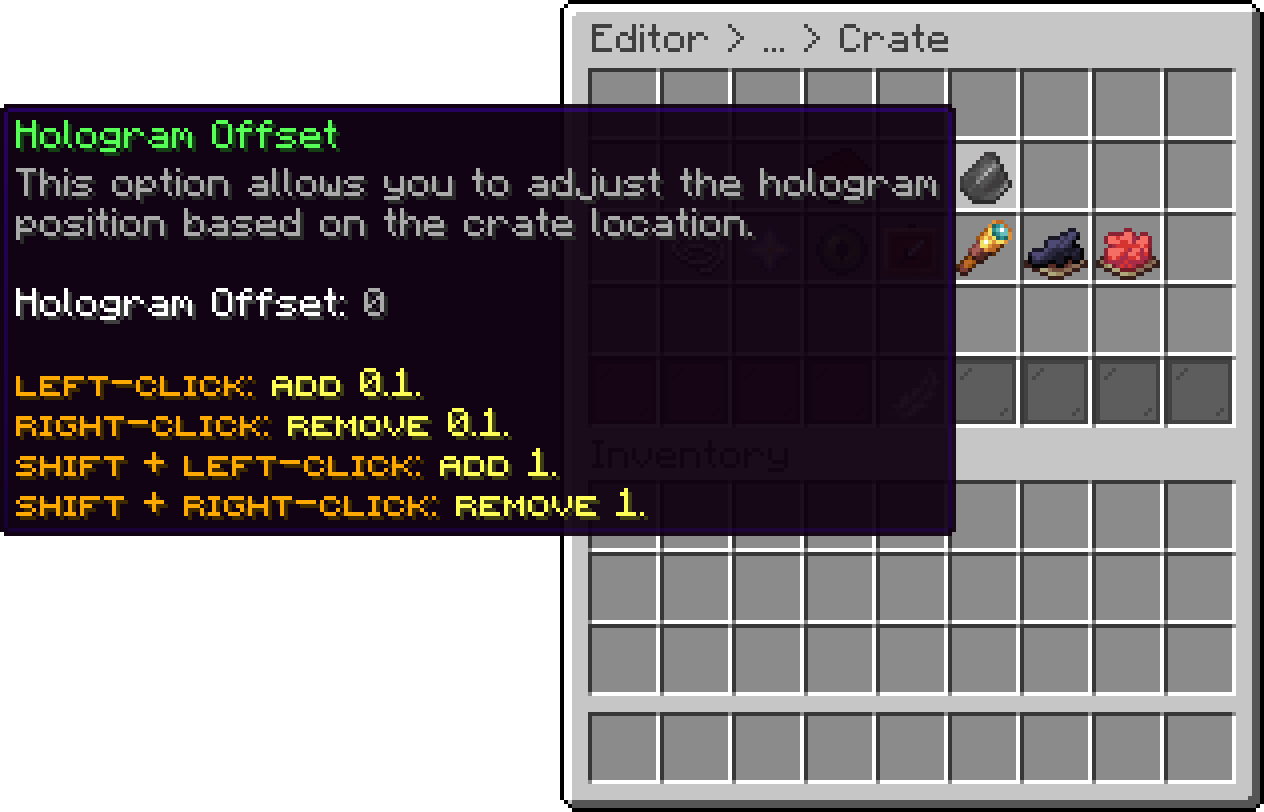
The offset is the height of the hologram above the crate.
Editor > Crates > Crate > Hologram
Turning on the Preview Reward raises the hologram by 0.75 blocks so the two do not overlap, which this offset can bring back down.
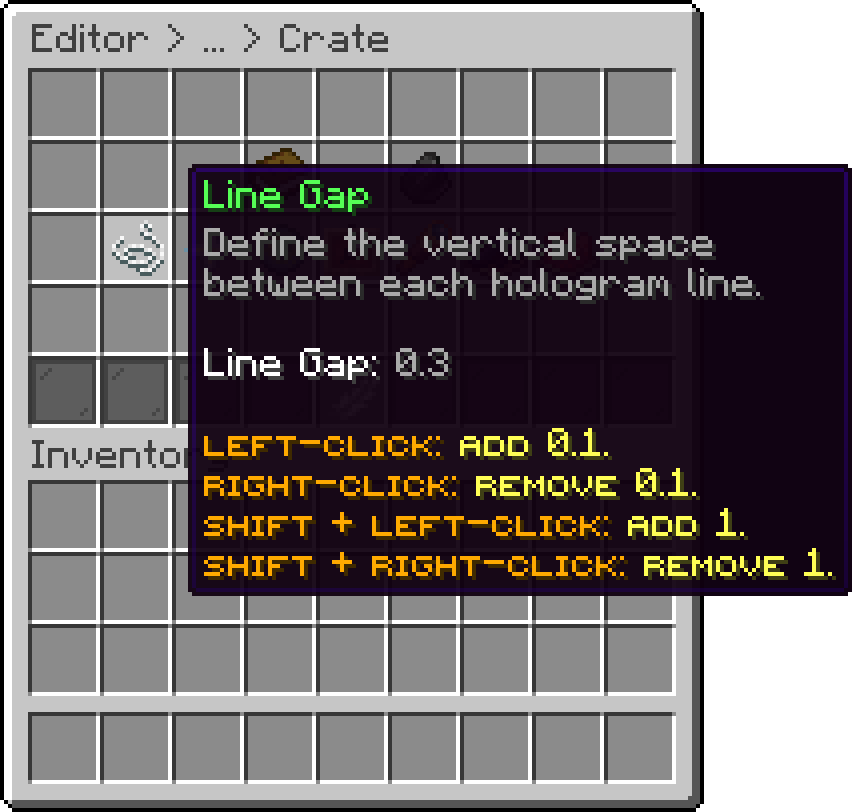
The line gap is the vertical space between two lines. A smaller value packs the lines closer together.
Editor > Crates > Crate > Hologram
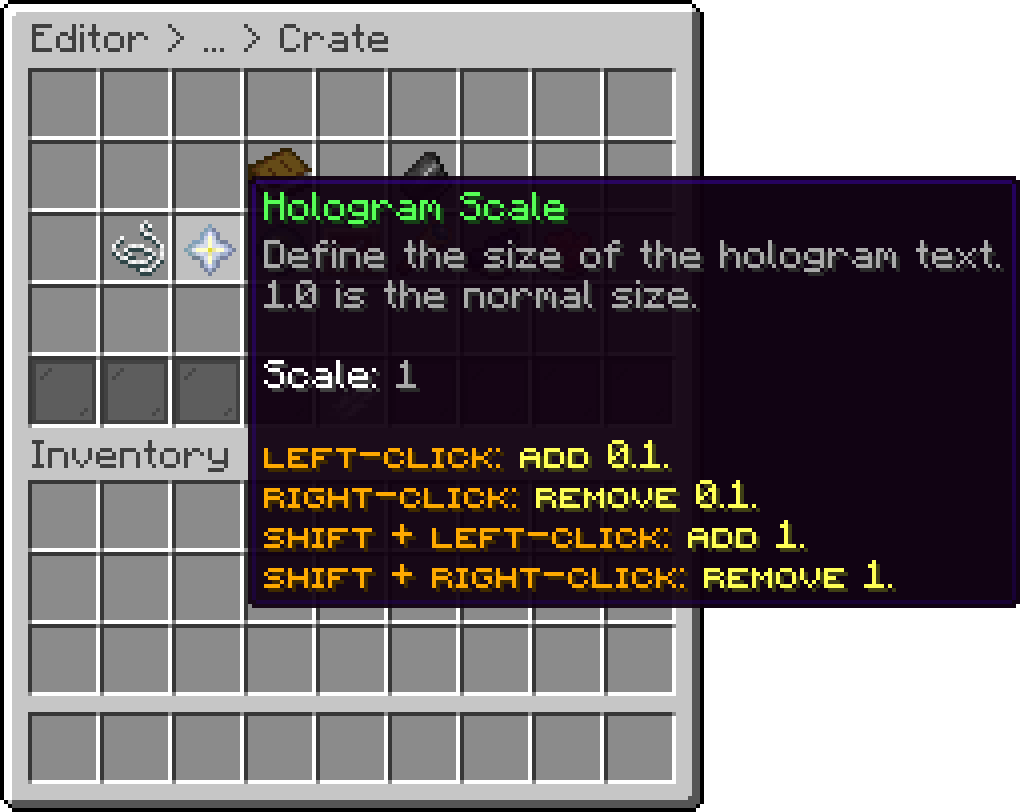
The scale is the size of the text, where 1.0 is the normal size.
Editor > Crates > Crate > Hologram
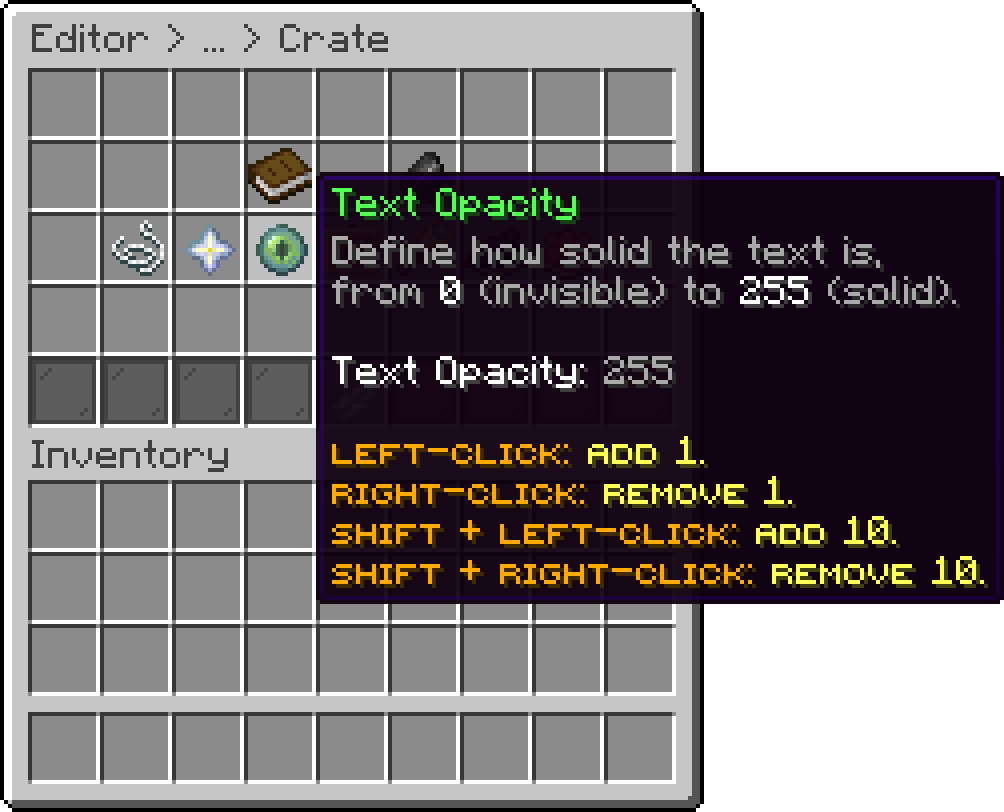
The opacity decides how solid the text is, from 0 (invisible) to 255 (solid).
Editor > Crates > Crate > Hologram
The billboard decides how the hologram rotates to face the player.
| Mode | Behaviour |
|---|---|
| Center | Follows the player on every axis. This is the default. |
| Vertical | Follows the player sideways only, staying upright. |
| Horizontal | Follows the player up and down only. |
| Fixed | Never rotates, always facing the direction it was placed in. |
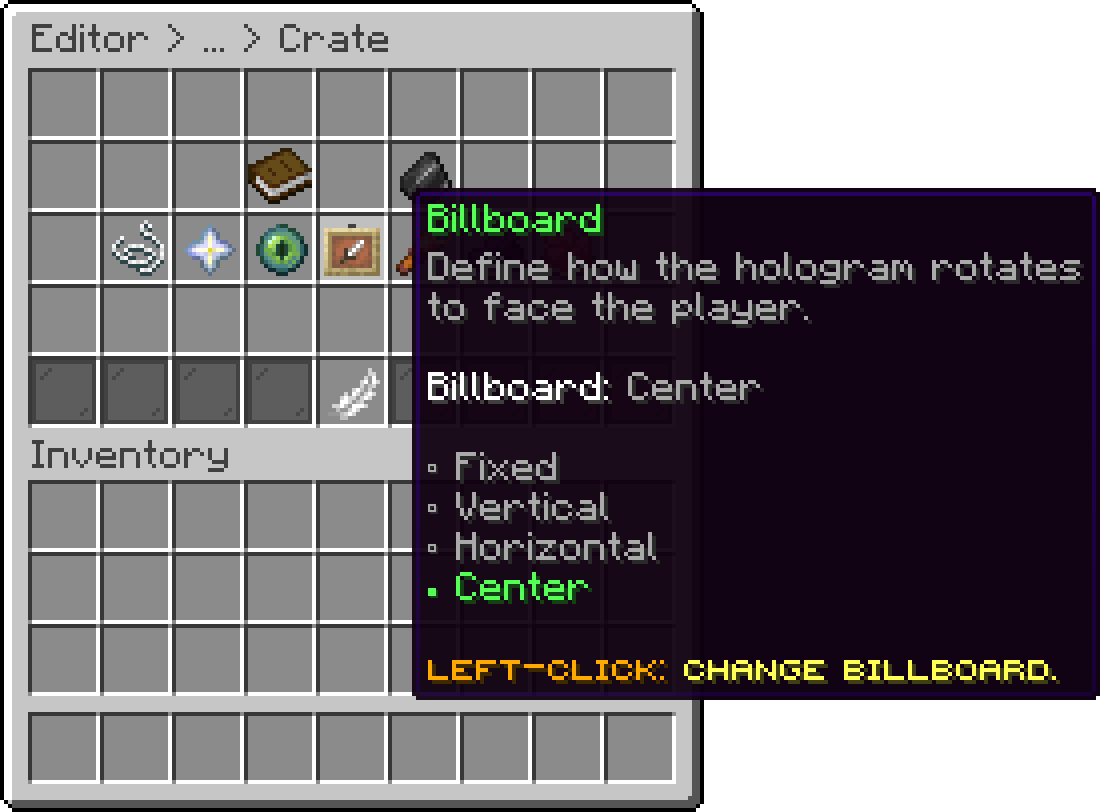
Editor > Crates > Crate > Hologram
When enabled, the hologram stays visible through blocks.
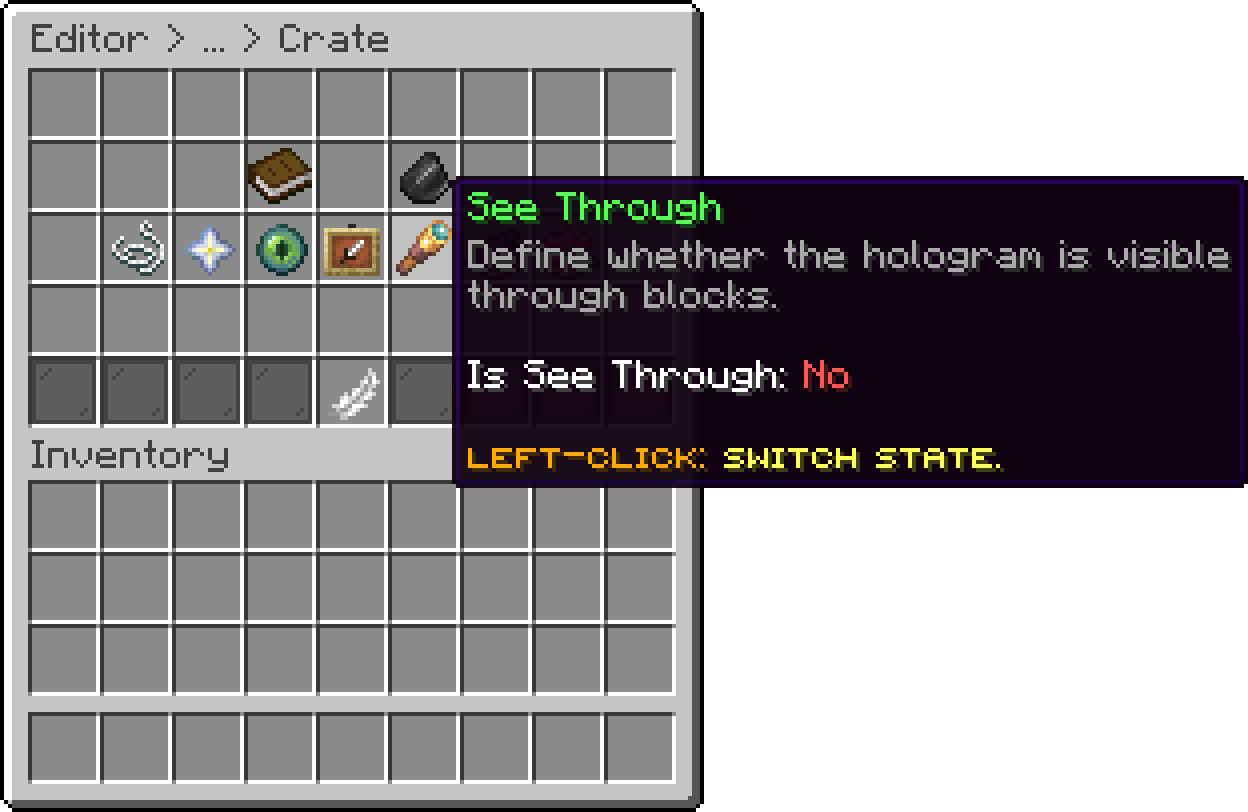
Editor > Crates > Crate > Hologram
Decides whether the text is drawn with a drop shadow behind it.
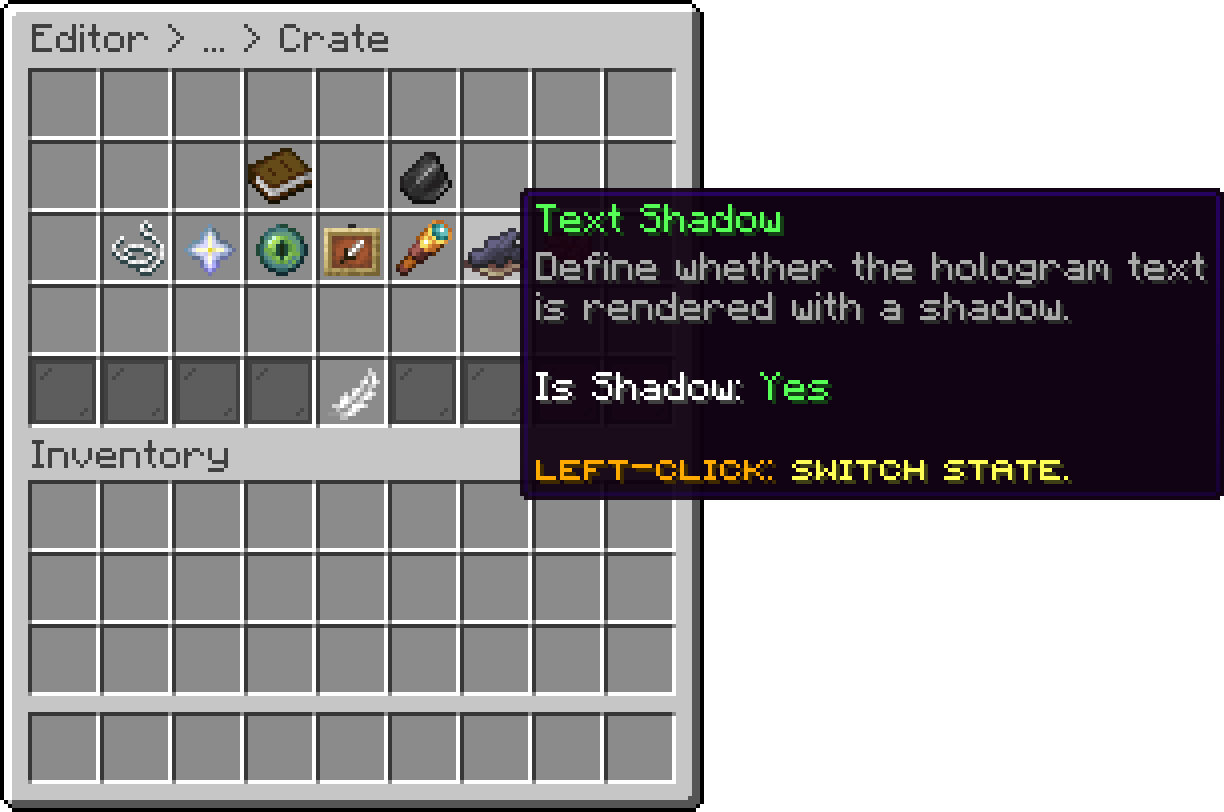
Editor > Crates > Crate > Hologram
The color behind the text. An alpha of 0 removes the background entirely.
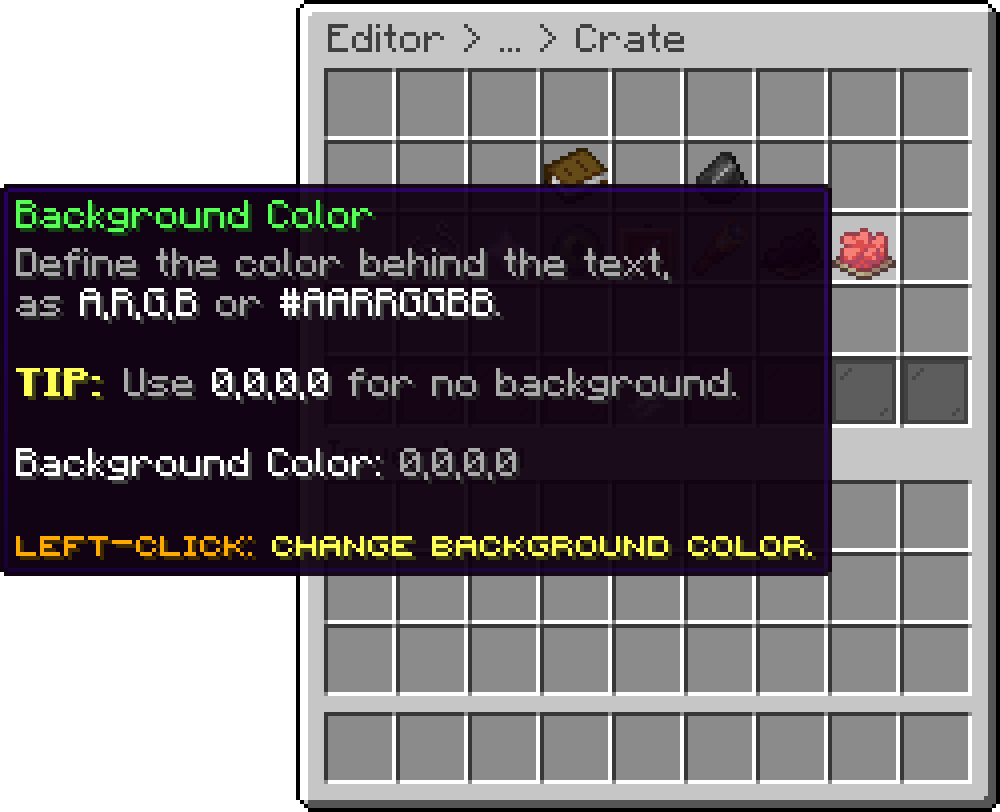
Editor > Crates > Crate > Hologram
The value accepts any of these:
| Format | Example | Notes |
|---|---|---|
A,R,G,B |
128,0,0,0 |
Half transparent black. |
#AARRGGBB |
#80000000 |
Hex with alpha. |
#RRGGBB |
#000000 |
Hex without alpha, fully opaque. |
A value that cannot be read falls back to 25% black rather than to transparent, so a background that unexpectedly shows up usually means a typo here.
Every option on this page applies to all placed crates of that type immediately, with no reload.
The style options used to live in templates.yml and were shared by every crate. Updating the plugin copies that file's values into all of your crates and then removes it, so your holograms keep the look they had.
Oops... looks like the spiders padded through here
Add products to your cart and remove them from here Lets buy