
Oops... looks like the spiders padded through here
Add products to your cart and remove them from here Lets buy
On this page, you will find everything you need to know about editing your reward.
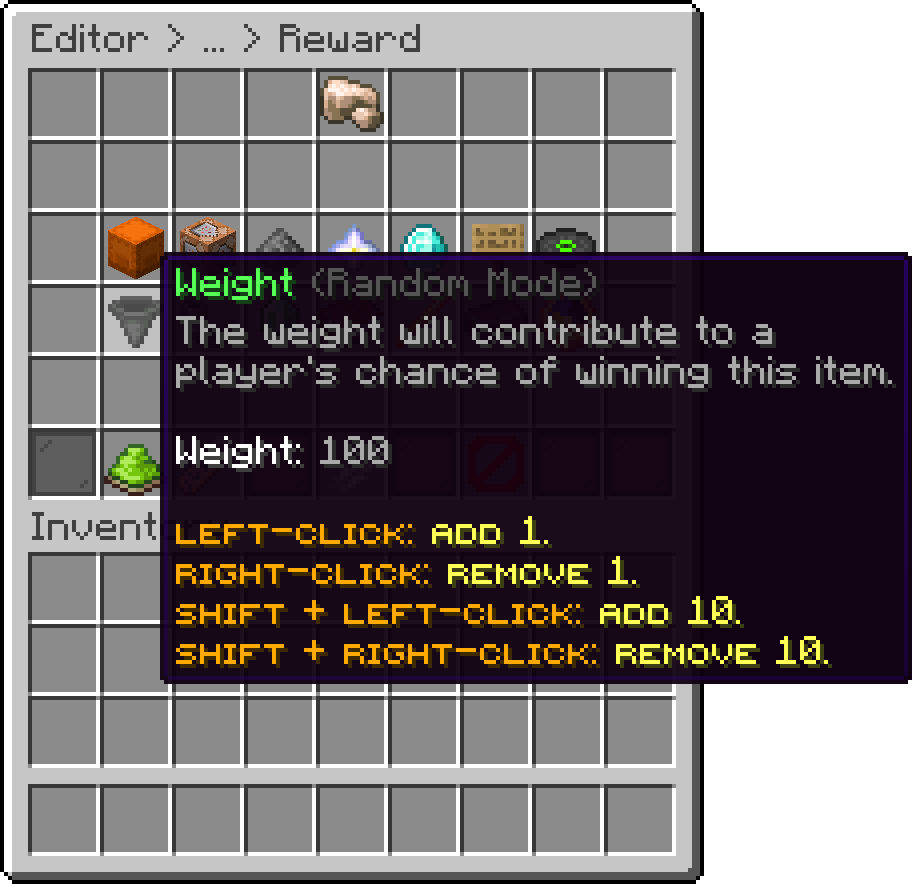
On a crate using the Random rewards mode, the weight is what decides how likely this reward is compared to the others in the crate. A higher weight means a bigger share of the openings.
Editor > Crates > Crate > Rewards > Reward
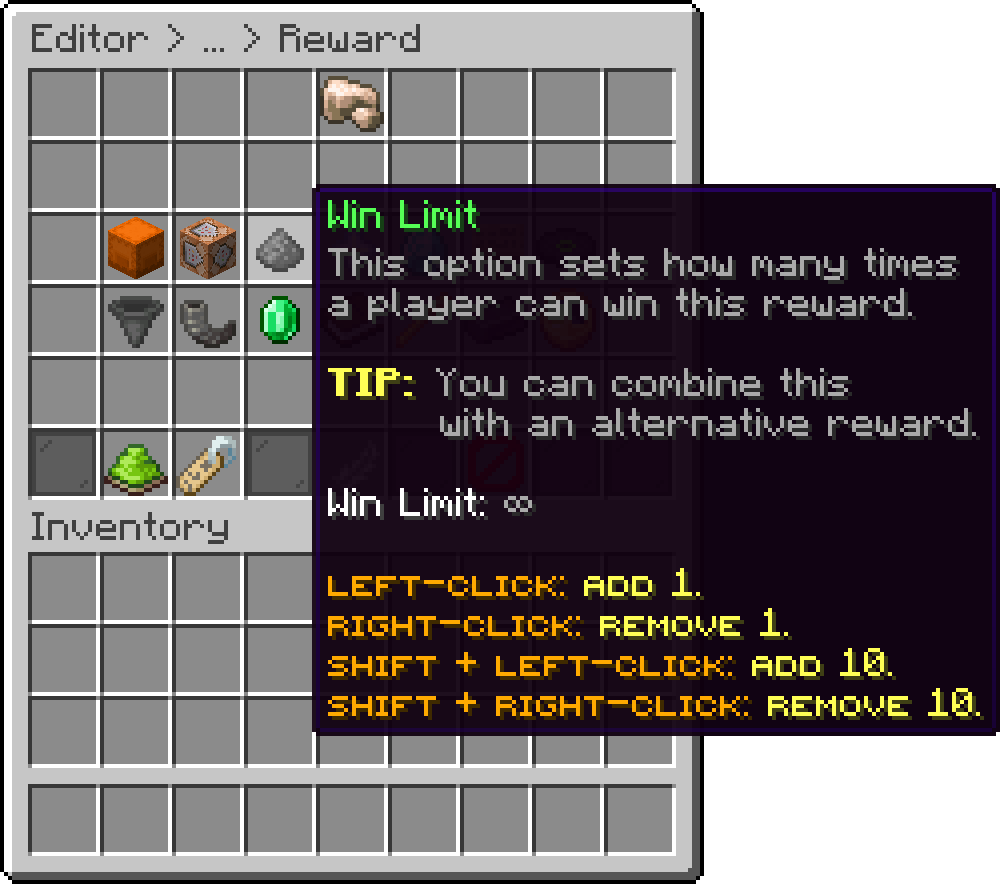
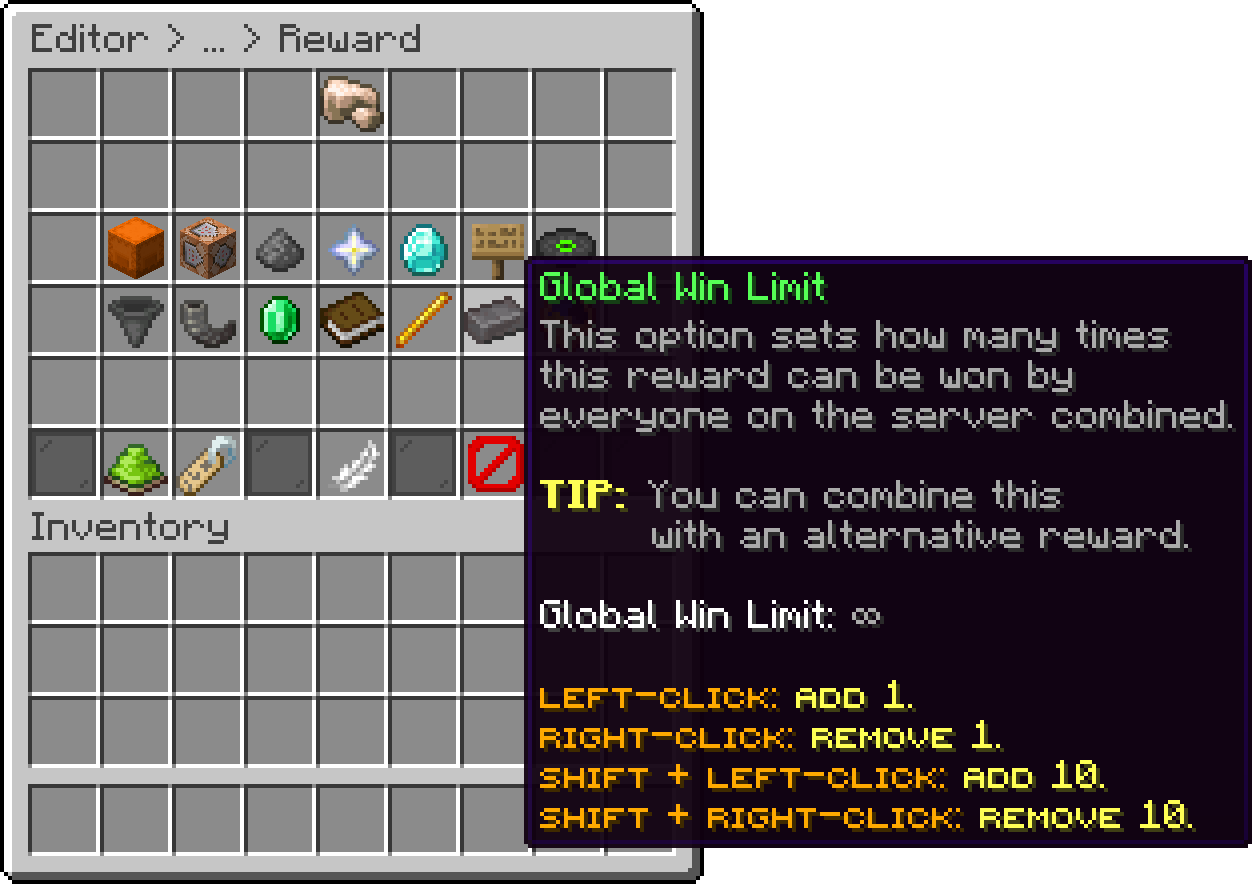
A reward can be limited so it is not won endlessly. Both limits can be combined with an Alternative Reward, which is given once the limit is reached.
How many times a single player can win this reward. Every player has their own count.
Editor > Crates > Crate > Rewards > Reward
How many times this reward can be won by everyone on the server combined, which is what makes a reward a one-off across the whole server.
Editor > Crates > Crate > Rewards > Reward
A reward can be put on a cooldown so it is not won again straight away, by the same player or by anyone on the server. It has its own page: Cooldowns.
A reward can be guaranteed after, or every, a number of openings. The mode and the opening count are set here, and the whole system is described on Guaranteed Rewards.
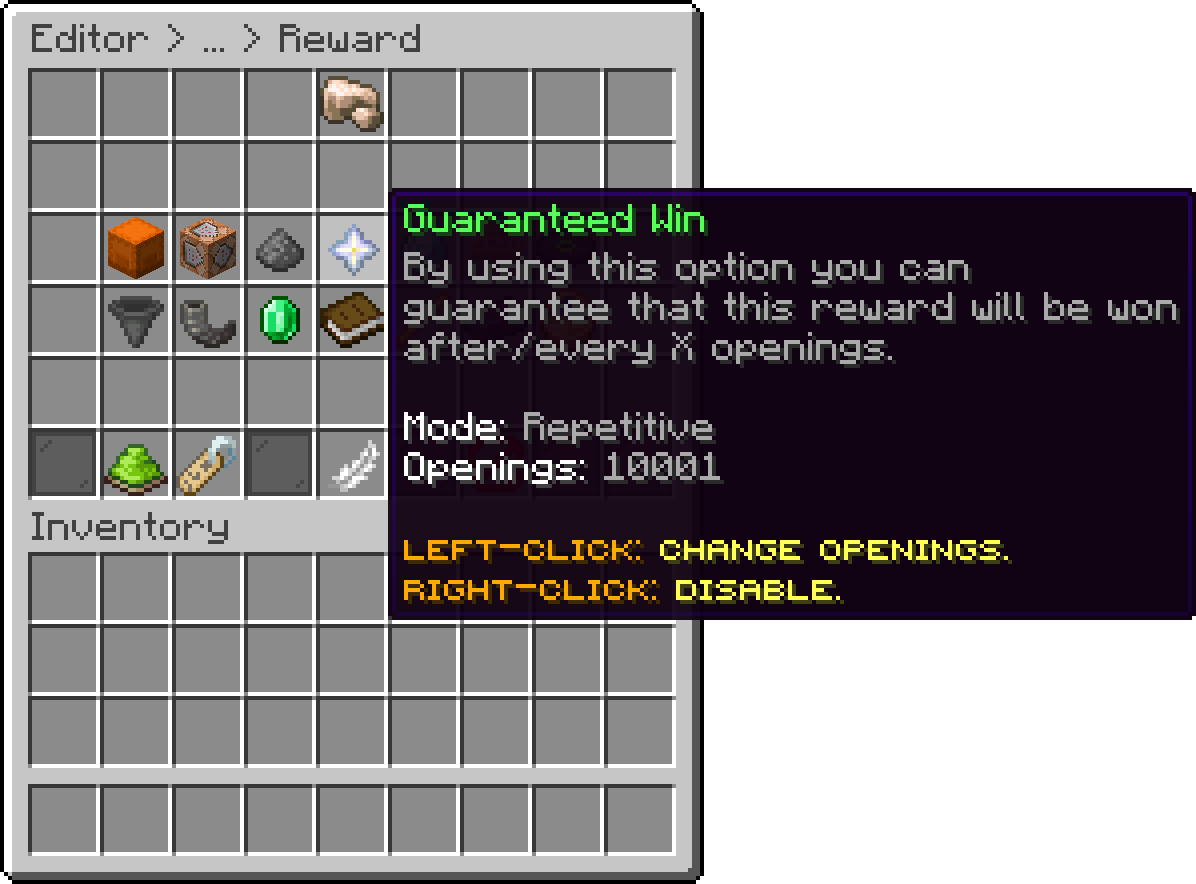
Editor > Crates > Crate > Rewards > Reward
On a crate using the Selective (non RNG) rewards mode, players spend keys to redeem the reward they picked. Key Requirement sets how many keys this particular reward costs, and defaults to 1.
Use it to price rewards against each other, so a cosmetic costs one key while the best reward in the crate costs five. A player without enough keys is told how many they need and the reward stays unredeemed.
The value is exposed to the menus as %required_keys%, so the preview can show the price on each reward.
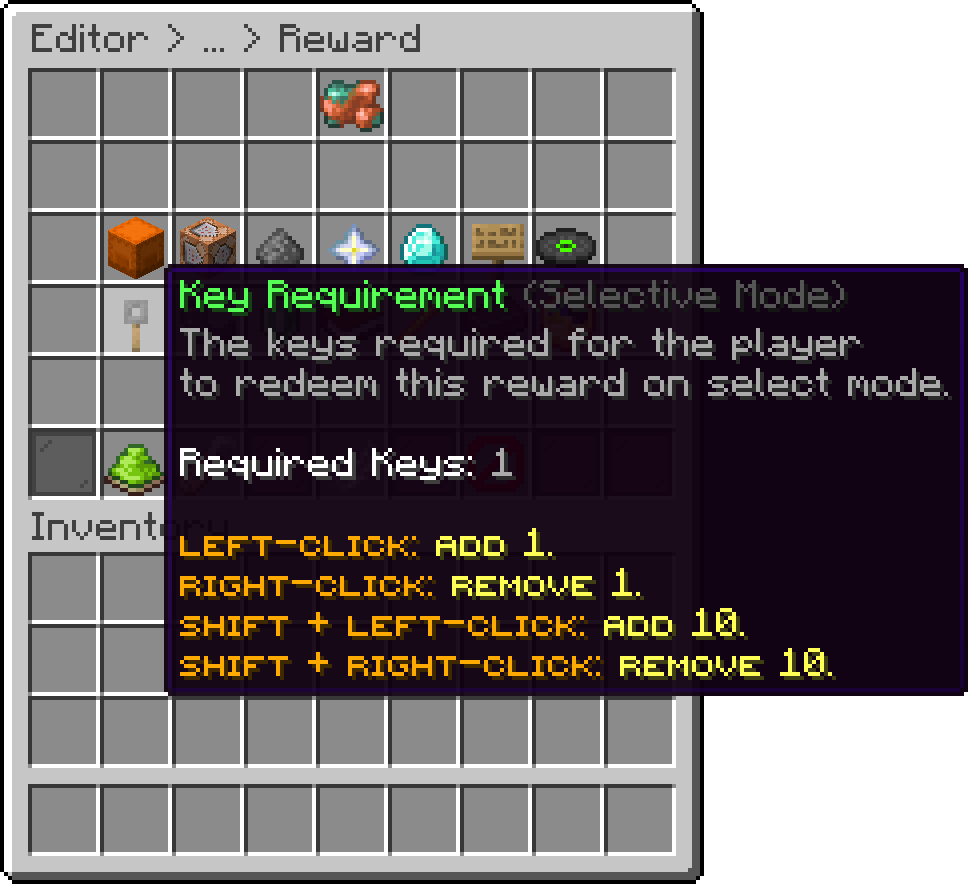
Editor > Crates > Crate > Rewards > Reward
With the Rarity add-on installed, a rarity's own Required Keys value takes over for every reward carrying that rarity, and this setting is ignored.
Required Keys does not apply in Random mode, where the crate's own key cost is what matters.
The permissions that decide who can win the reward live in their own menu on the reward.
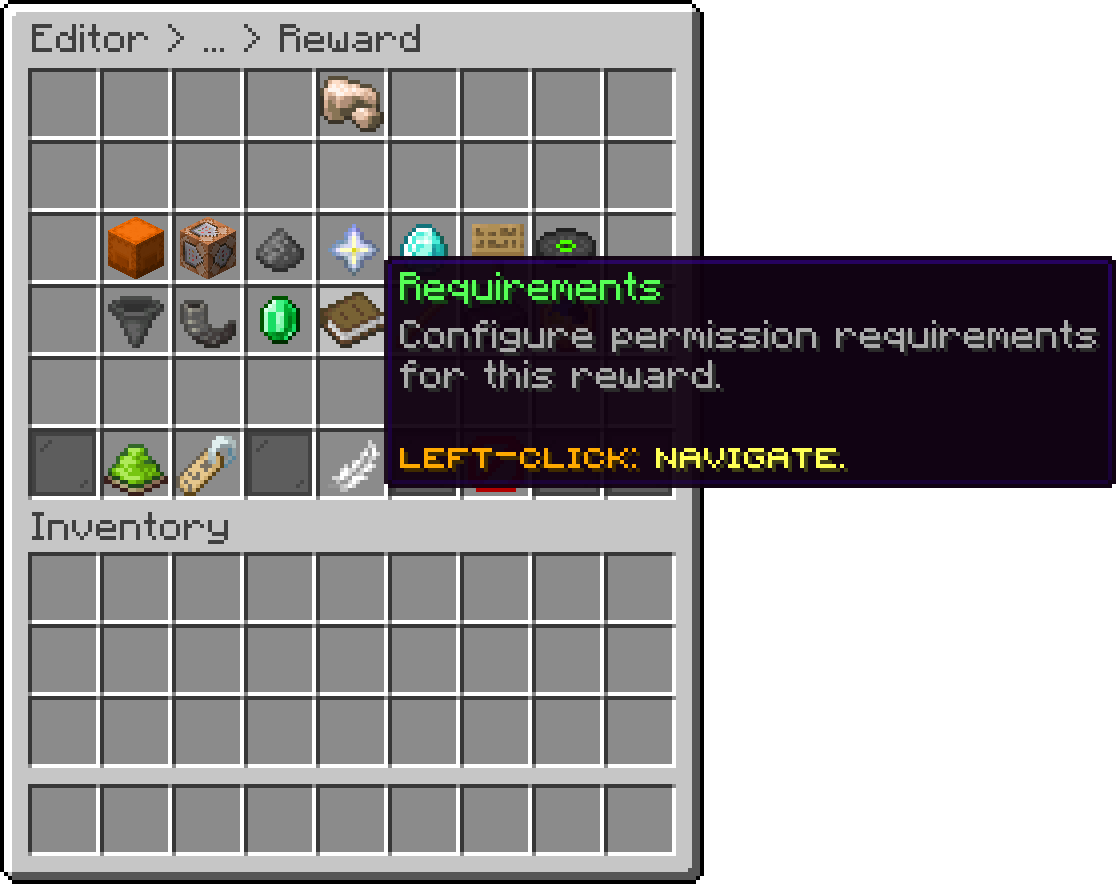
Editor > Crates > Crate > Rewards > Reward
The permission a player must have for this reward to be available to them. If the player lacks it, the reward appears as locked in the preview.
This is the opposite of Restricted Permissions, which instead prevents players who have the listed permissions from winning it.
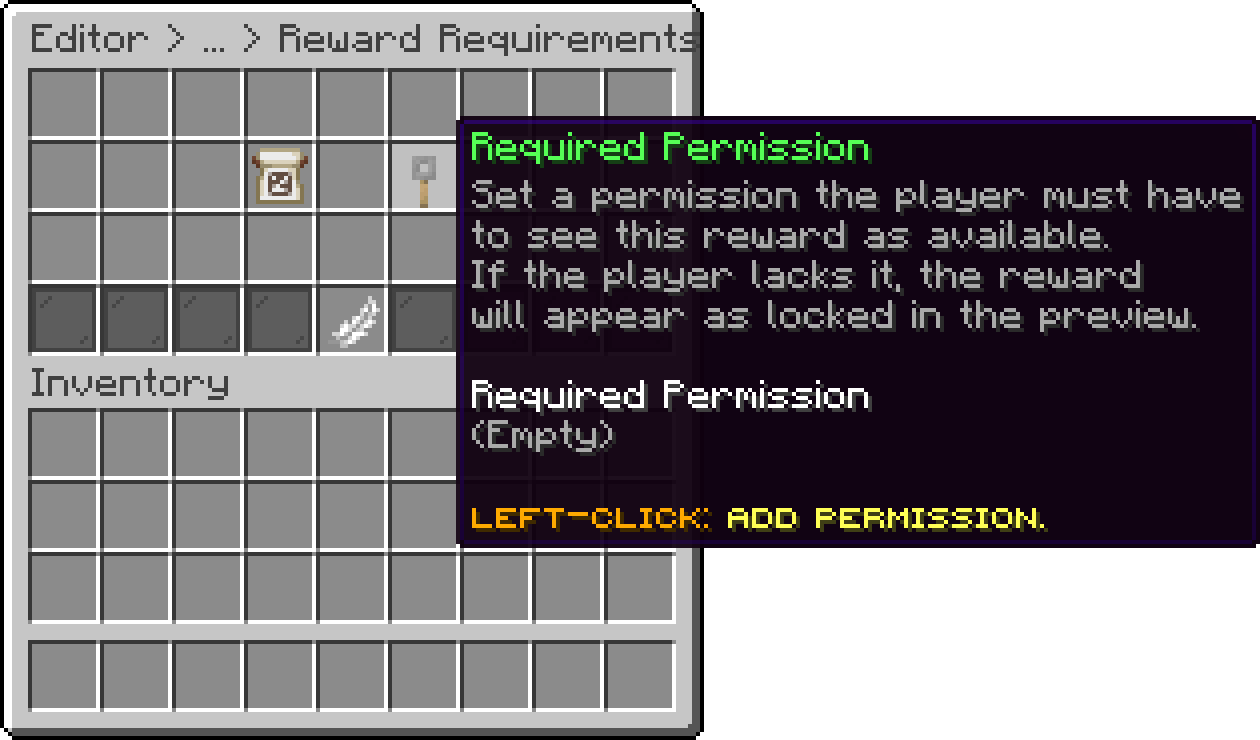
Editor > Crates > Crate > Rewards > Reward > Requirements
What the reward actually gives, whether that is real items, commands, or both, has its own page: Win Items & Win Commands.
Whether the winner is told they won this reward, and where that message shows up, are two options next to each other.
Decides whether the player gets a message at all when they win this specific reward.
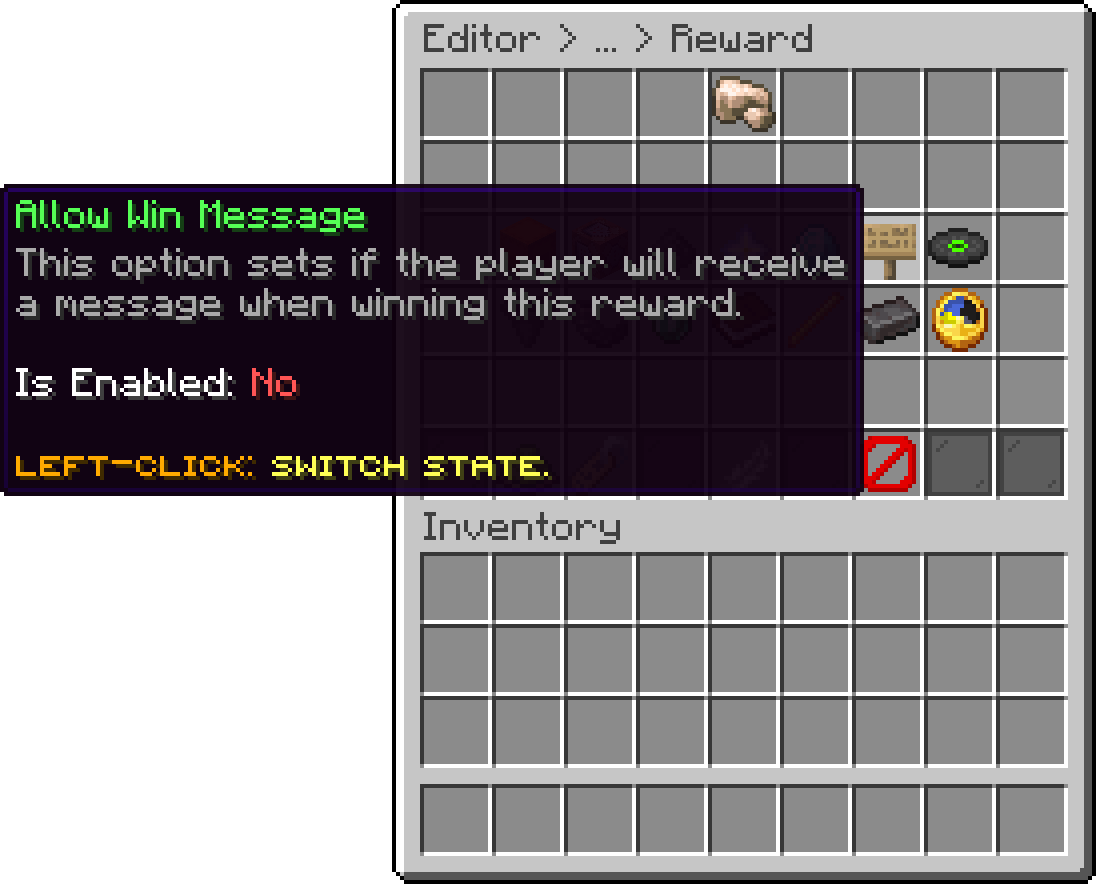
Editor > Crates > Crate > Rewards > Reward
Picks where that message is delivered, in the chat or on the action bar.
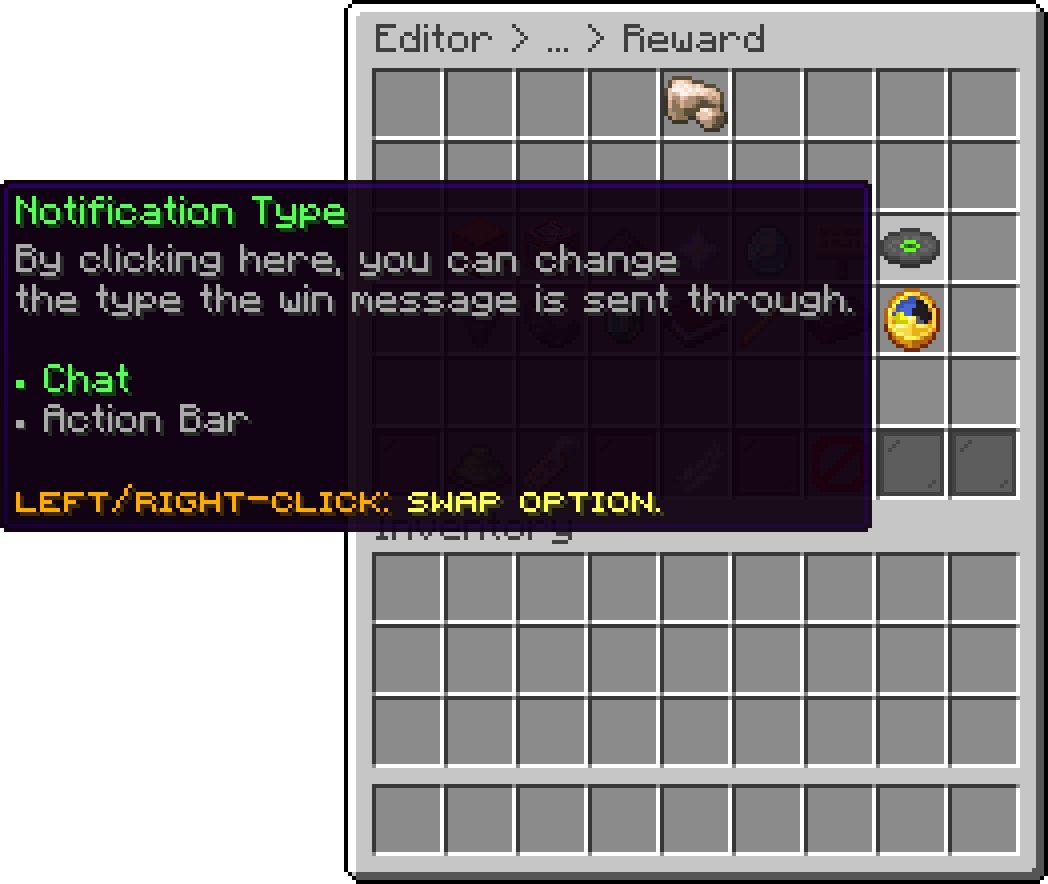
Editor > Crates > Crate > Rewards > Reward
With this option, when a user wins a specific item, all online players on the server will also receive the same reward.
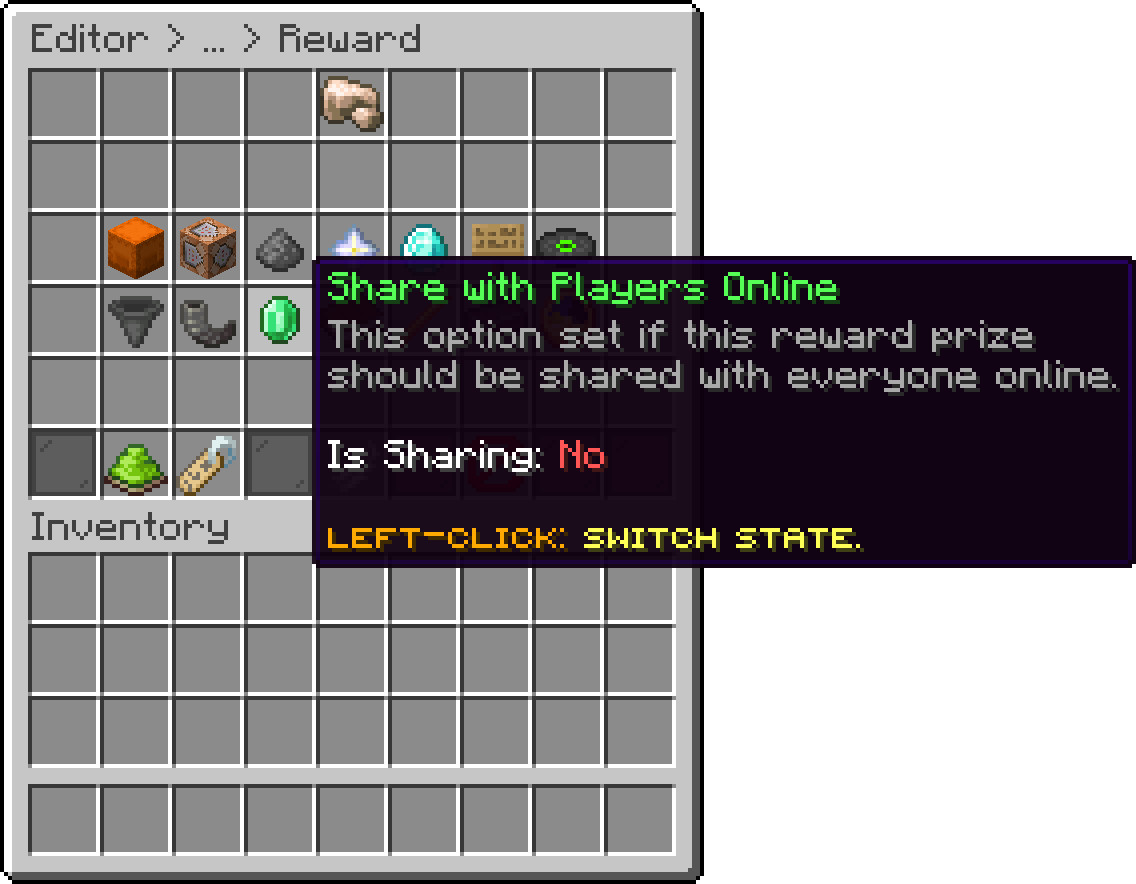
Editor > Crates > Crate > Rewards > Reward
This option prevents users from winning the reward if they have any of the specified permissions on the reward.
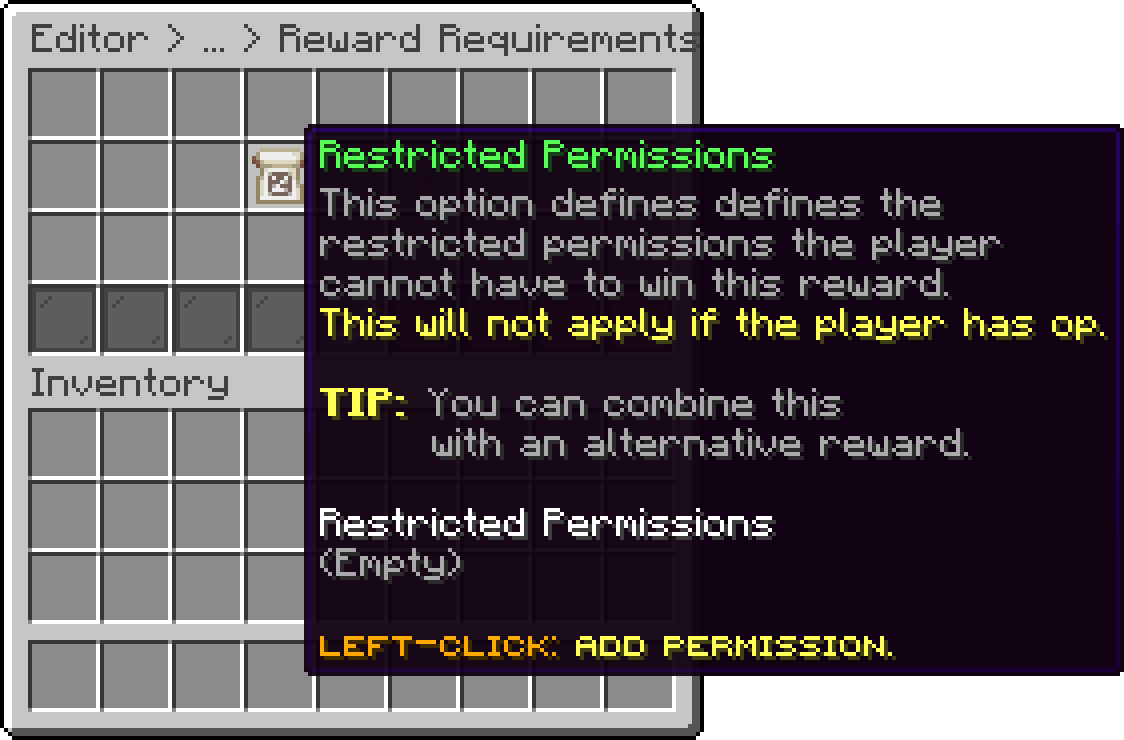
Editor > Crates > Crate > Rewards > Reward > Requirements
If a user is assigned to a listed permission, such as group.default, they won’t be able to win this reward. Since they won’t have access to it, you can use the Alternative Reward to give them a different item instead.
This option is especially useful for situations where a user already owns a cosmetic item, such as tags, chat colors, prefixes, or other cosmetics.
To broadcast a message to all online players when a user wins a specific reward, simply enable the Broadcast Message feature.
By default this feature is not activated.
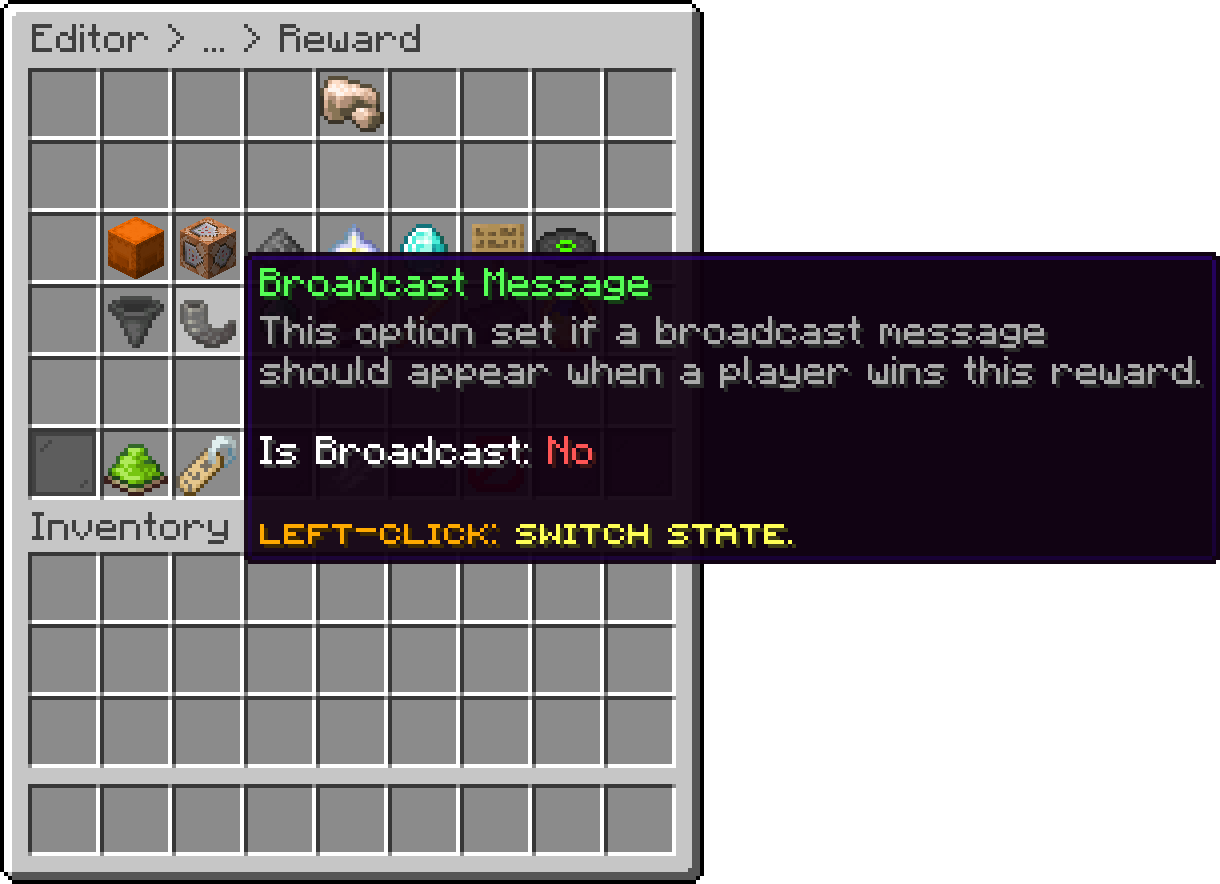
Editor > Crates > Crate > Rewards > Reward
To modify the broadcast message, you can do so in the main crate settings.
With this option, you can customize the material, display name, and lore. Note that this is the display item and will not be given to the user.
The name the item carries in the preview, which is also the name used when the reward is announced.
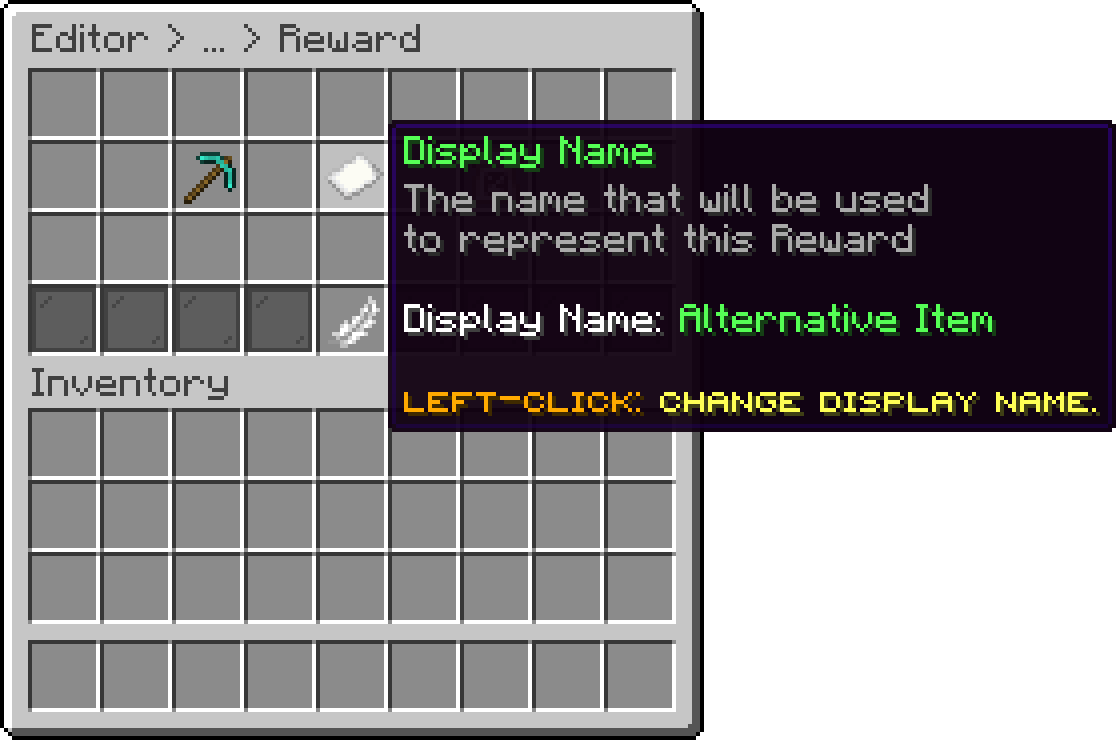
Editor > Crates > Crate > Rewards > Reward
The lore shown under the name, useful for describing what a virtual reward actually gives.
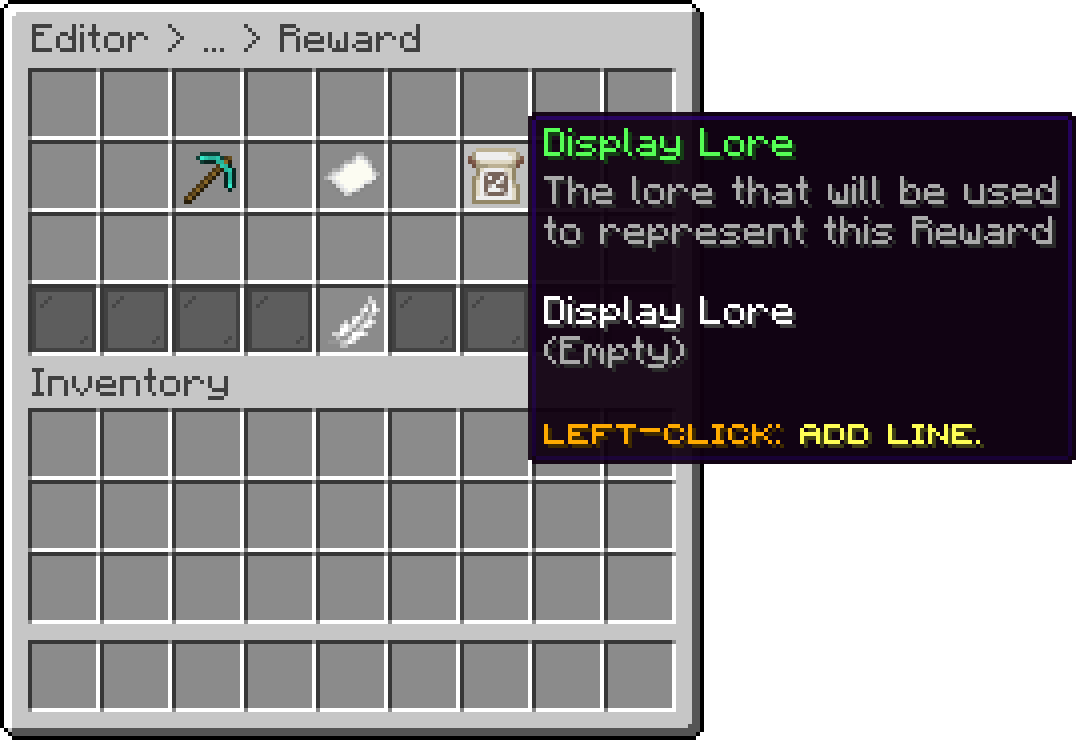
Editor > Crates > Crate > Rewards > Reward
Right-clicking the display item (or any win item in the Win Items menu) gives you a physical copy of it, useful if you want to grab the exact item you configured.
An Item Properties sub-menu also lets you fine-tune the display item further: RGB color, item flags, banner patterns, enchantments, custom model data/item model, enchantment glint override, potion effects, armor trim, and tooltip style.
With this option, you can set a unique identifier for the reward. By default, the plugin automatically assigns a unique identifier to each reward. Changing this identifier will result in data loss.
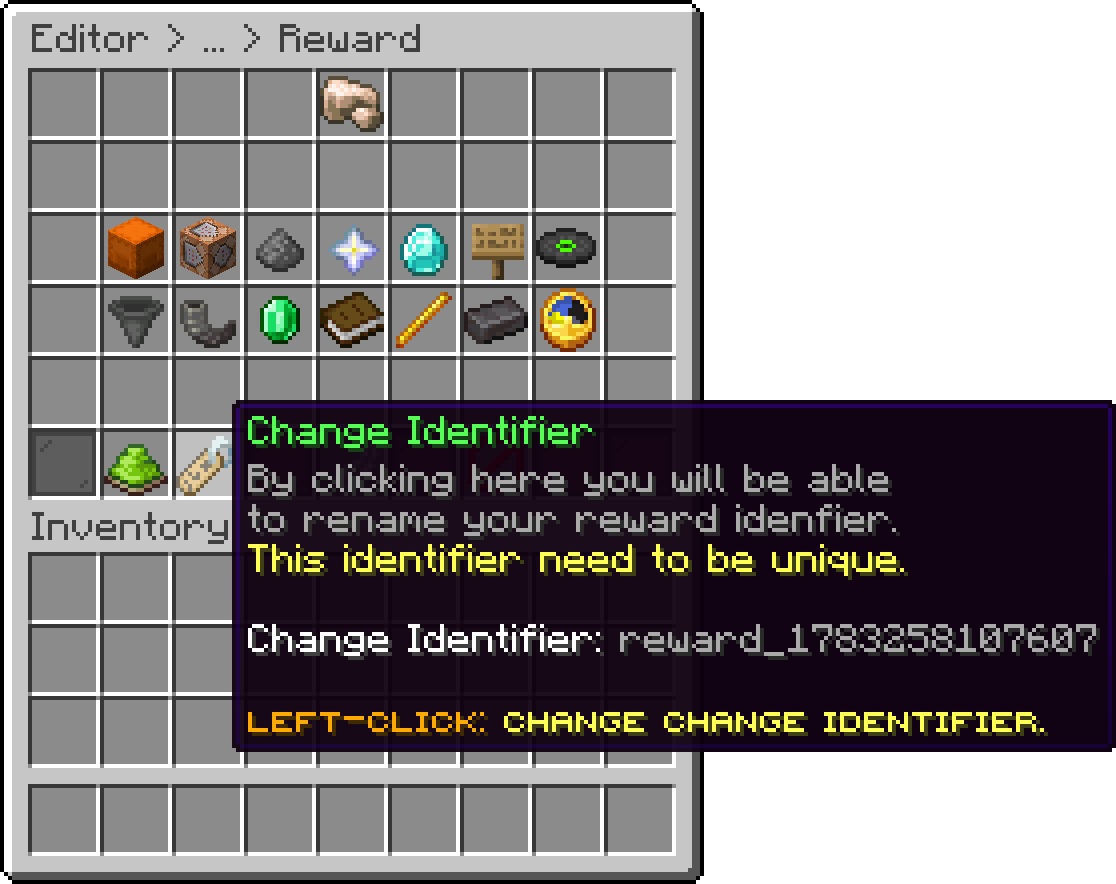
Editor > Crates > Crate > Rewards > Reward
If the identifier is changed, the player progress will get deleted.
With this option, you can disable a single reward. It stays configured on the crate but can no longer be won or picked.
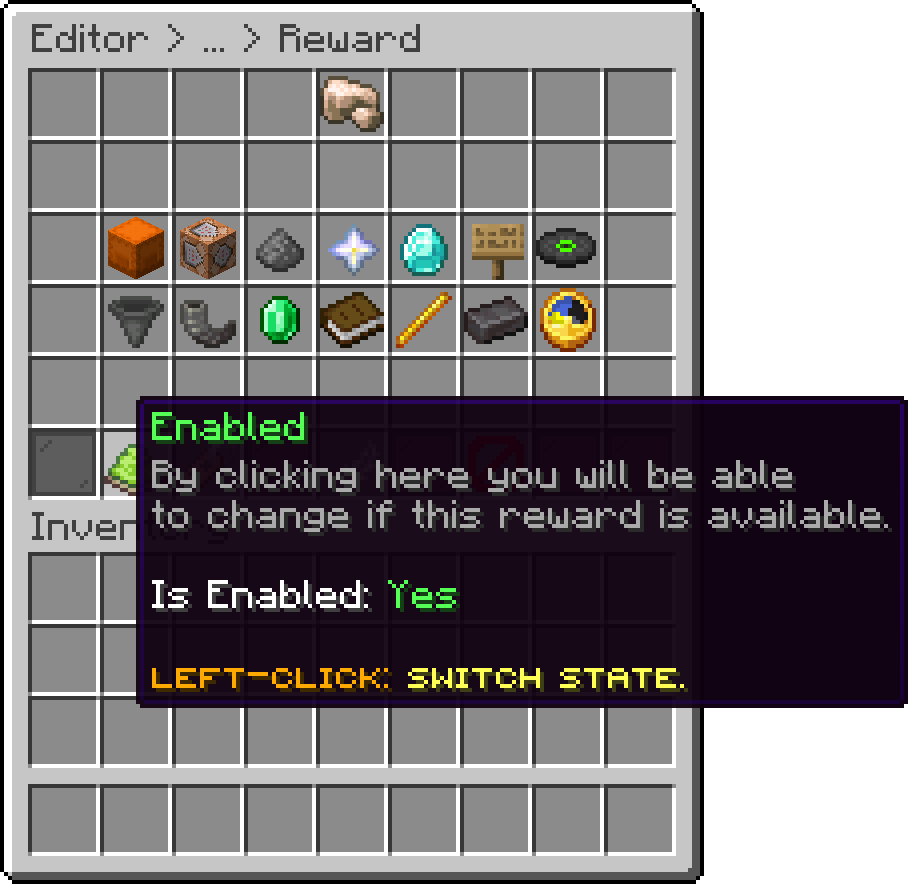
Editor > Crates > Crate > Rewards > Reward
With this option, you can delete the reward from your crate.
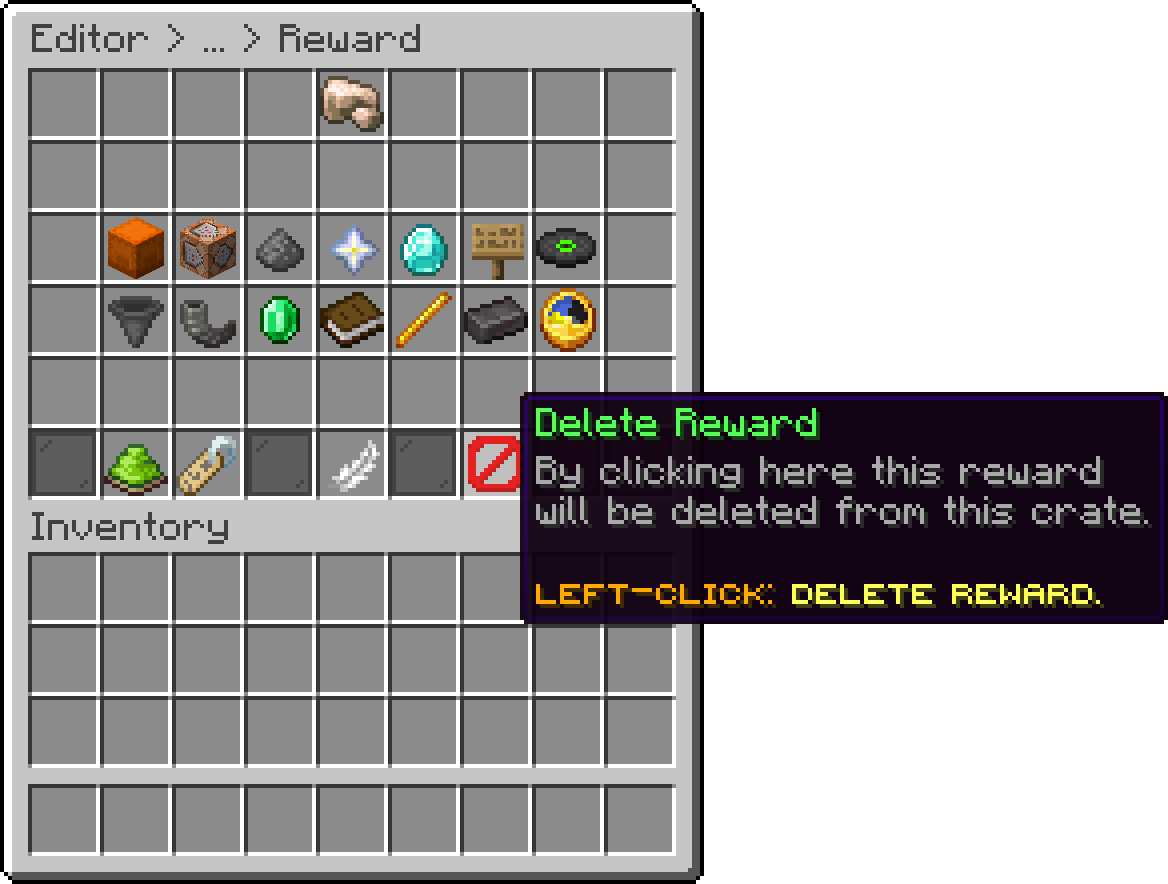
Editor > Crates > Crate > Rewards > Reward
This option is permanent, and rewards can't be restored.
Oops... looks like the spiders padded through here
Add products to your cart and remove them from here Lets buy