


Your cart is empty
Looks like the spiders padded through here. Pick a plugin and it will show up here. Continue shoppingThe seven engines an NPC can be drawn with, and the settings of each.
Seven engines are available, each with a section below. The engine is picked per NPC, from NPC Engine on its own settings. An engine whose plugin is missing is marked Not installed and cannot be picked.
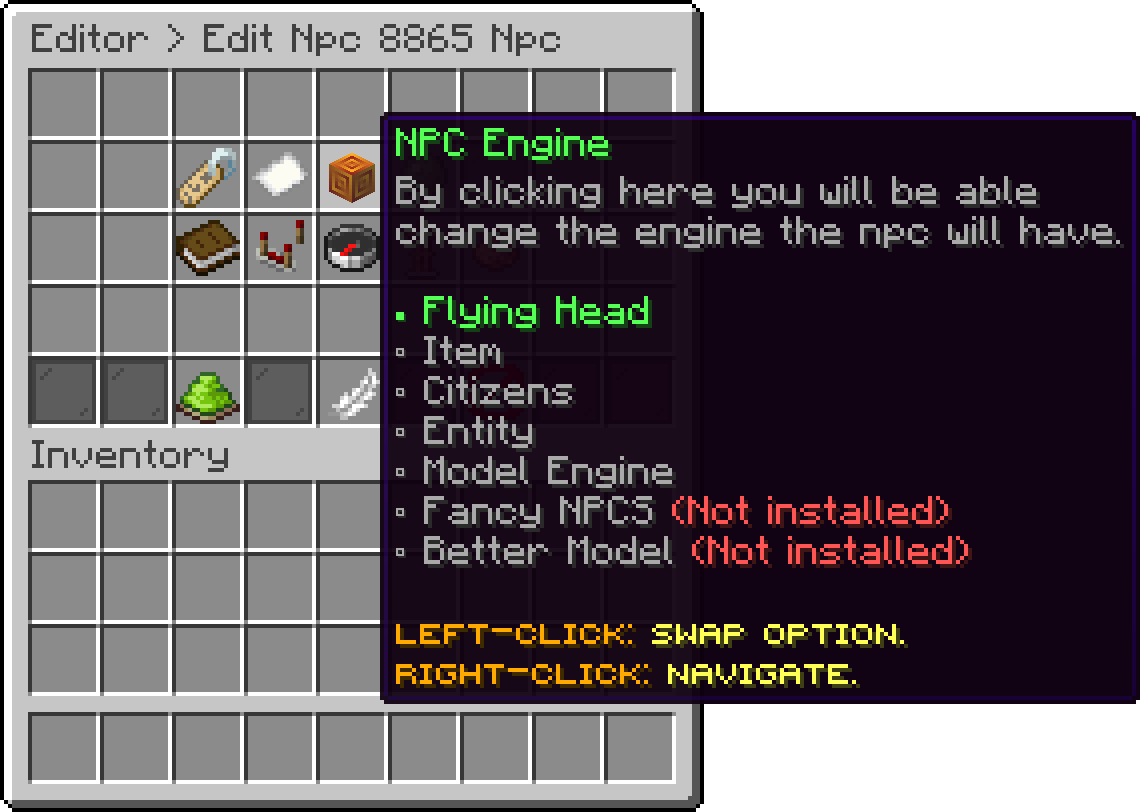
Edit NPC (NPC Engine)
This engine is a floating player head with no body, drawn by the plugin itself, so nothing else has to be installed. It is the lightest of the seven and the only one that can be animated without a model.
With this option, you can set which skin the head wears, either from a texture url or from a player username.
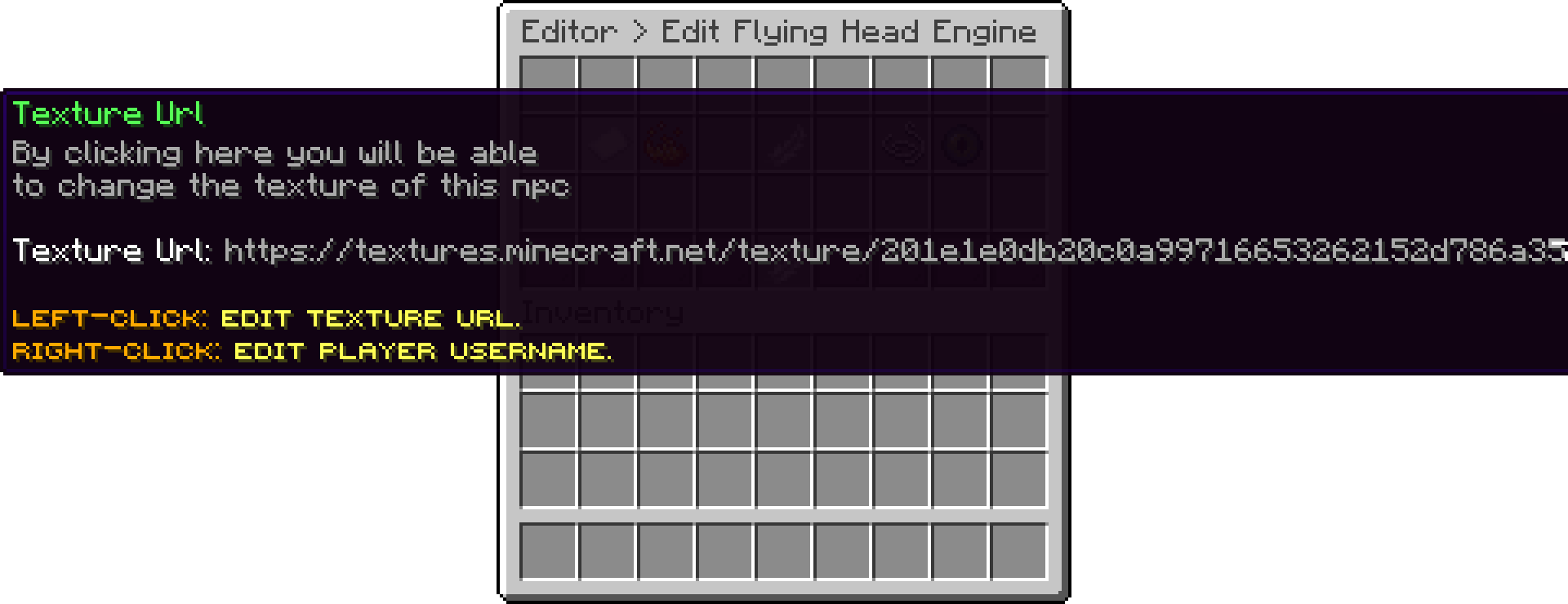
Flying Head (Texture Url)
With this option, you can make the head move on its own instead of hanging still. Helix spins it around the spot it stands on, Unstable shakes it in place, and None leaves it still.
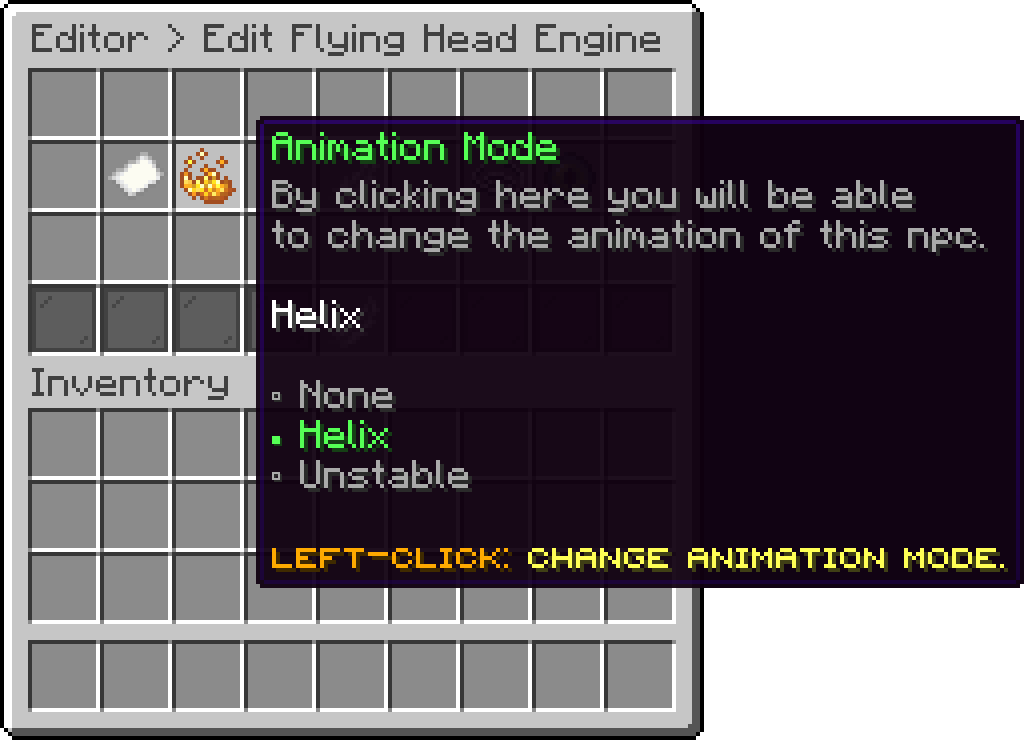
Flying Head (Animation Mode)
With this option, you can decide whether the hologram stays where the NPC stands or rides along with the head. Leaving it static is what keeps the text readable while an animation is running.
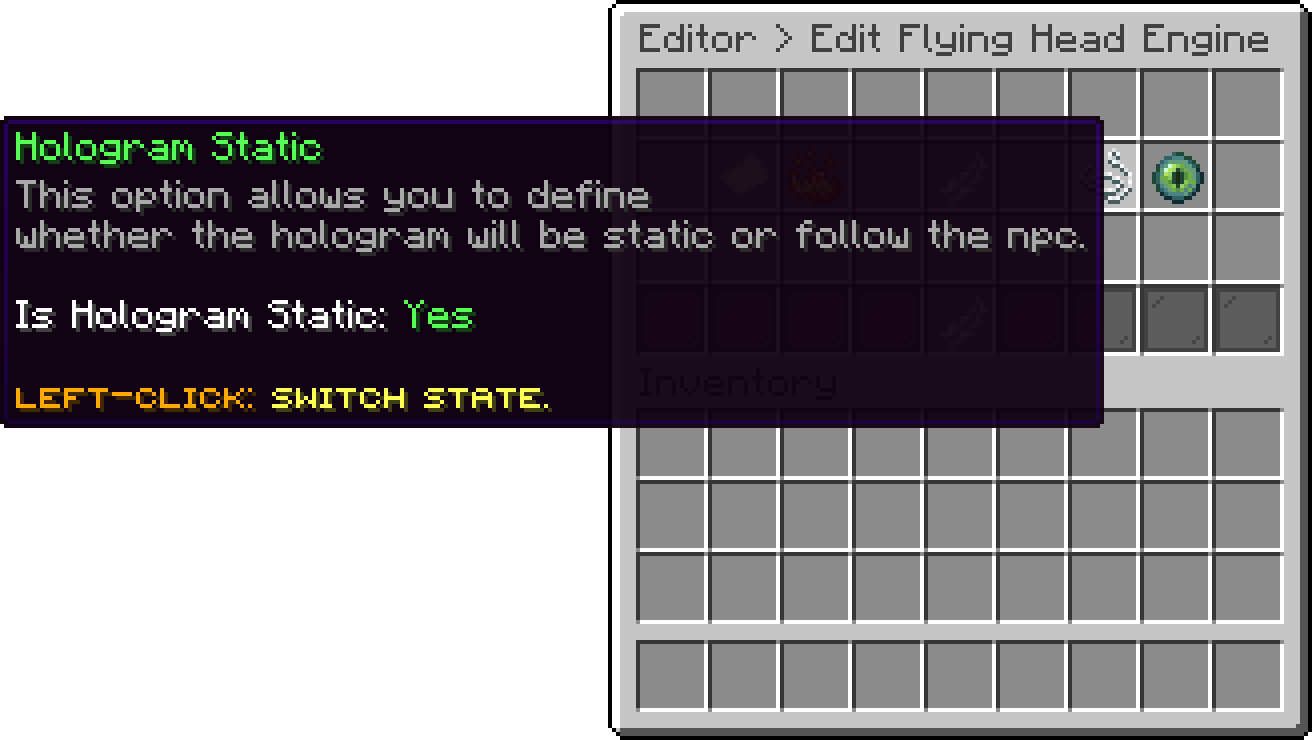
Flying Head (Hologram Static)
With this option, you can raise or lower the head from where the NPC stands. It moves only the head, so it is separate from the hologram height offset.
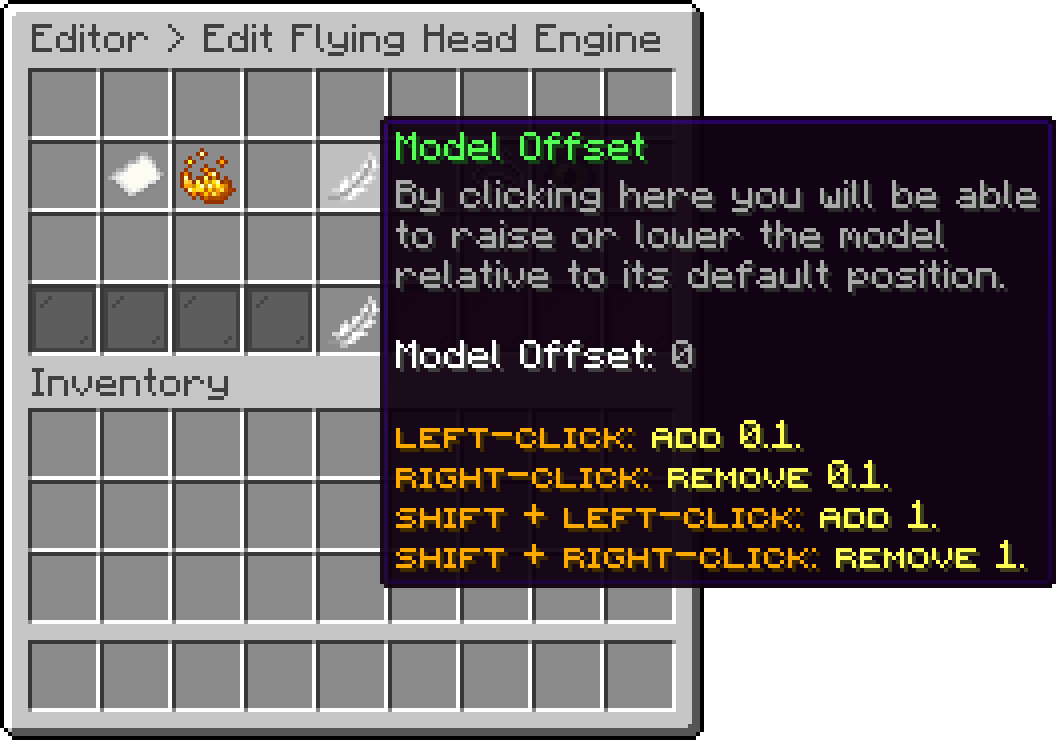
Flying Head (Model Offset)
With this option, you can make the head turn towards the nearest player instead of facing the direction it was placed in.
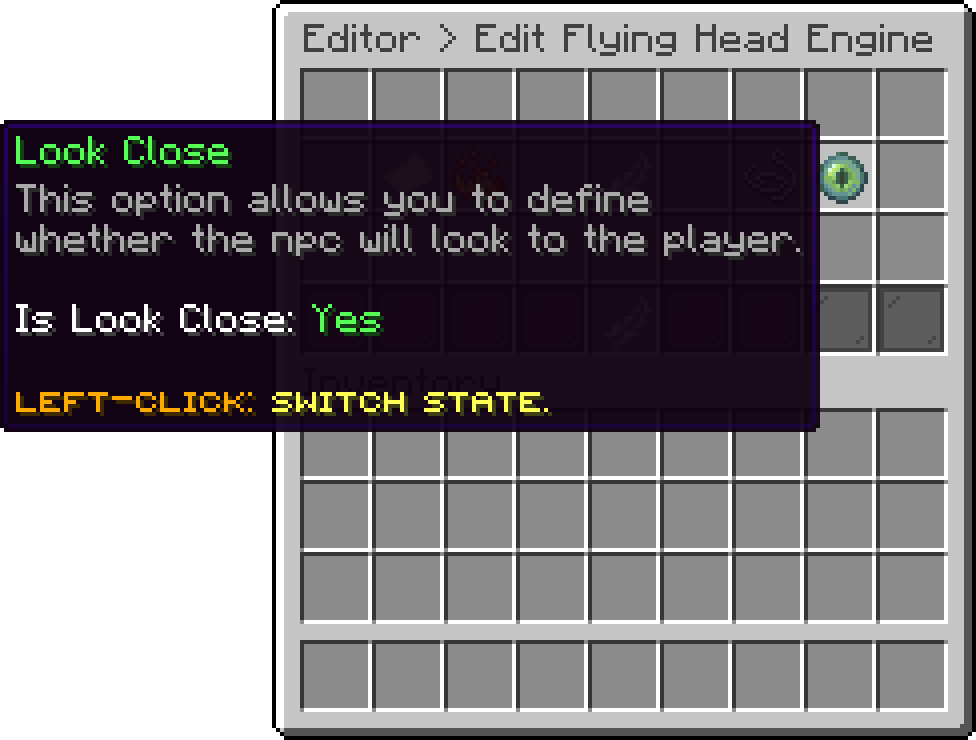
Flying Head (Look Close)
This engine turns any item into the NPC, drawn by the plugin itself, so nothing else has to be installed. It is listed as Item in the engine picker.
With this option, you can choose the item the NPC is made of. Drag one out of your inventory onto the slot; custom model data is kept, so a resource pack item works as well as a vanilla one, and the same item is what the NPC shows in the editor lists.
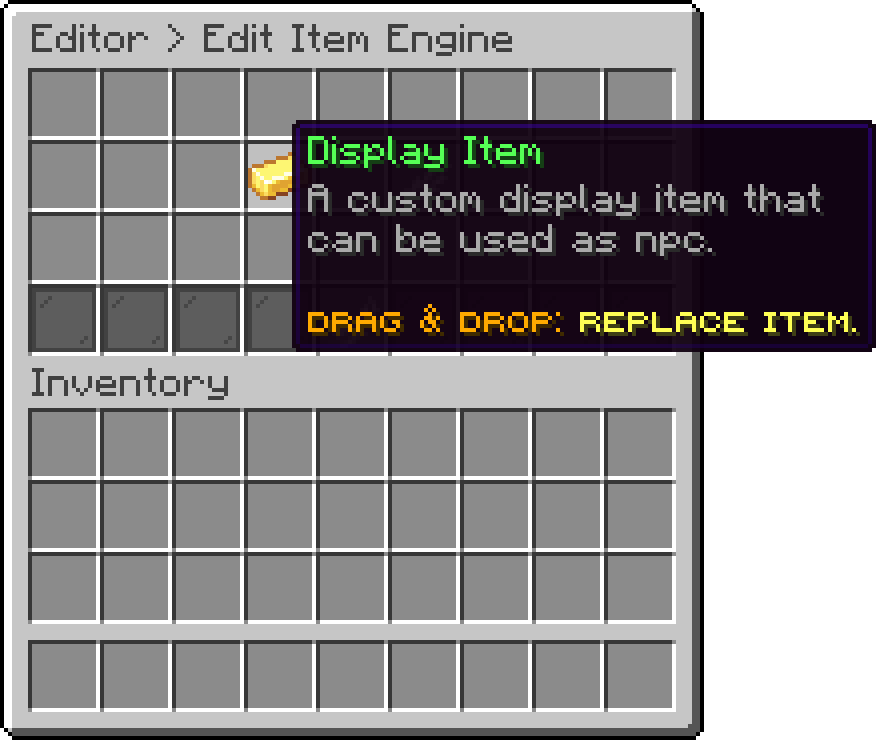
Huge Item (Display Item)
With this option, you can raise or lower the item from where the NPC stands. It moves only the item, so it is separate from the hologram height offset.
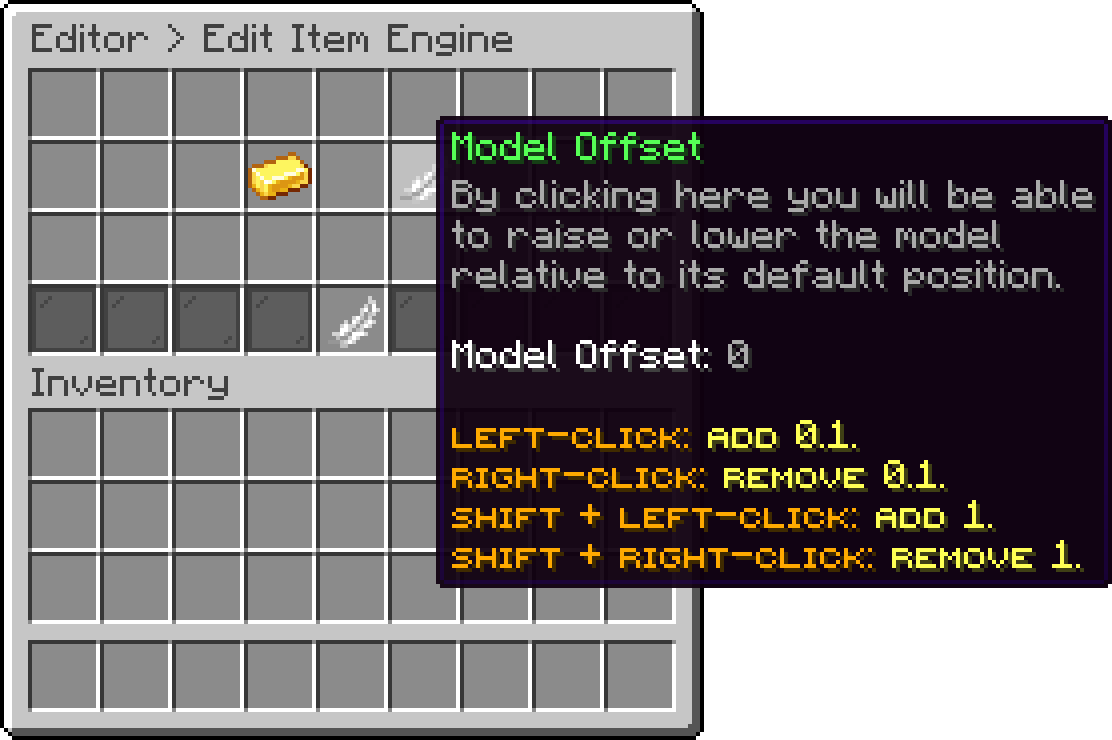
Huge Item (Model Offset)
This engine uses a normal Minecraft mob as the NPC, drawn by the plugin itself, so nothing else has to be installed.
Shared by every Entity NPC and set in Editor > Settings. Switching it respawns the npcs right away.
| Engine | Description |
|---|---|
| Built-in | The default, spawns the mob in the world |
| PhoenixNPCs | Hands the mob to PhoenixNPCs, selectable only while it is installed |
With PhoenixNPCs, the mob type, look close, scale, glow and click actions carry over; entity properties do not. If PhoenixNPCs is removed, the plugin falls back to Built-in and logs a warning. The other engines are not affected.
With this option, you can pick which mob the NPC is. Changing it resets the properties below, since every mob has its own set.
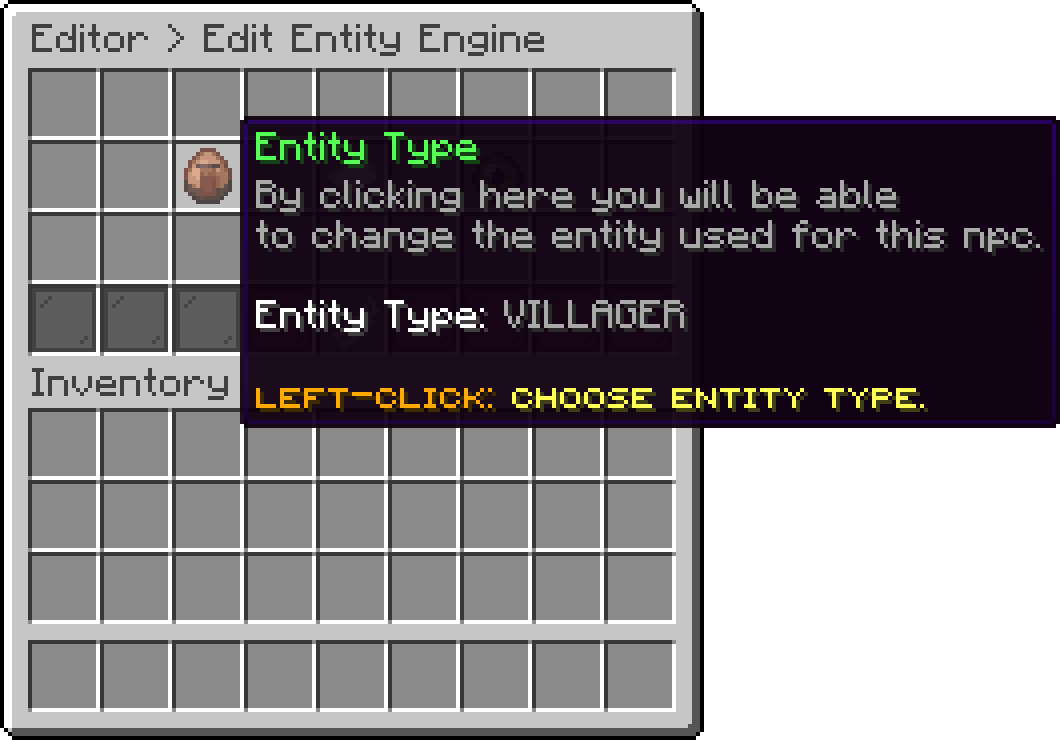
Entity (Entity Type)
With this option, you can change the extra properties of the chosen mob. Which ones appear depends entirely on the mob: a cat has a variant, a wolf has a variant and a collar colour, a slime has neither and says so instead of opening a list. Changing the Entity Type resets whatever was chosen here, since the values of one mob mean nothing to another.
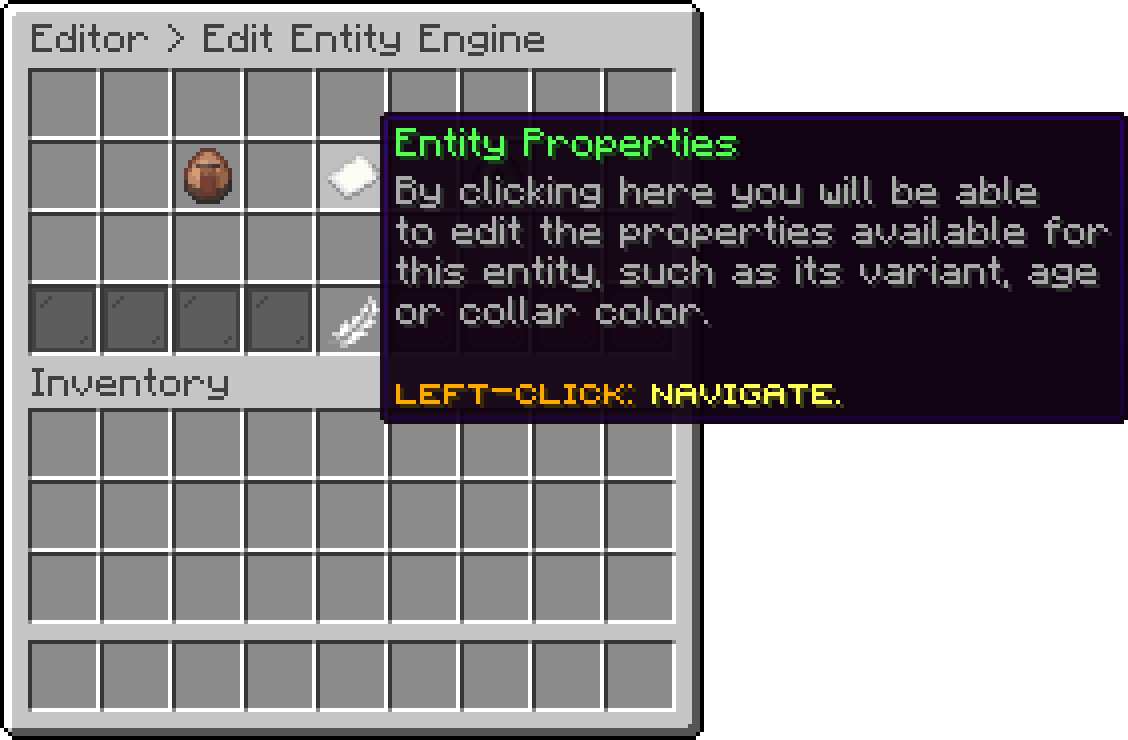
Entity (Entity Properties)
With this option, you can pick which kind of the mob the NPC is: the colour of a sheep or a llama, the breed of a cat, a rabbit or a fox, the biome coat of a cow, a pig or a chicken, the profession skin of a villager. The list is read from the server itself, so a variant added by a newer Minecraft version shows up without an update here.

Entity Properties (Variant)
With this option, you can make the NPC a baby instead of an adult. It appears for every mob that can be a baby at all, on top of whatever other properties that mob has.

Entity Properties (Age)
With this option, you can set the collar colour of a wolf. It is the one property that is not a variant, so a wolf shows it next to its own variant list.
With this option, you can make the mob turn towards the nearest player instead of facing the direction it was placed in.
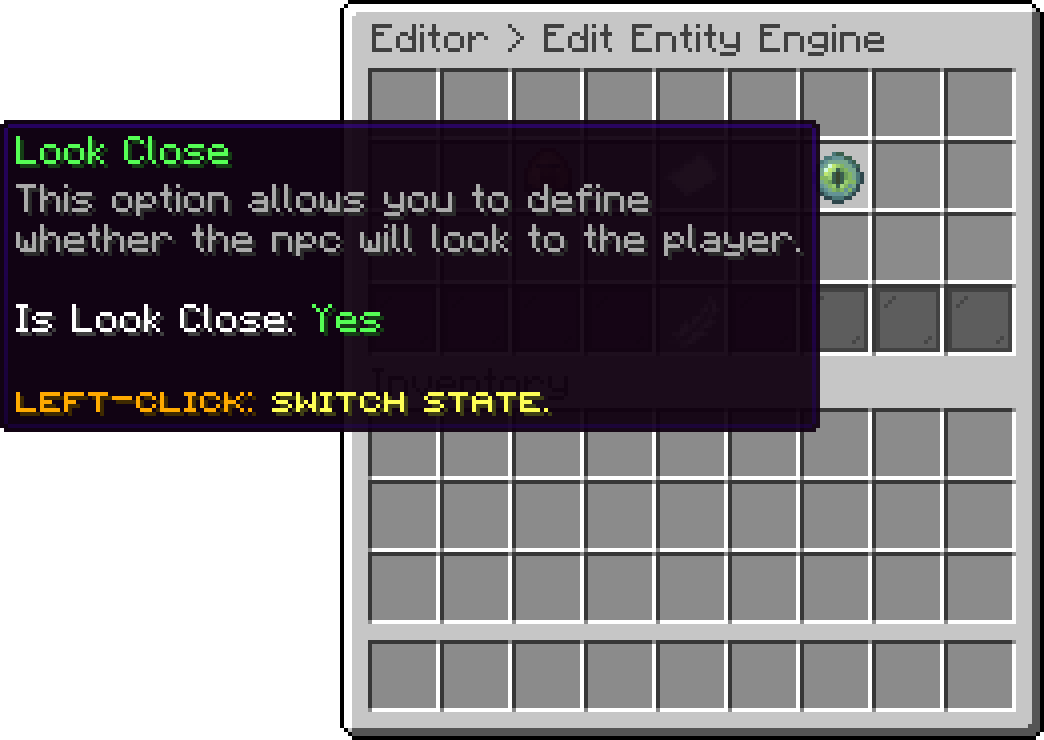
Entity (Look Close)
This option requires Citizens to be installed.
This engine hands the NPC to Citizens, so it is a real player-shaped npc with a skin, and everything Citizens itself adds on top keeps working.
With this option, you can set the skin the NPC wears. Left-click takes a MineSkin url, right-click a player username, and shift + left-click a player uuid. All three are looked up online, so a username or uuid that Mojang does not know is refused with the reason.
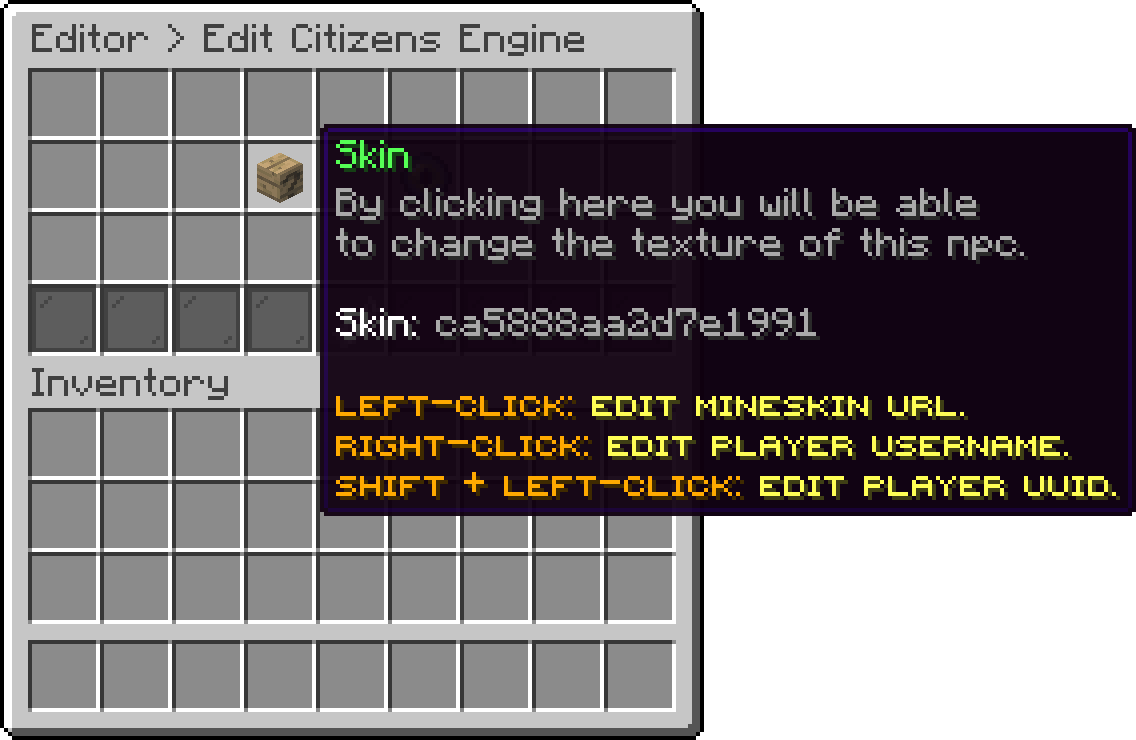
Citizens (Skin)
With this option, you can make the NPC turn towards the nearest player instead of facing the direction it was placed in.
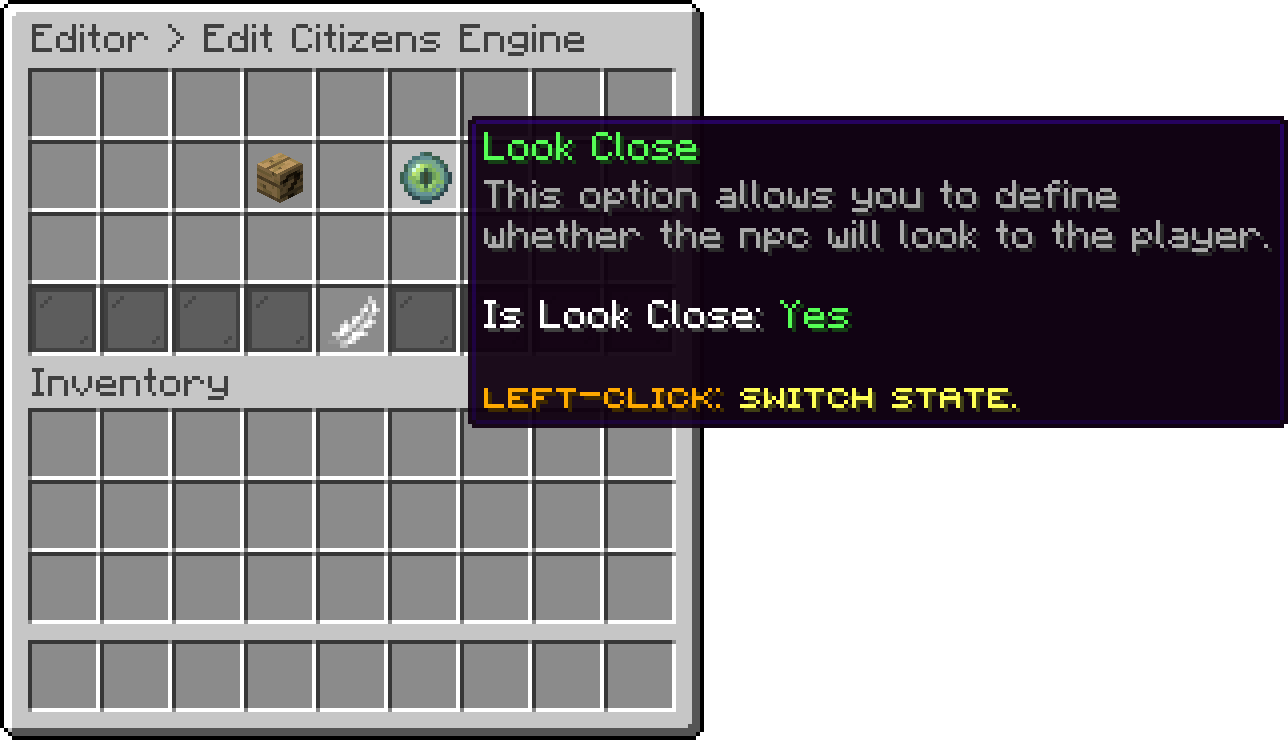
Citizens (Look Close)
This option requires ModelEngine installed.
This engine uses a ModelEngine model as the NPC, so anything you can build in Blockbench can stand in the lobby and play its own animations.
With this option, you can pick one of the models ModelEngine has loaded. An NPC left on unknown shows a "Setup the model" marker in the world instead of a model.
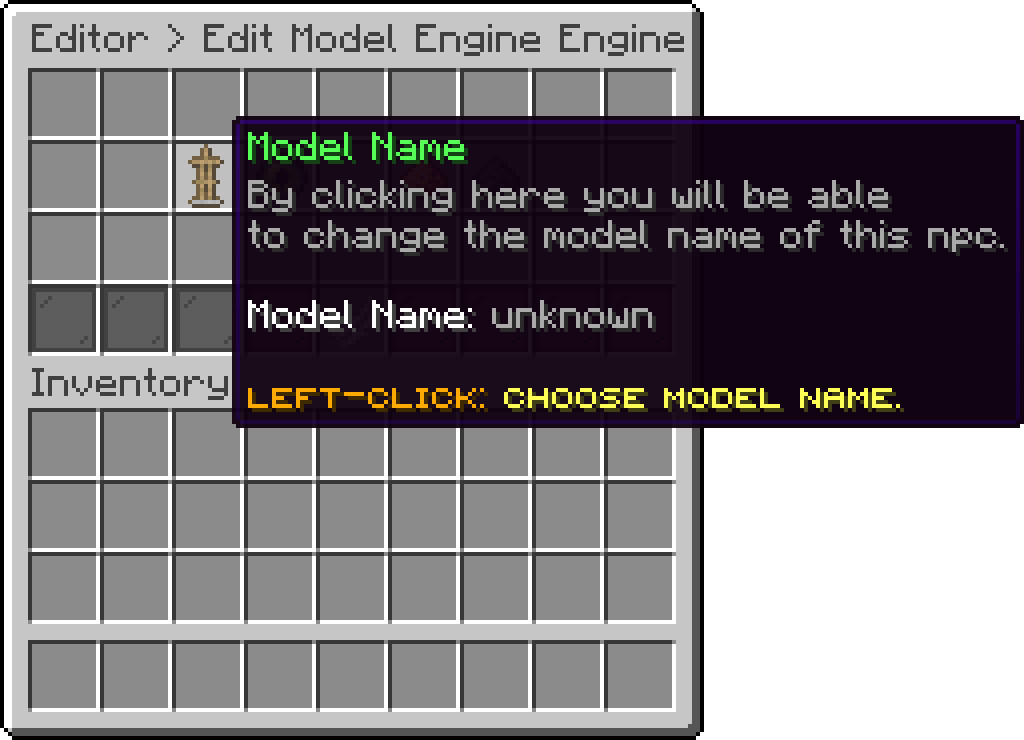
Model Engine (Model Name)
With this option, you can loop an animation while the NPC is standing there. The list is the animations of the chosen model, so picking the model comes first.
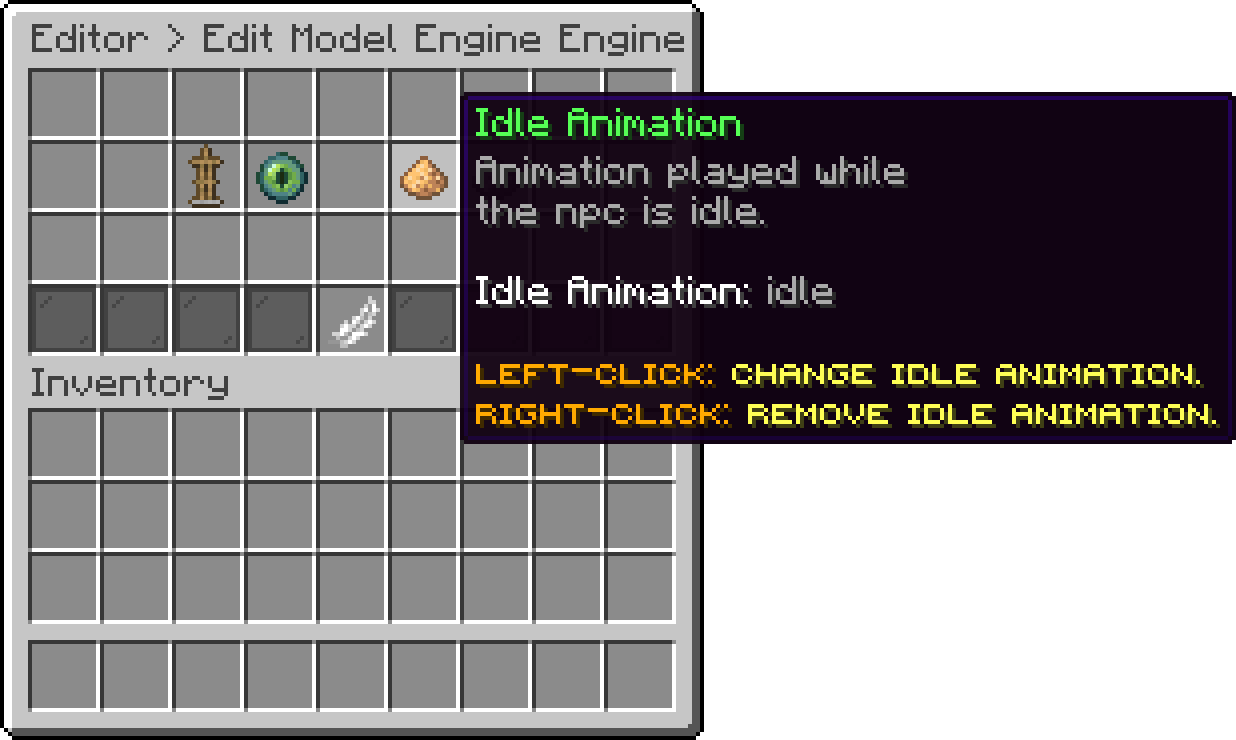
Model Engine (Idle Animation)
With this option, you can play an animation once when a player clicks the NPC. It runs alongside the actions of that click, not instead of them.
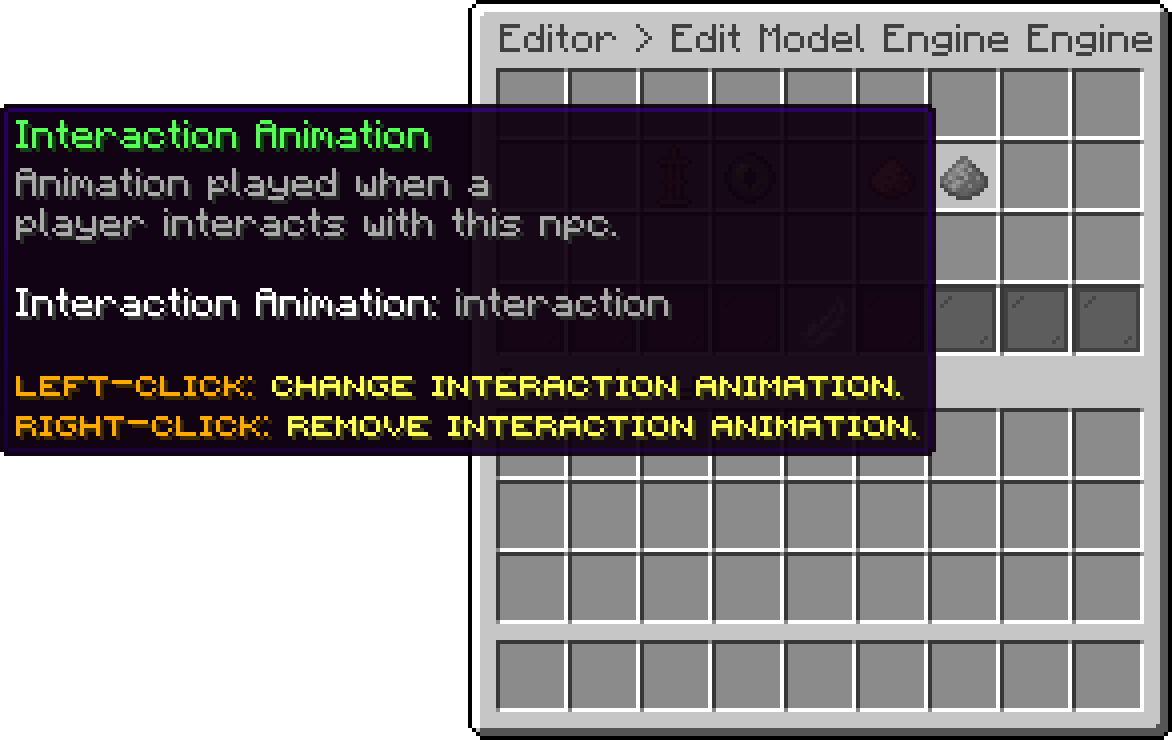
Model Engine (Interaction Animation)
With this option, you can make the model turn towards the nearest player instead of facing the direction it was placed in.
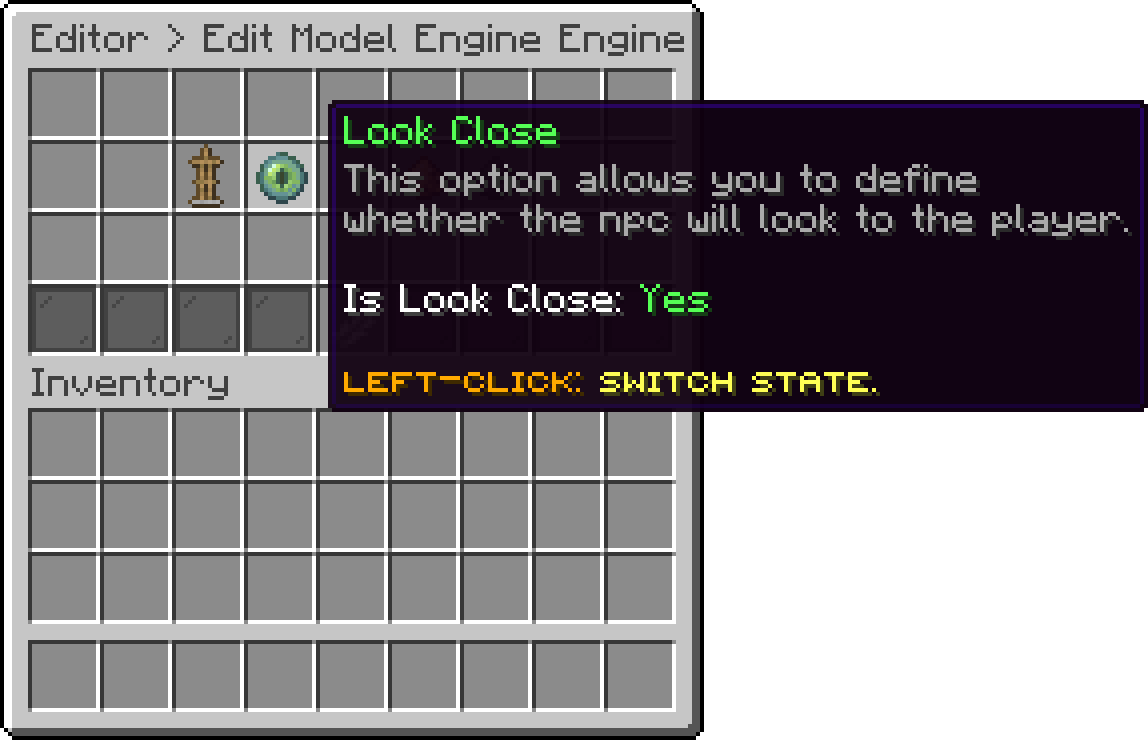
Model Engine (Look Close)
This option requires FancyNpcs to be installed.
This engine hands the NPC to FancyNpcs, so it is a real player-shaped npc with a skin. It is listed as Fancy NPCS in the engine picker.
With this option, you can set the skin the NPC wears, either from a raw skin texture value or from a player uuid.
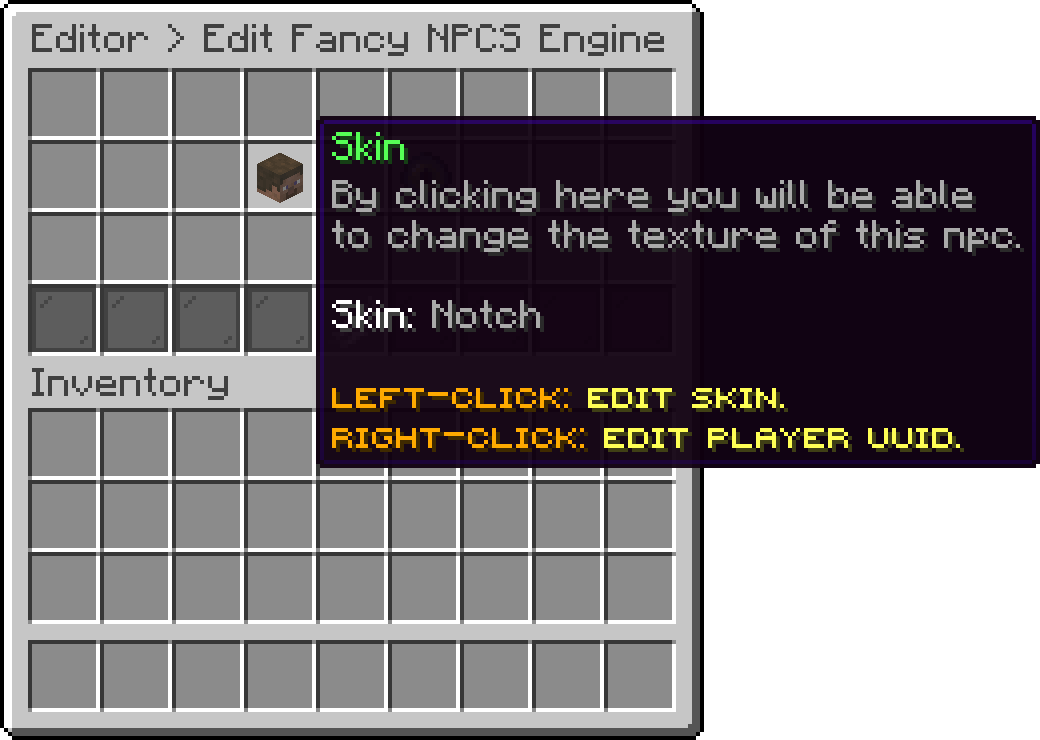
Fancy NPCs (Skin)
With this option, you can make the NPC turn towards the nearest player instead of facing the direction it was placed in.
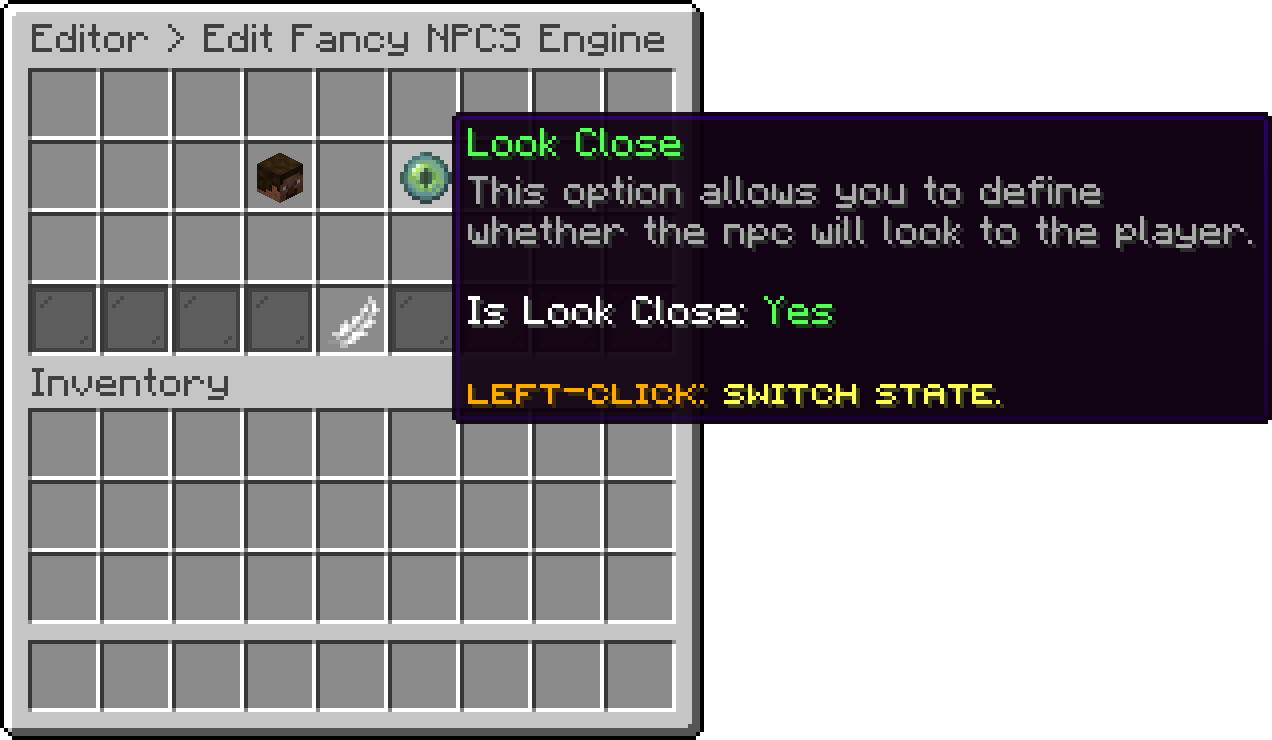
Fancy NPCs (Look Close)
This option requires BetterModel to be installed.
This engine uses a BetterModel model as the NPC, so a model you have built in Blockbench can stand in the lobby and play its own animations.
With this option, you can pick one of the models BetterModel has loaded. An NPC left on unknown shows a "Setup the model" marker in the world instead of a model.
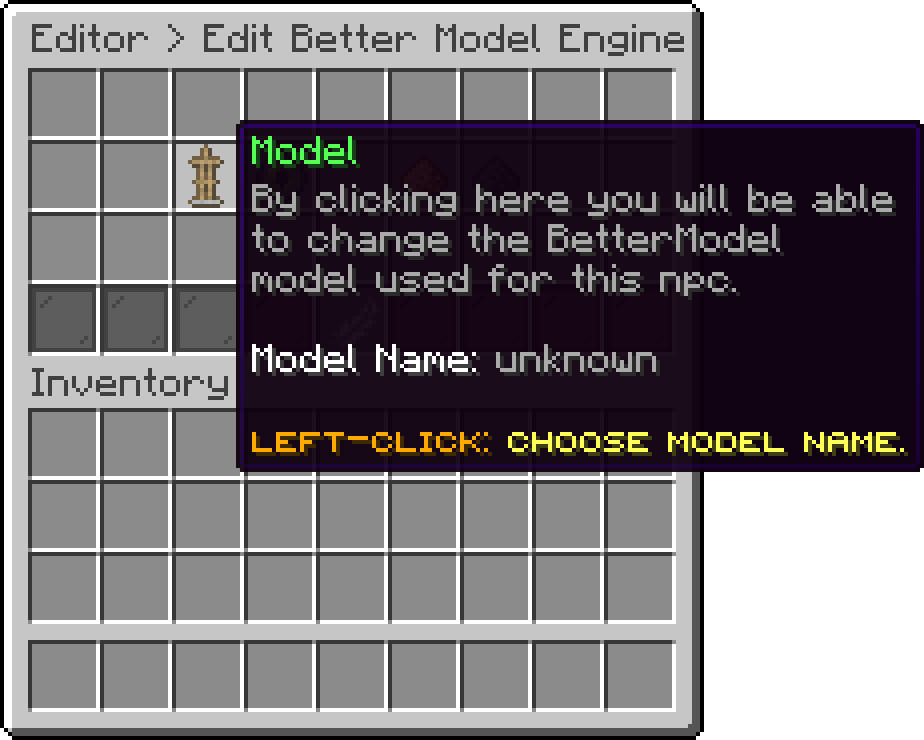
Better Model (Model)
With this option, you can loop an animation while the NPC is standing there. The list is the animations of the chosen model, so picking the model comes first.
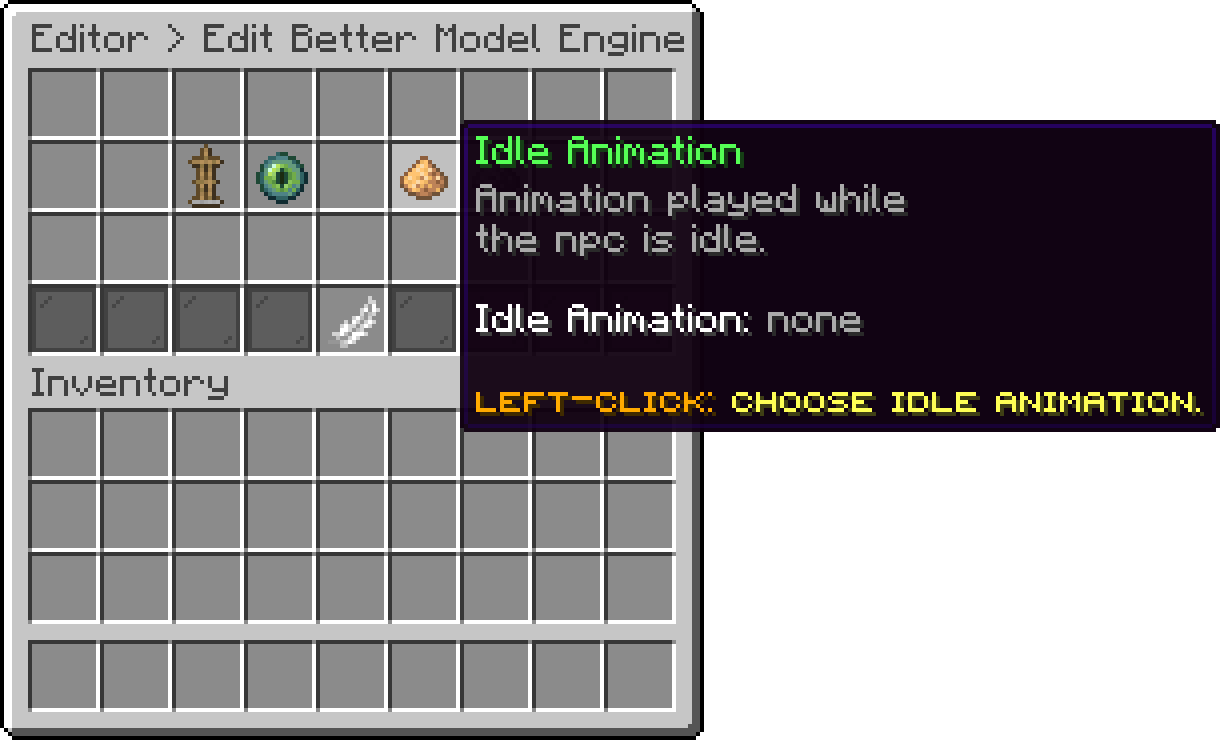
Better Model (Idle Animation)
With this option, you can play an animation once when a player clicks the NPC. It runs alongside the actions of that click, not instead of them.
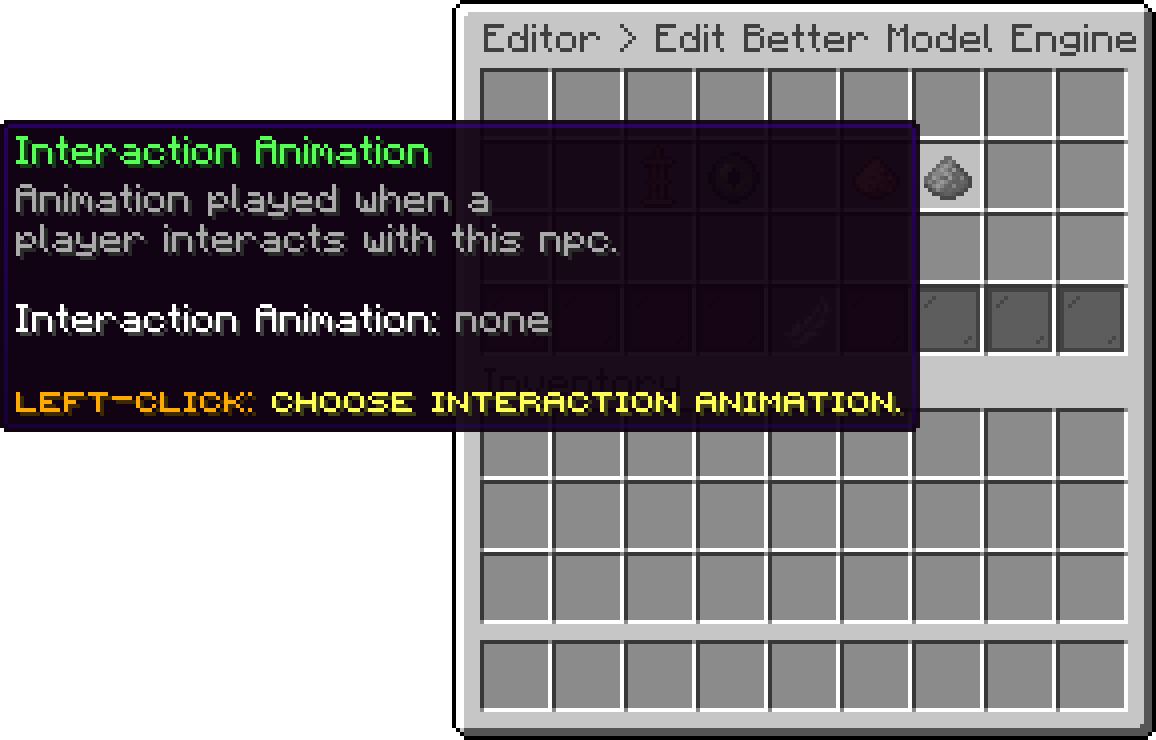
Better Model (Interaction Animation)
With this option, you can make the model turn towards the nearest player instead of facing the direction it was placed in.
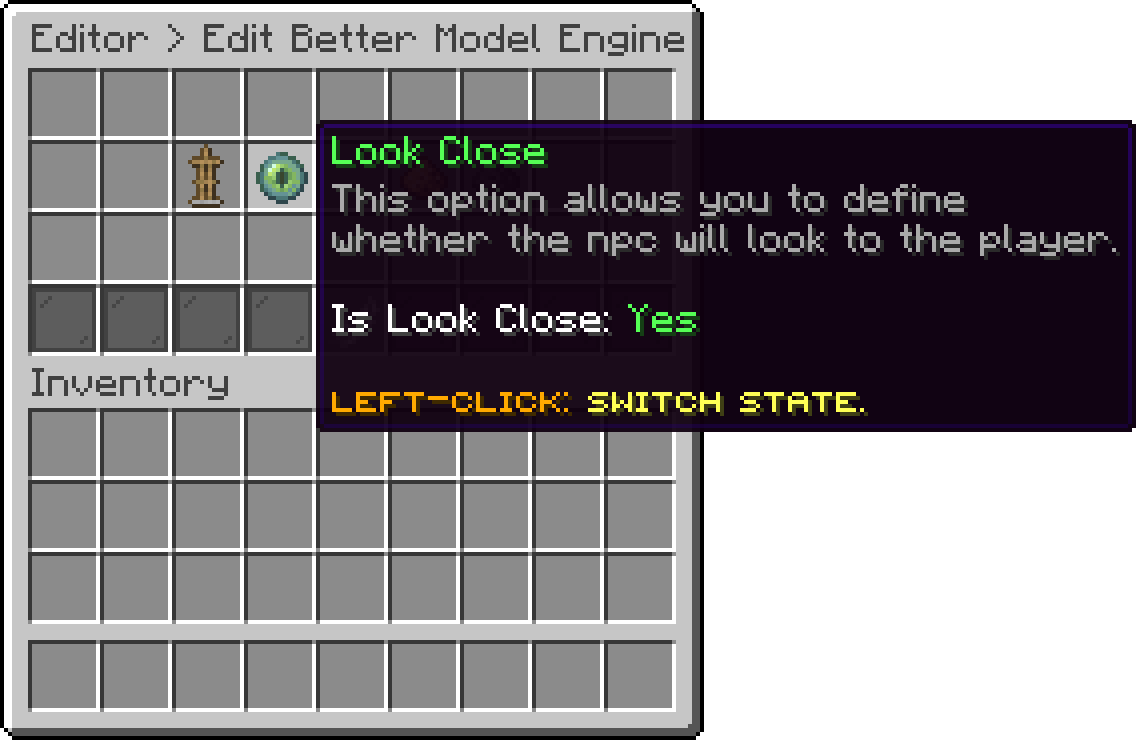
Better Model (Look Close)
Your guide to the docs
Ask me anything about Phoenix Lobby. I know these docs inside out, check the latest versions and changelogs, and can read your server logs.
Try asking
Your cart is empty
Looks like the spiders padded through here. Pick a plugin and it will show up here. Continue shopping