


Your cart is empty
Looks like the spiders padded through here. Pick a plugin and it will show up here. Continue shoppingPlayer-built kits, from item categories and items to the kit slots each player gets.
The Player Kits add-on allows your players to create their own personalized kits using a predefined set of items that you configure. This add-on requires PhoenixDuels Premium.
Player Kits - Add-on
You can purchase this add-on on Phoenix Store
To install this add-on, simply drag and drop the jar file into the PhoenixDuels/addons folder, then restart your server.
The add-on will generate a file in the main PhoenixDuels folder called player_kits.yml , which contains all configuration settings for the add-on.
This add-on supports Folia, which is still experimental.
When the add-on has been installed, the Loadout Type of a gamemode will now have the Player Kit option. Now, you will be able to create a gamemode that players will use their premade inventories to compete against each other.

Editor > Modes > Mode
Next to Player Kit, the Loadout Type list also offers Shared Player Kit. Everyone in the match fights with the selected kit of whoever hosted it, rather than with their own, and each player is told whose kit they have been handed. It is meant for party fights and private matches where one host sets the terms for everybody.

Editor > Modes > Mode
Matches with no host, such as ranked and unranked queues, have no kit to share, so every player falls back to their own selected kit.
The categories also power Extended Kit on premade kits: with it on, players add extra items from the allowed categories on top of a server kit such as Crystal, from that kit's layout screen, and fight with them in every mode that uses the kit. Each kit picks which categories are allowed and how many extra items a player may add. See Kit Editor.
To configure the Player Kits, open the in-game editor and access it from the main menu.
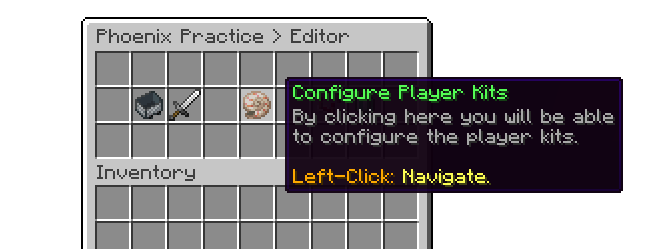
In-Game Editor
To create a category, simply click on the green stained glass pane. By default, the plugin includes 6 categories with items, allowing users to create their kits based on those items right away.
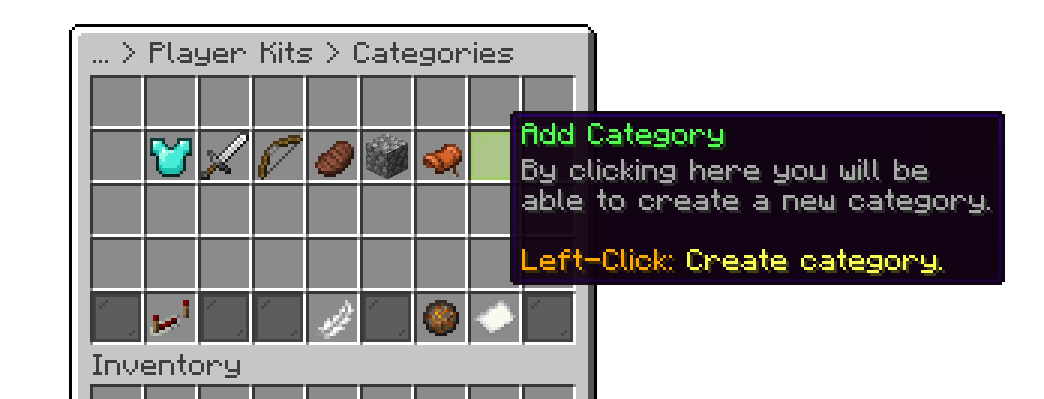
Add Category
You can use the reordering option to sort the categories in your desired order for the menu.
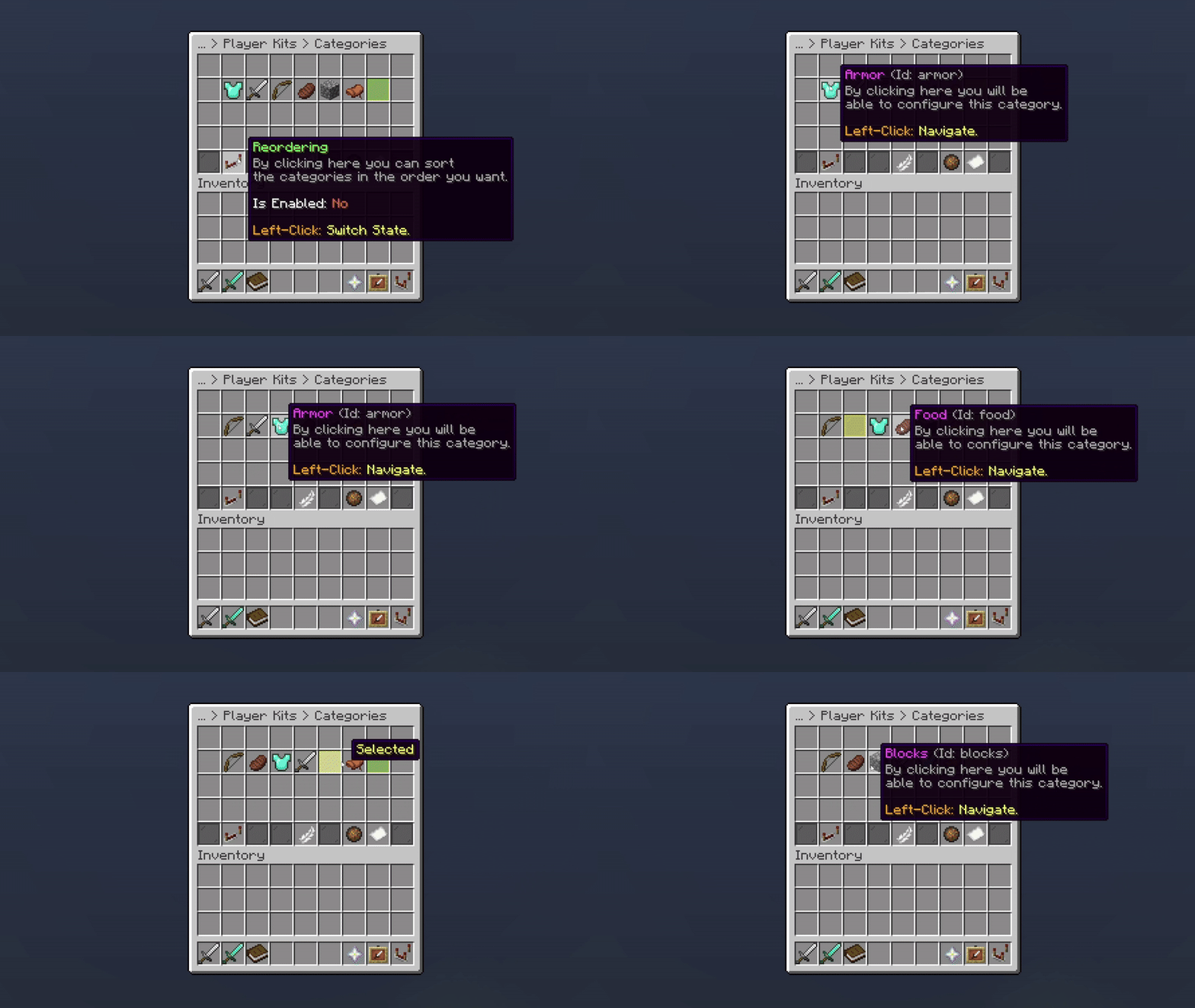
Reordering Categories
With this option, you can customize the material, display name, and lore that the kit category will have for the user and the admin.
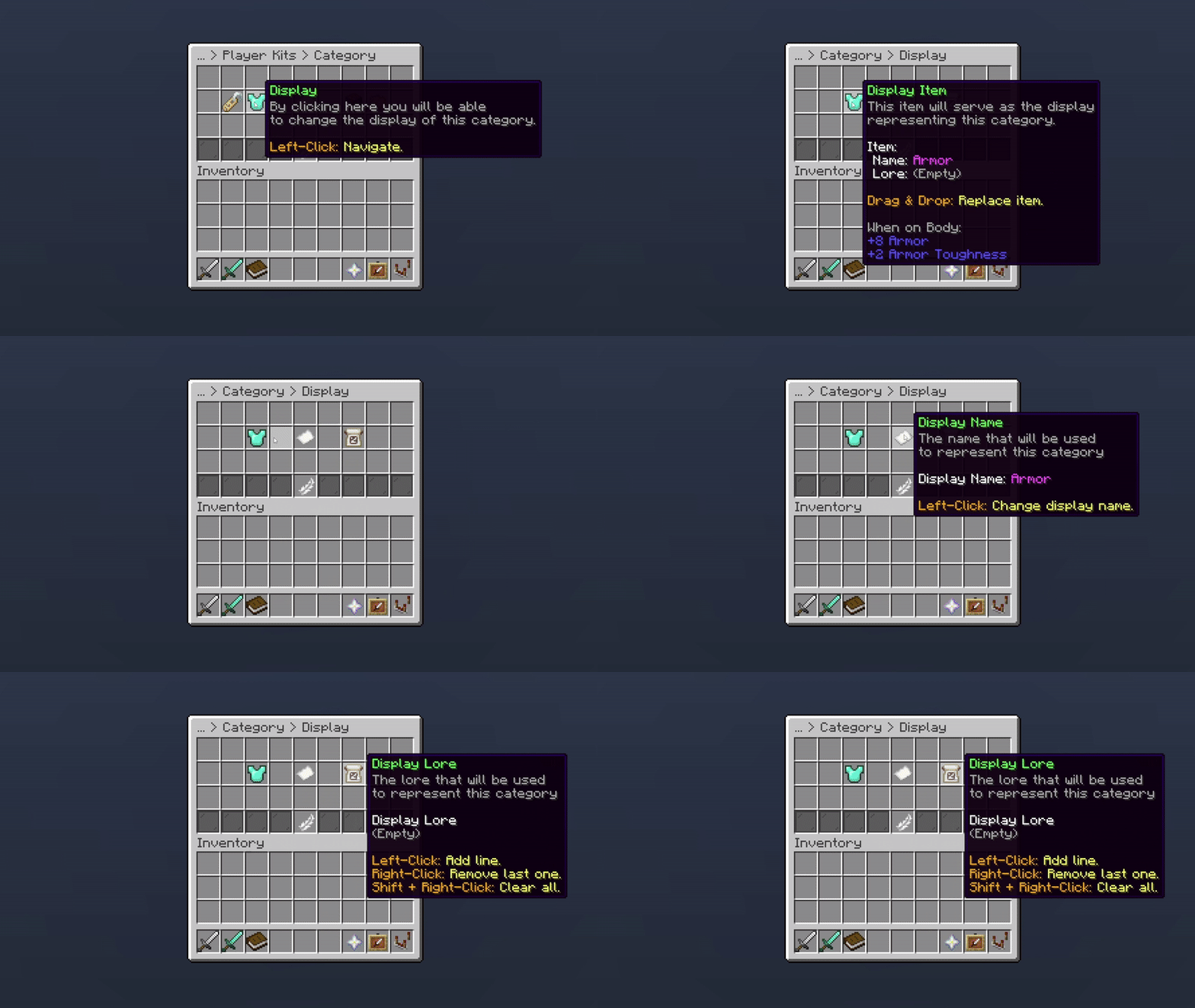
Display Item
With this option, you can set a unique identifier for the category. By default, the plugin automatically assigns a unique identifier to each category. Changing this identifier will result in data loss.
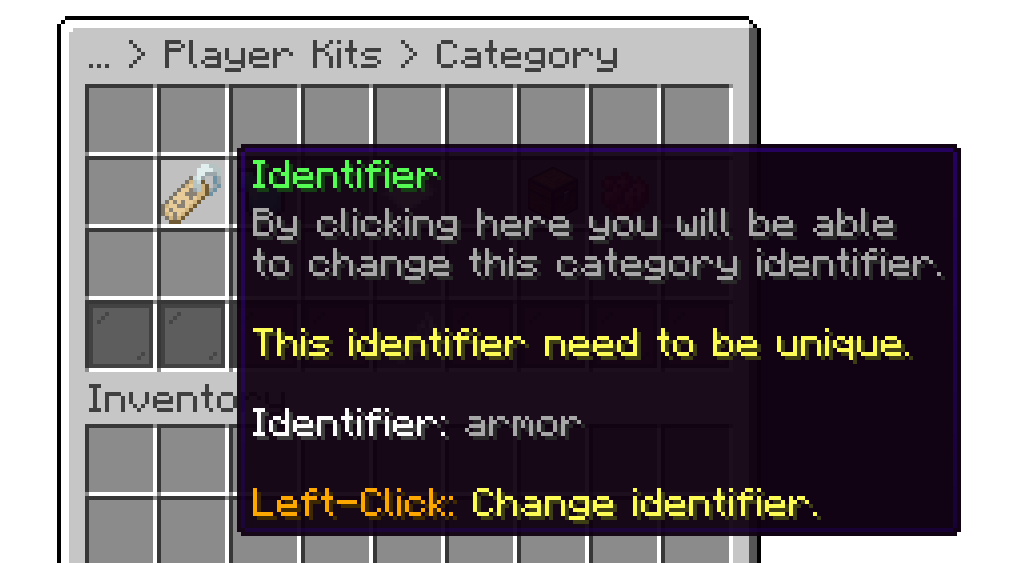
Category Identifier
With this option, you can specify which menu you want your category to have. You can create or edit menus inside the menus/playerkits folder. If you create a custom menu from the editor, the plugin will generate a premade layout for it.
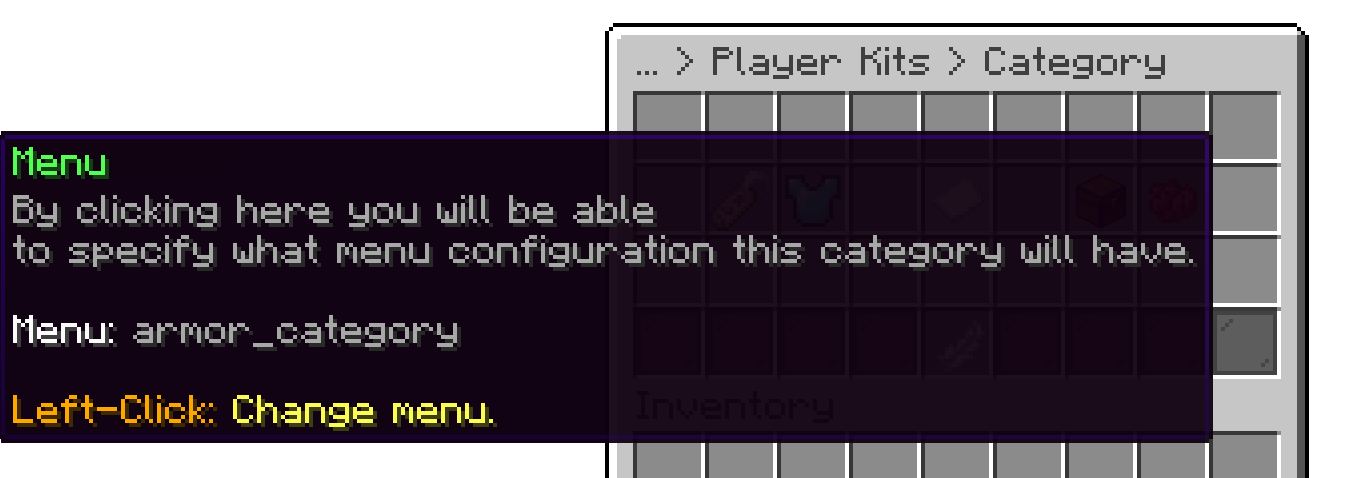
Category Menu
With this option, you can delete a kit category.
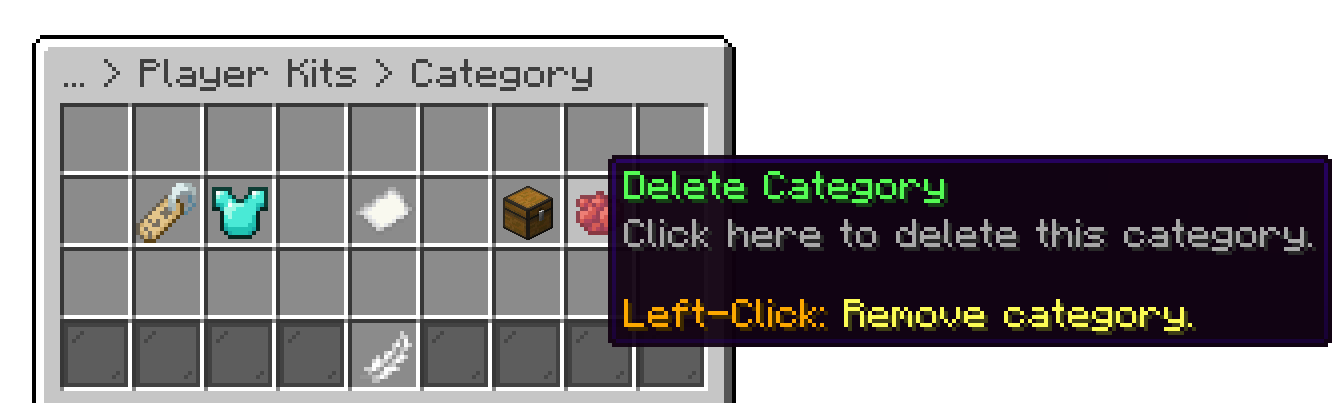
Delete Category
This option is permanent, and categories can't be restored.
With the items, you can create and manage the items that will be included in the category.
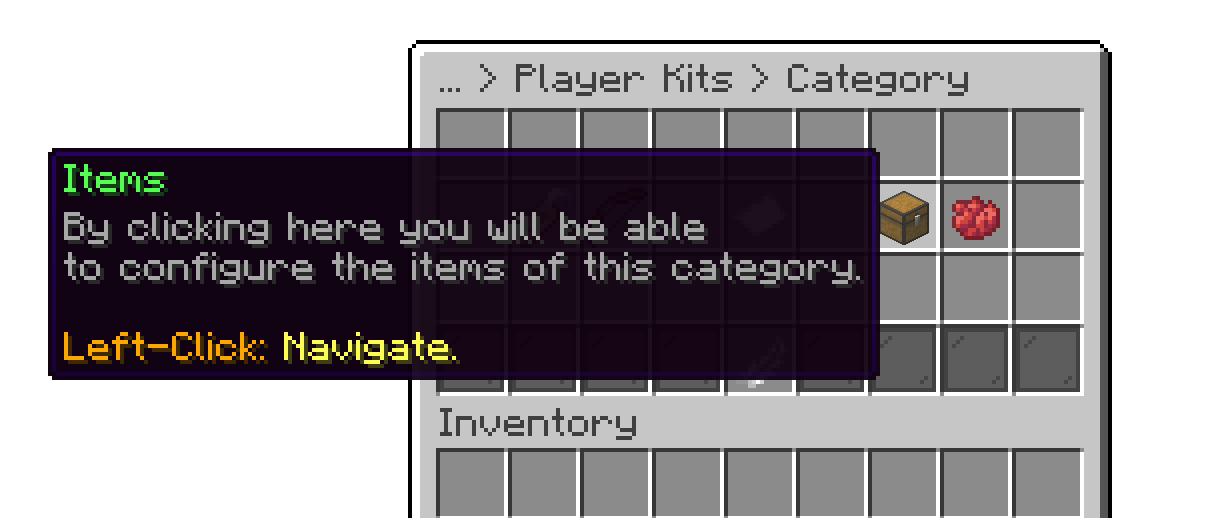
items
You can use the reordering option to sort the items in your desired order for the category menu.
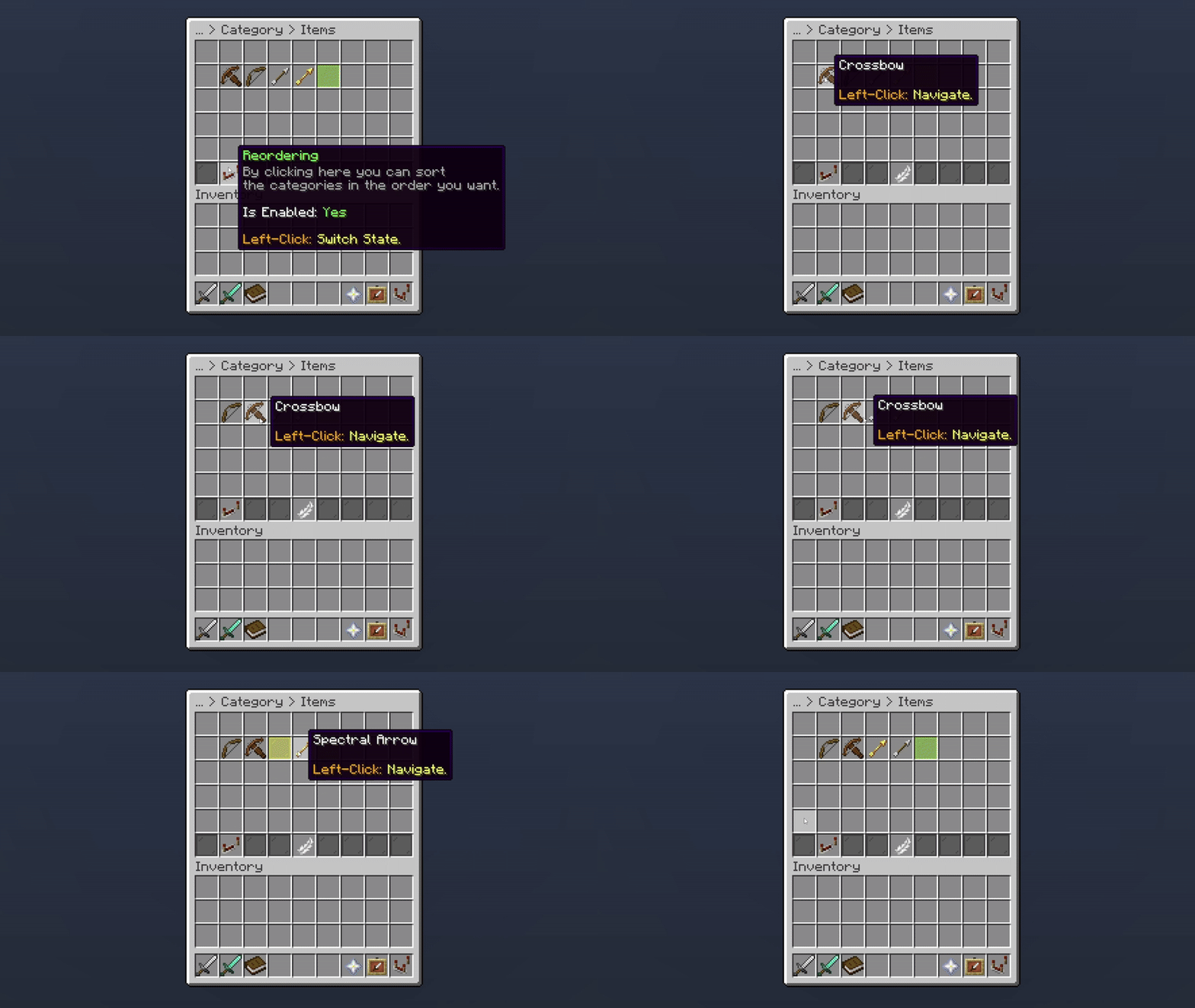
Reordering Rewards
You can set the Display Item, which is the item players will see and select. Additionally, you can customize its display name and lore to make it more appealing.
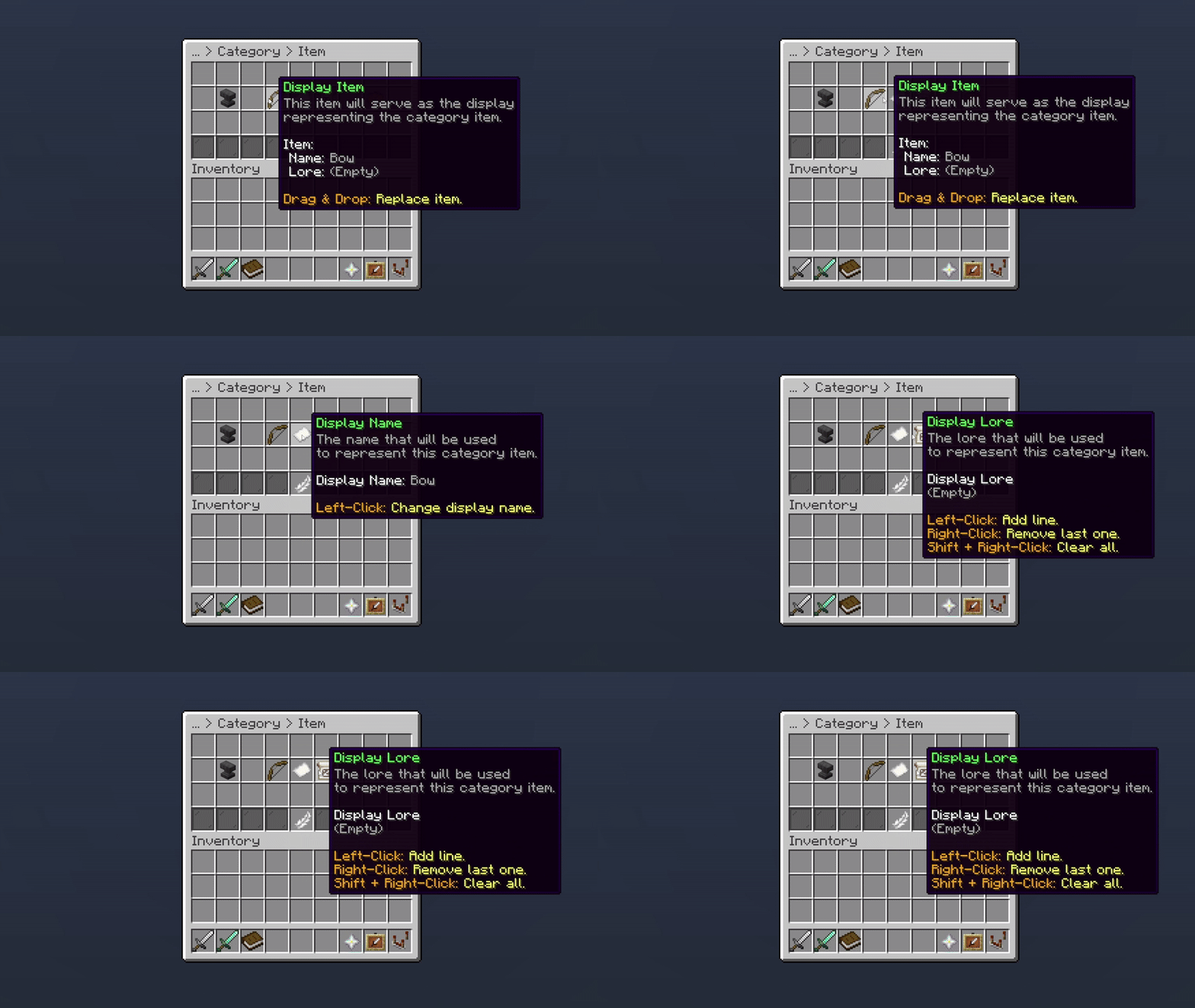
Edit Item
This option is mainly used to identify armor slots. If you have an item that its an armor set, make sure to select the corresponding attribute.
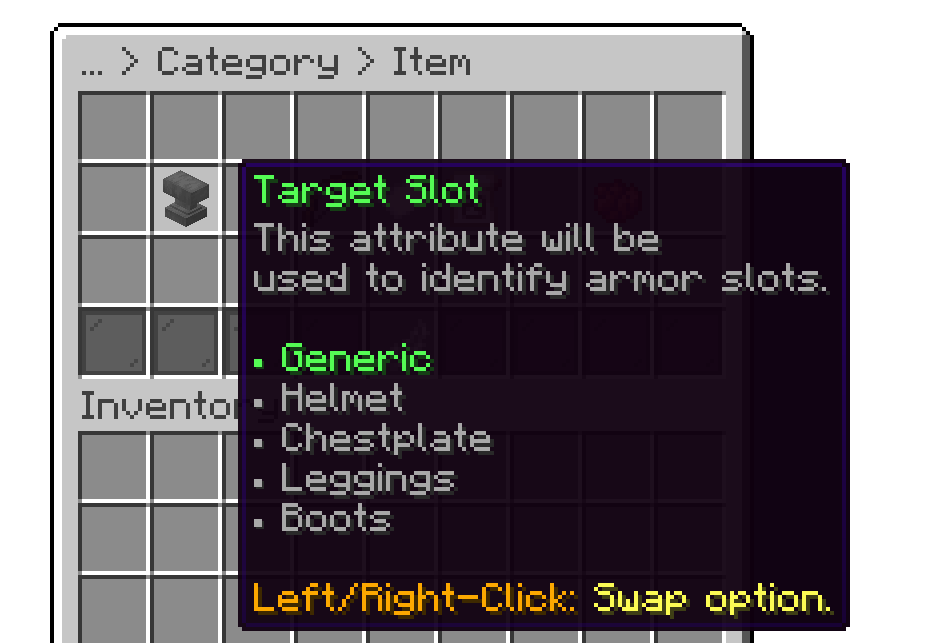
Target Slot
With this option you can delete an item.
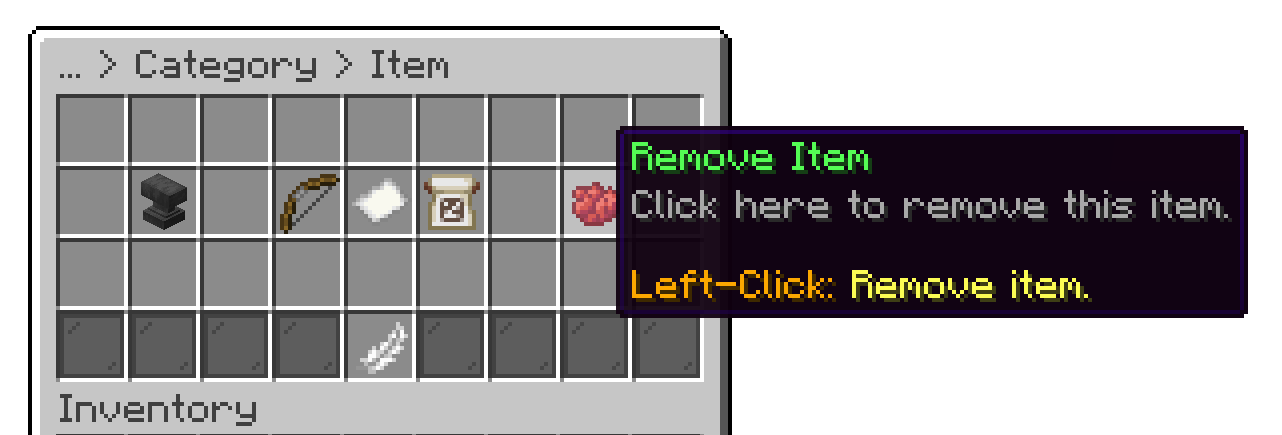
This option is permanent, and items can't be restored.
Pins the item to a fixed position in the kit editor's picker grid instead of letting it flow into the next free space. The grid is 25 slots per page, numbered from 0, and a value of 25 or higher lands the item on a later page. Leaving it at -1 means auto-fill: the item takes whatever position the ones declared before it leave open.
Use it when a category needs a deliberate shape, such as one armor material per row.
With default slots, you can set the number of slots players will have. By default, this is set to 3, allowing users to create up to 3 custom kits.
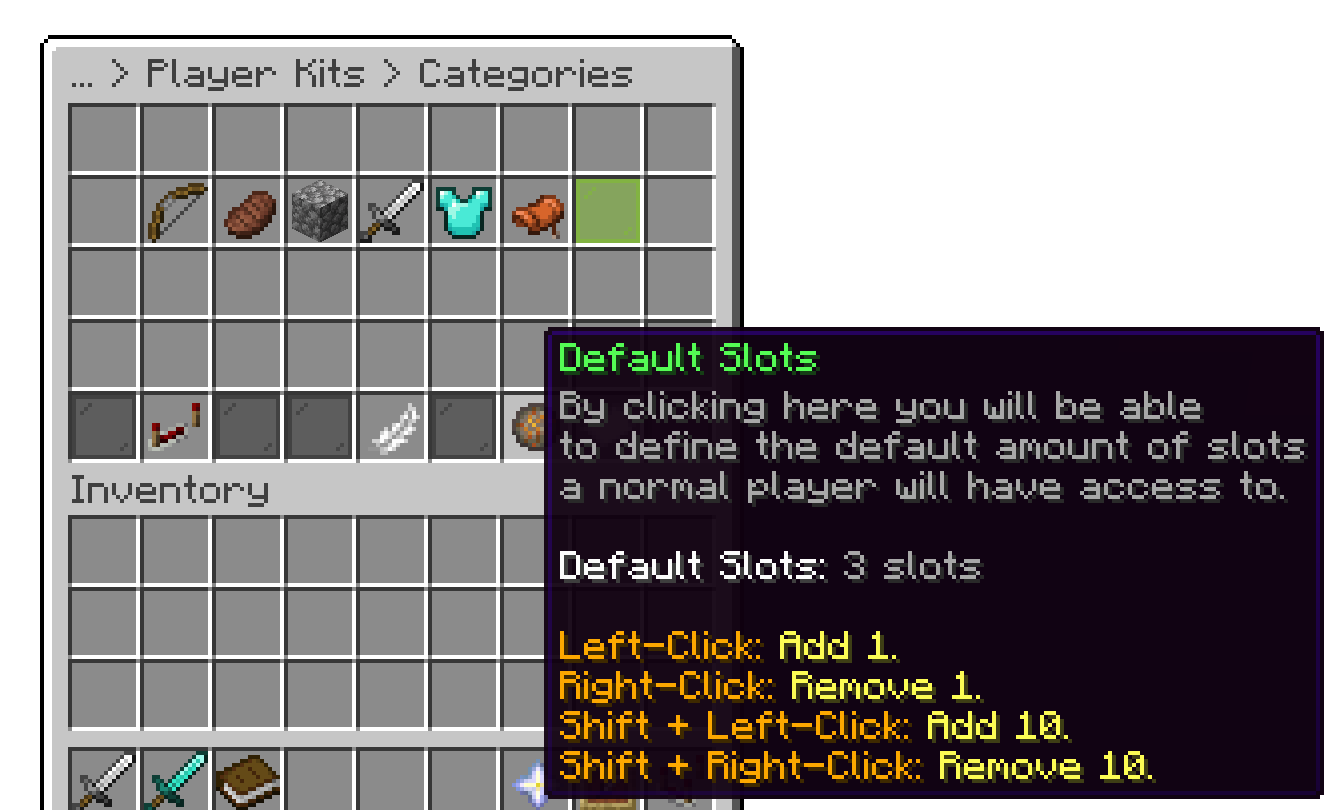
Default Slots
As shown below, the user has access to only 3 custom kits, as specified above.
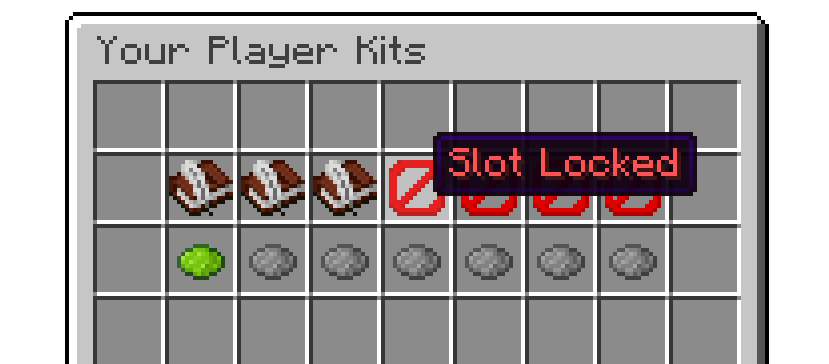
Locked Slots
With Permission Slots, you can grant users additional slots beyond the default ones. Keep in mind that these are extra slots, not replacements for the default slots.
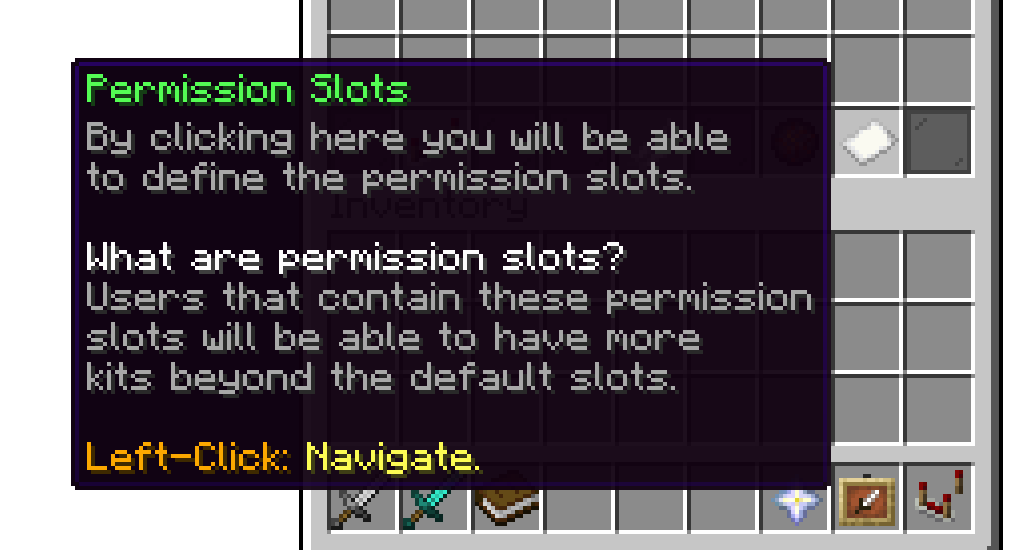
Permission Slots
To create a new permission slot, simply click on the green stained glass.
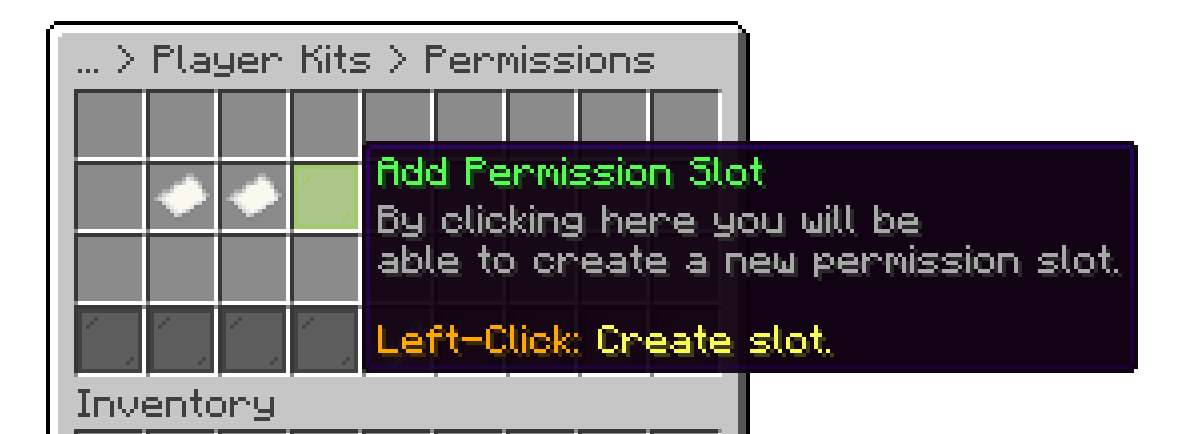
Add Permission Slot
After that, you’ll need to specify the permission you want your users to have and the number of slots to grant. There’s also an option to delete a specific slot if needed
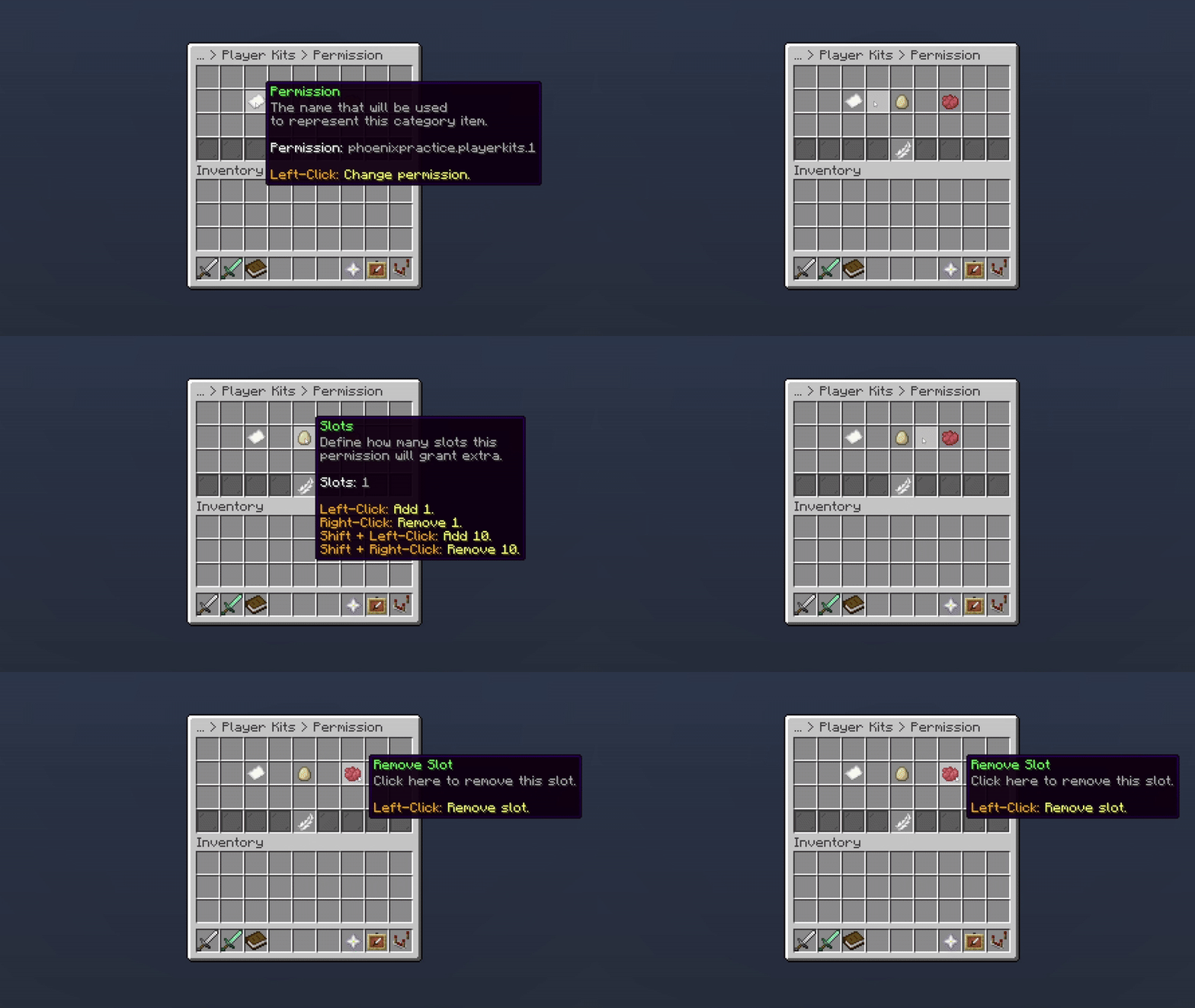
Permission Slot
Permission slots do not stack. A player who matches several of them only gets the largest one, added on top of the default slots.
Default kits are ready-made kits every player starts with, so nobody has to build one from scratch. They live in the Default Kits button of the Player Kits editor, and each one is built with the same kit editor players use, from the categories and items above.
Left-Click the green stained glass pane to add a default kit, and Left-Click an entry to open it. Turn on Reordering to change the order, which is also the order defaults fill a player's slots in.
The name that tells the default kits apart in the editor. Players never see it.
Opens the kit editor on the default kit. Saving a change publishes a new version of it.
Right-Click, then confirm, to delete the default kit. Players who already have a copy keep it as a normal kit.
Your guide to the docs
Ask me anything about Phoenix Duels. I know these docs inside out, check the latest versions and changelogs, and can read your server logs.
Try asking
Your cart is empty
Looks like the spiders padded through here. Pick a plugin and it will show up here. Continue shopping