
Oops... looks like the spiders padded through here
Add products to your cart and remove them from here Lets buy
On this page, you will find all the information about creating an arena
The first step is to set up the arena, defining the region the plugin will recognize as the designated location for dueling.
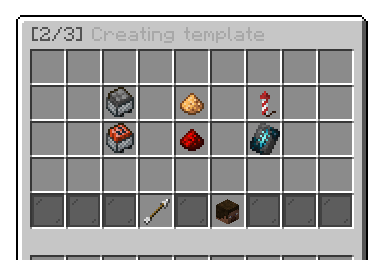
Creating Template Menu
Before defining any locations, a new map asks you to pick its type:
As shown in the screenshot below, the Universal Region refers to the entire arena build that you'll need to define. This helps protect your arena and makes cloning it quicker and easier.
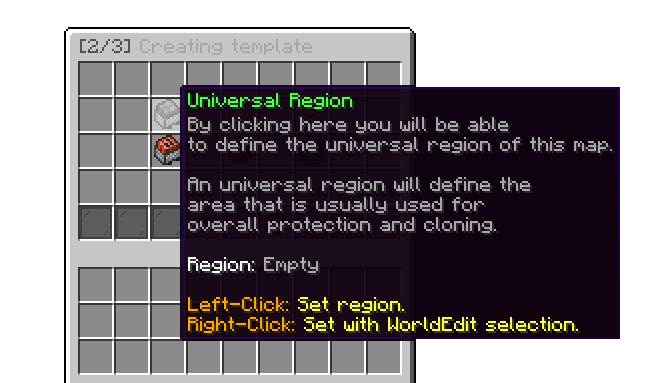
Creating Template Menu
The process to set it up is similar to creating a region using WorldGuard for a build, ensuring smooth setup and management of your arena.
.png)
Left-Click to define the first position
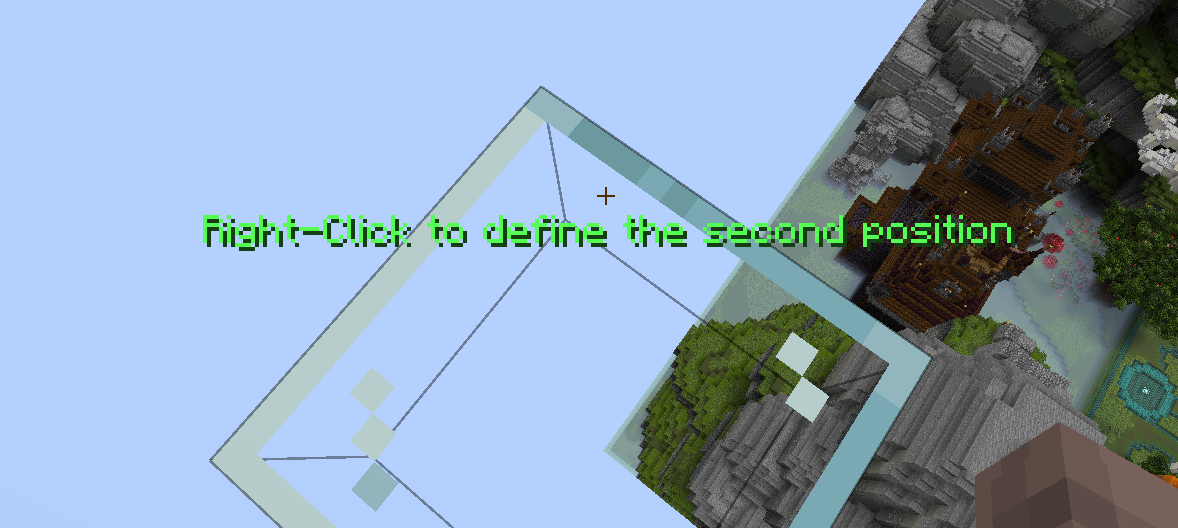
Right-Click to define the second position
As shown above, I selected a cubic region that spans from one side of the arena to the other. This is how you define the Universal Region, which includes the entire arena build.
As shown in the screenshot below, the Battle Region is the designated area where players will duel.
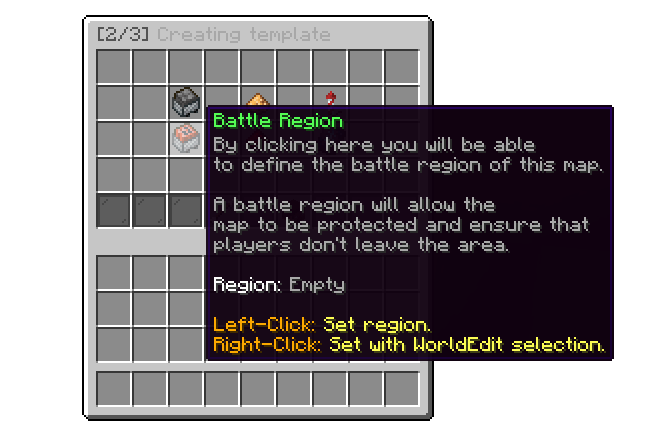
Creating Template Menu
Defining this region is done in the same way as for the Universal Region, by selecting a cubic area that covers the intended battle zone within the region.
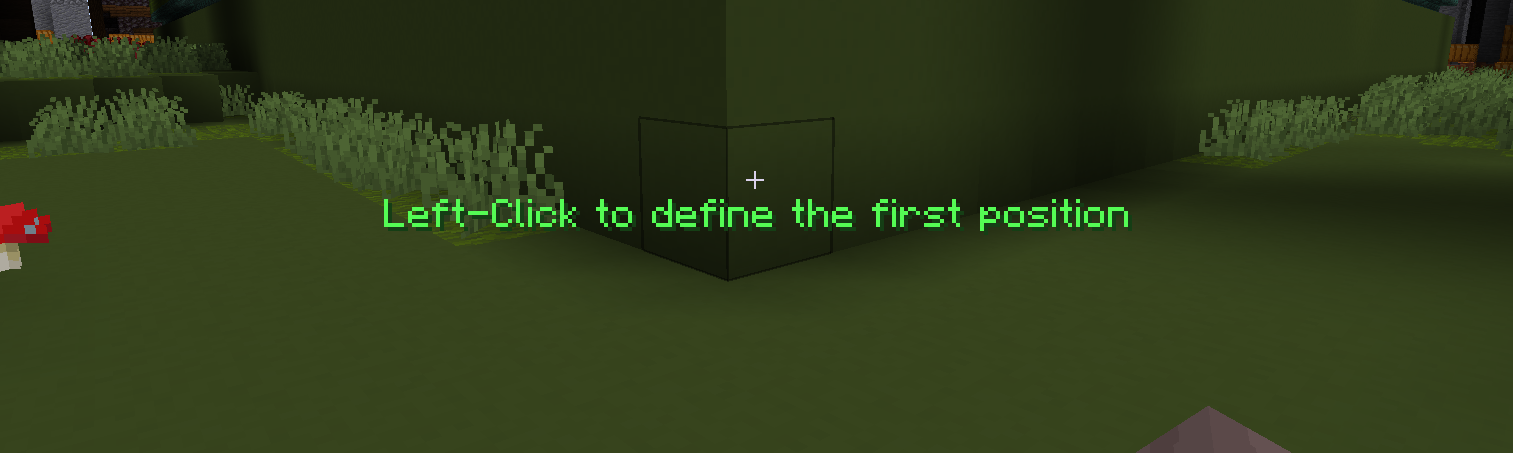
Left-Click to define the first position
%20(1).png)
Right-Click to define the second position
As shown above, I selected a cubic region that spans from one side of the arena to the other. This is how you define the Battle Region, which includes the part of the arena that the players duel.
Next, we will set up the First and Second Team Positions. These are the specific locations where players will spawn when the duel begins, ensuring both teams are placed correctly for the start of the match.
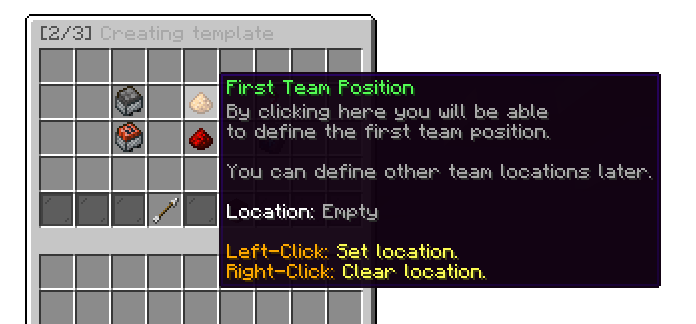
Creating Template Menu
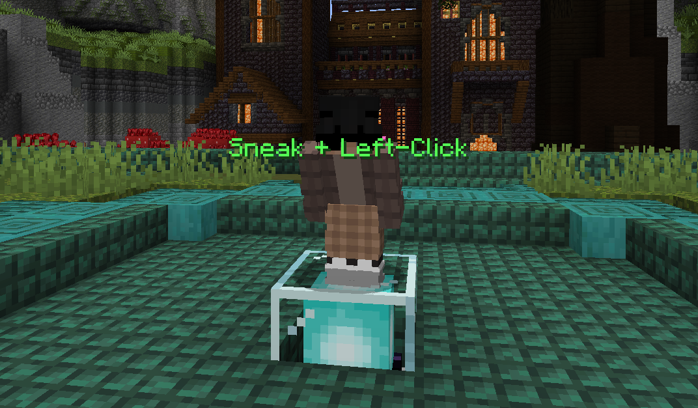
Sneak + Left-Click to set the position
As shown, all you need to do is stand on the block where you want the team position to be. The plugin will automatically copy your player's current position and set it as the team's spawn point. Repeat this same process to set the Second Team Position as well.
You can add more than one position to a team. Every position you add becomes another spawn point for that team, which is what a 2v2, 3v3 or 4v4 arena needs so teammates do not all land on the same block.
The same menu also offers a Third and Fourth Team Position, set exactly like the first two.
These are only used by Multi Team Fight, where a party splits into up to four teams instead of two. If you never intend to run /party multifight on this map, you can skip them.
A mode with PARTY_MULTI_TEAM_FIGHT enabled cannot be played on a map that has no third and fourth team positions, because there is nowhere to put the extra teams.
This step is optional, but you can set up the FFA position where users will spawn when playing FFA mode with their party.
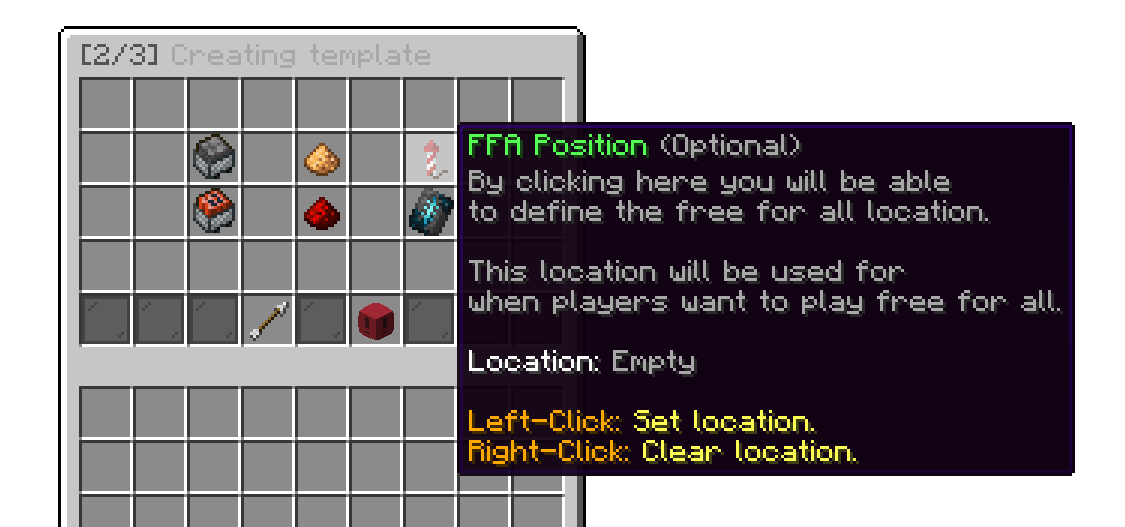
Creating Template Menu
This step is optional, but you can set a specific position for spectators to spawn in the map. If no location is specified, spectators will spawn directly on top of the player they are watching.
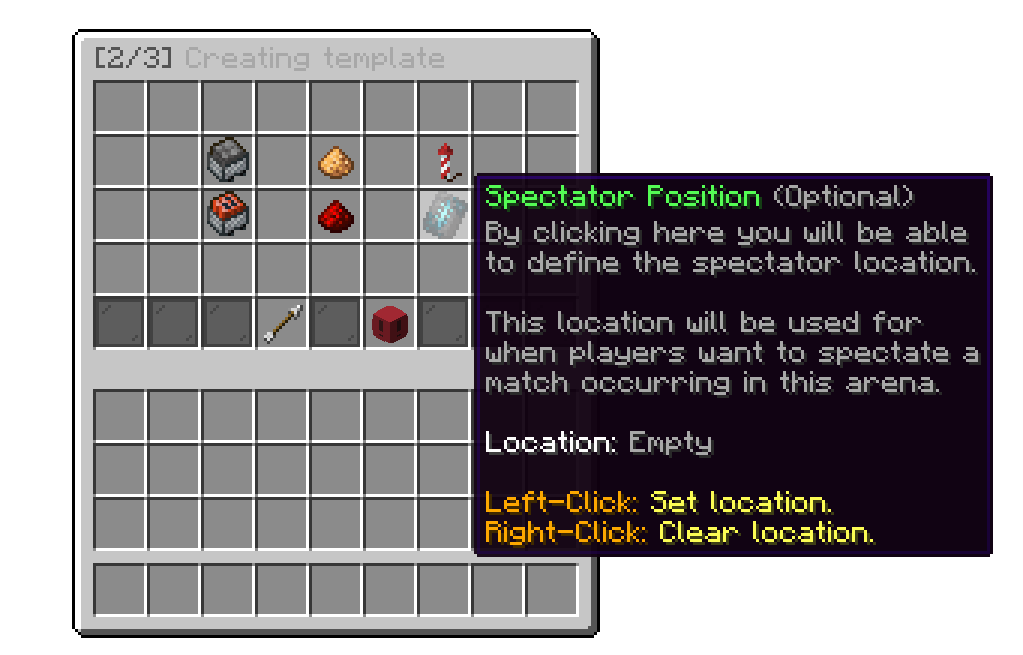
Creating Template Menu
Now that the required steps are done, you can create your arena template.
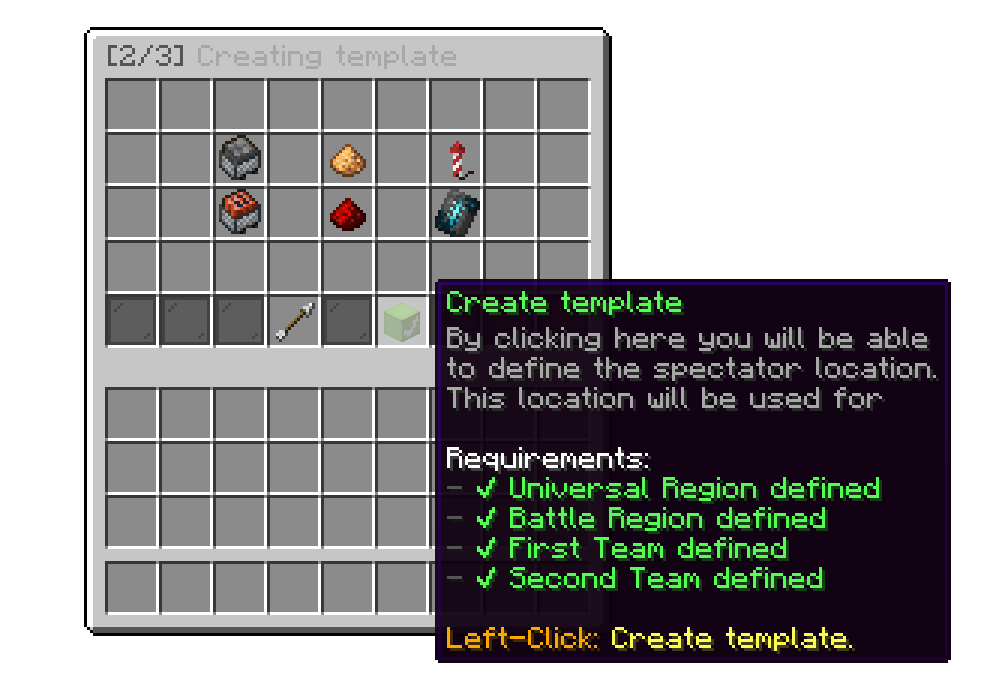
Creating Template Menu
Your arena is now ready to be customized!
Still struggling to understand the difference between the universal arena and the battle arena? Be sure to check the following for clarification:
what-is-the-difference-between-battle-region-and-the-universal-region.md
Oops... looks like the spiders padded through here
Add products to your cart and remove them from here Lets buy