
Oops... looks like the spiders padded through here
Add products to your cart and remove them from here Lets buy

On this page, you will find all the information about editing your already existing crate.
With this option, you can set an identifier for the crate. Note that the crate identifier is unique and used internally by the plugin, and its different from the display name. For example, if your crate's name is Elemental Crate the identifier should be set to elemental_crate.
If the identifier is changed, all player progress and keys associated with the crate will no longer work.
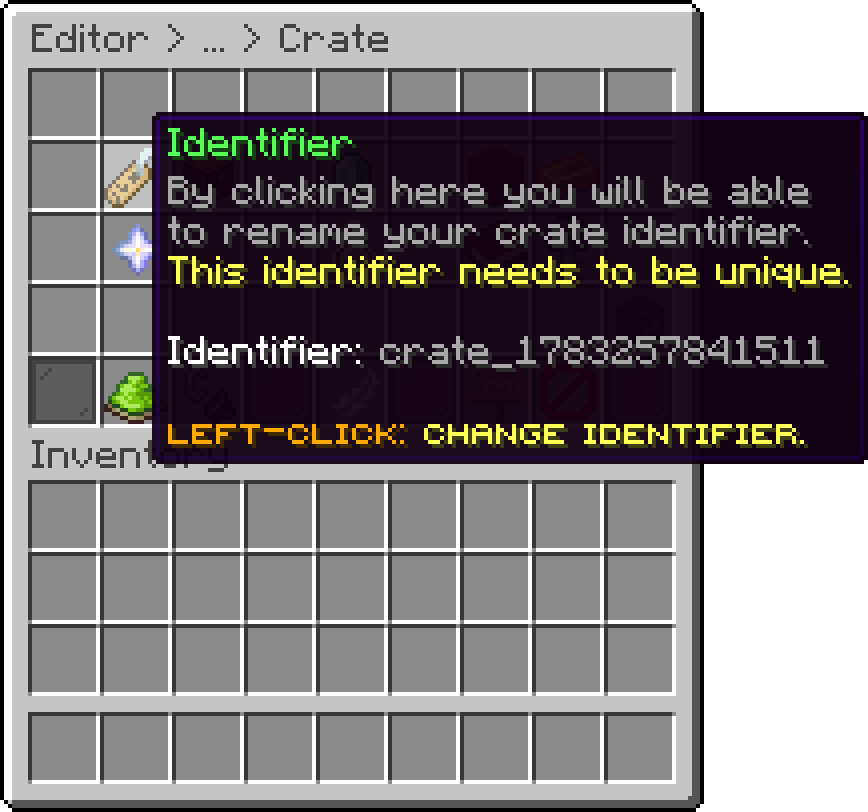
Editor > Crates > Crate
With this option, you can adjust the display name of the crate. The display name is typically shown in the hologram and in messages when you open the chest.
For the display name, you can use the default Minecraft color codes. For hex colors, use the &#D6D045 format.
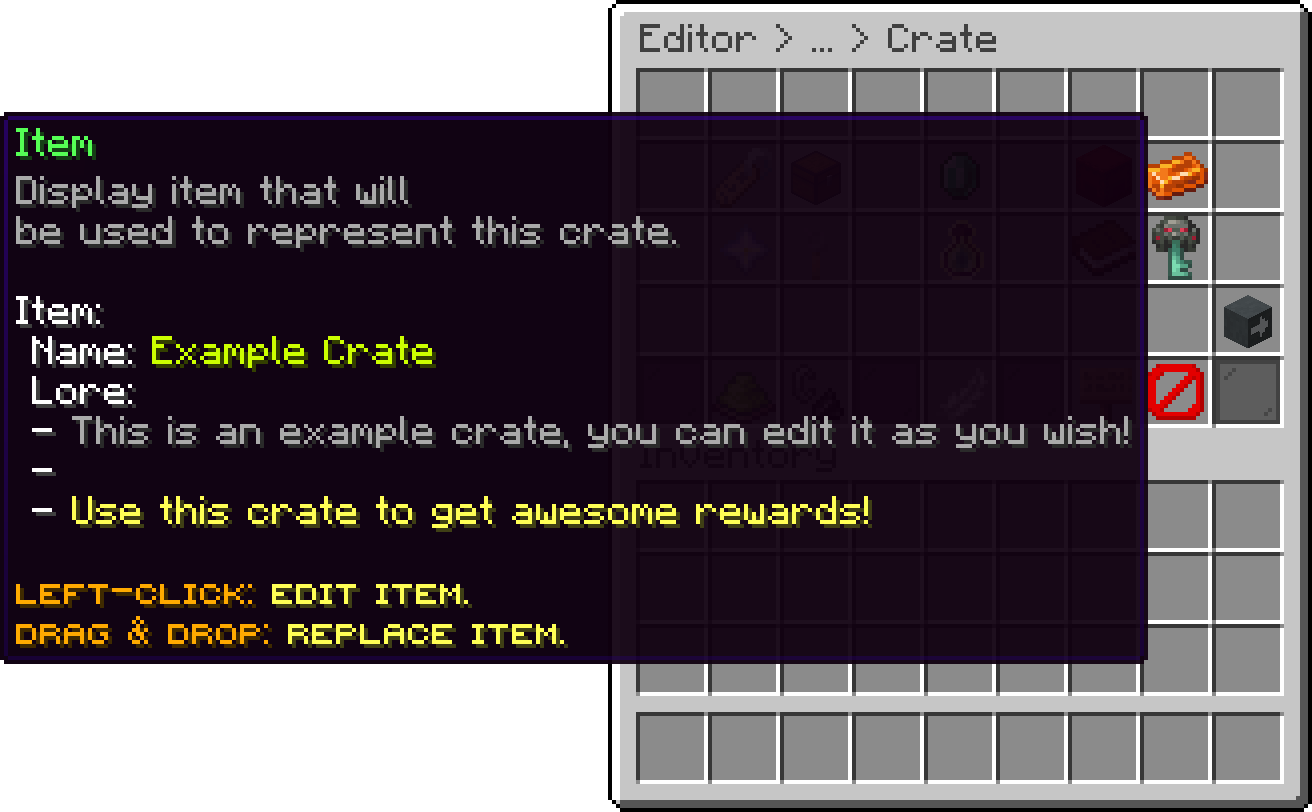
Editor > Crates > Crate
Every crate can show a hologram floating above it, with its lines, height and style set per crate. It has its own page: Hologram.
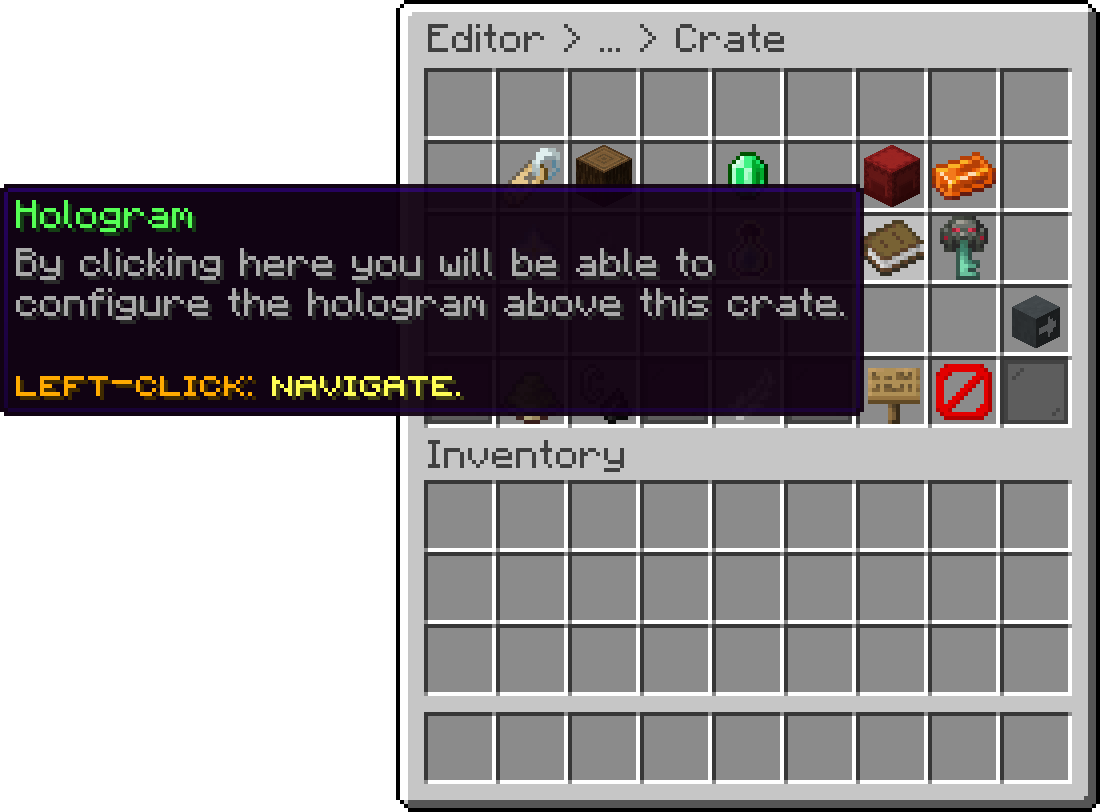
Editor > Crates > Crate
When the preview reward is enabled, users will be able to see all the rewards flickering above the crate.
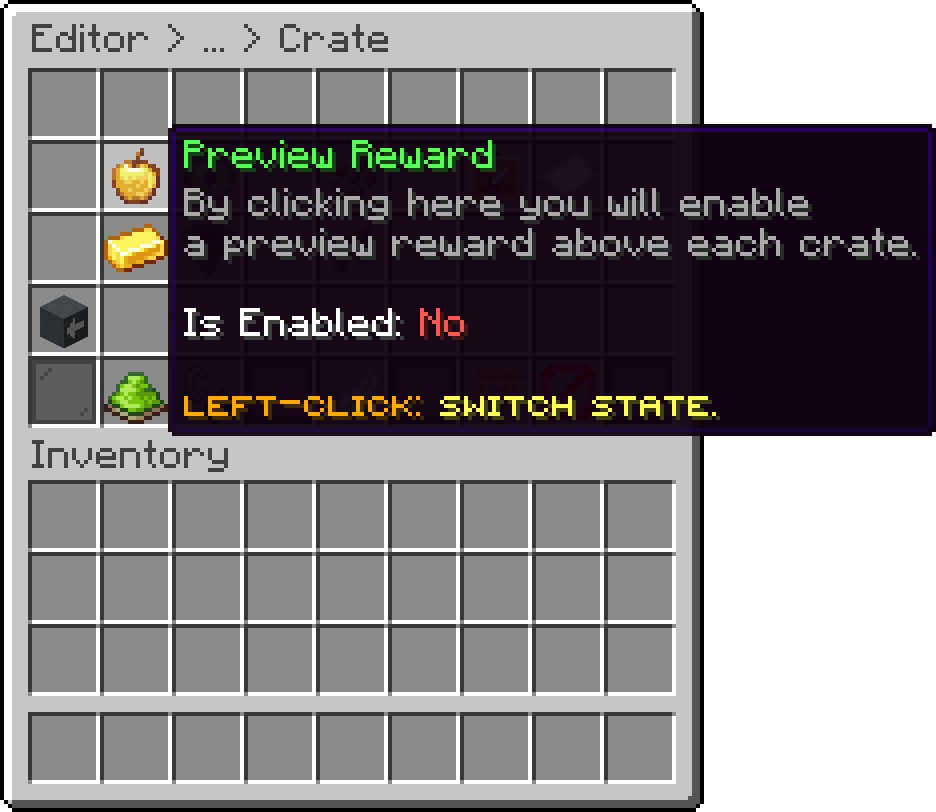
Editor > Crates > Crate
Turning this on raises the crate's hologram by 0.75 blocks so the two do not overlap. If your hologram jumps when you enable the preview reward, that is why, and the hologram offset can bring it back down.
The following is an example of using the Preview Reward to a crate.
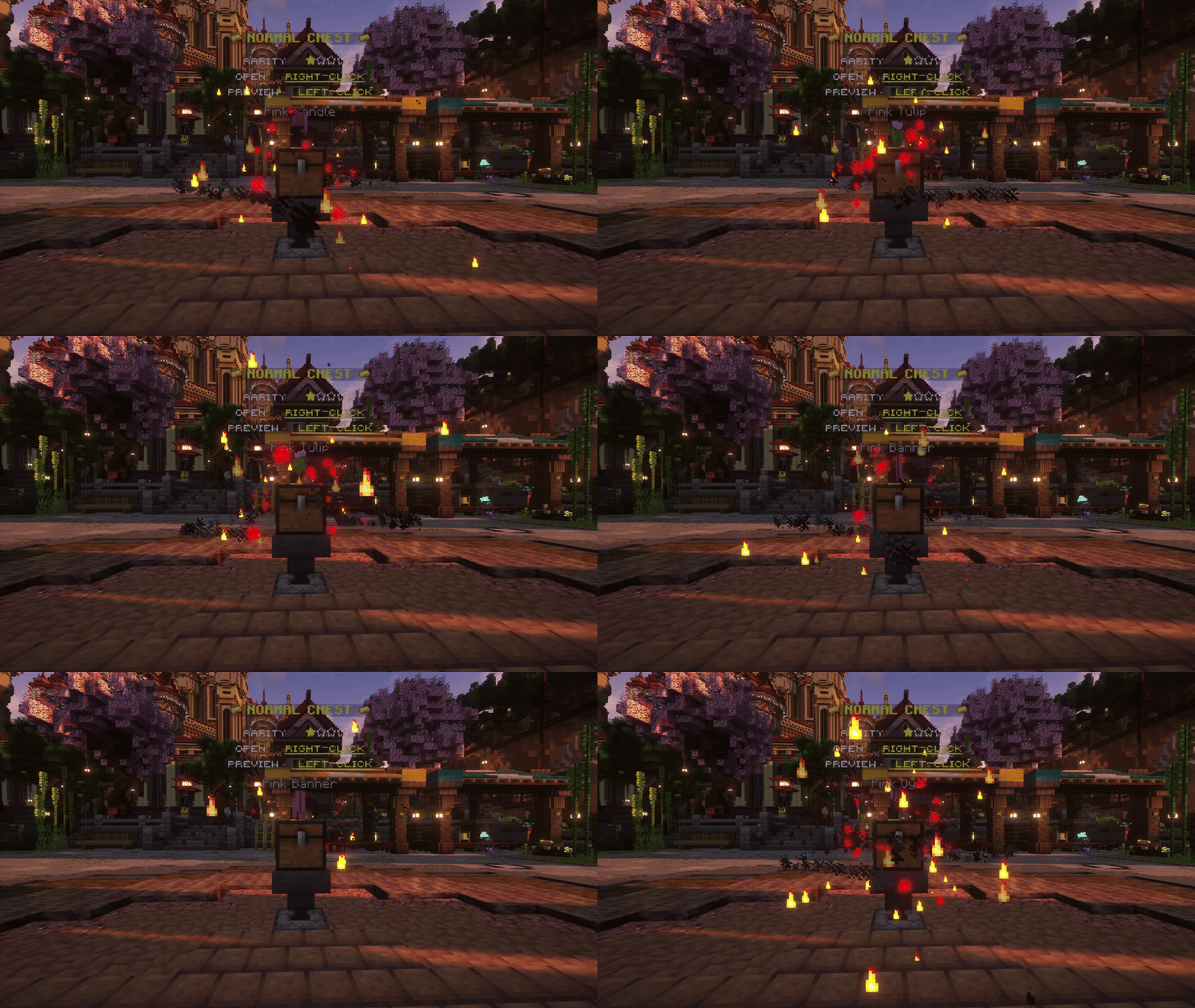
In-Game Preview of Preview Reward
With the menus, you can assign a different menu to be opened when a user previews rewards, use the rerolls, or select a reward for the selective move. This is a great option if you want to create different layouts for each crate.
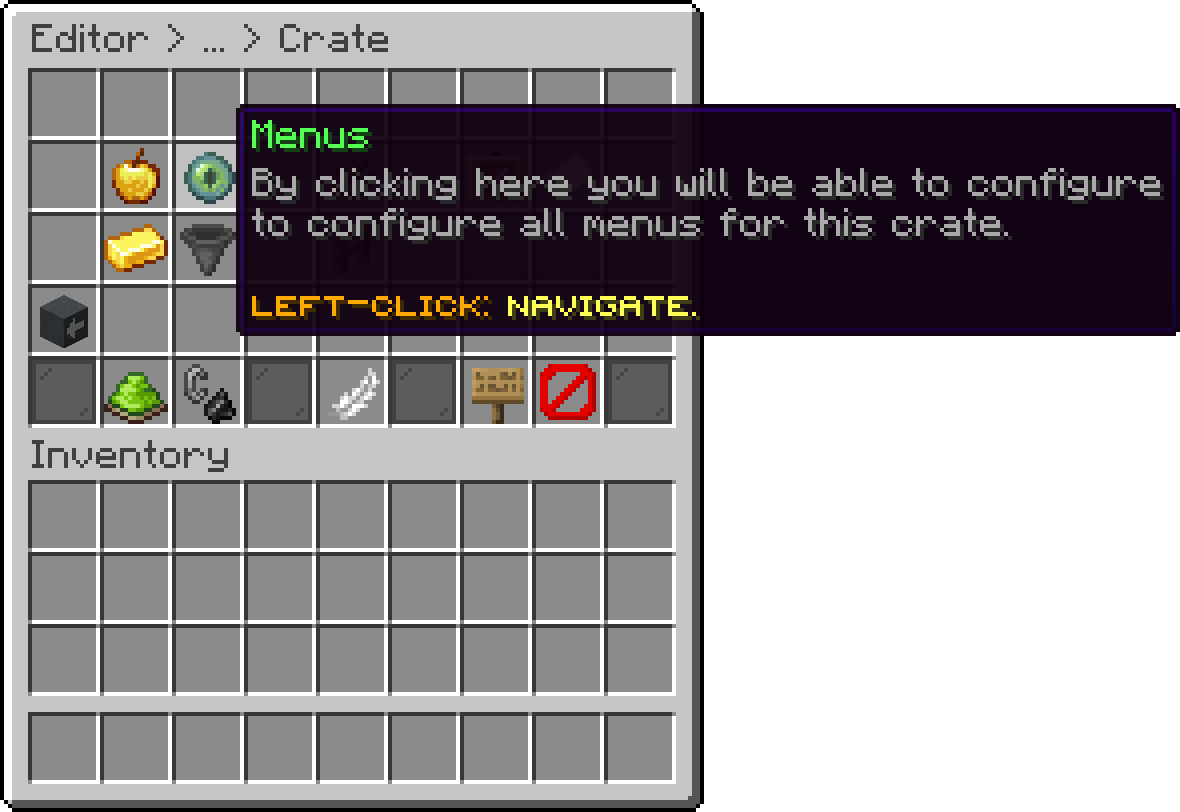
Editor > Crates > Crate
You can create your own preview menu in the menus folder inside PhoenixCrates\menus. Once you’ve created it, left-click and select that preview menu.
From the same menu, a crate can run a list of actions when a player clicks to preview it, such as sending a message or opening another plugin's menu. They run alongside the rewards preview menu, or replace it entirely when the crate has no preview menu set.
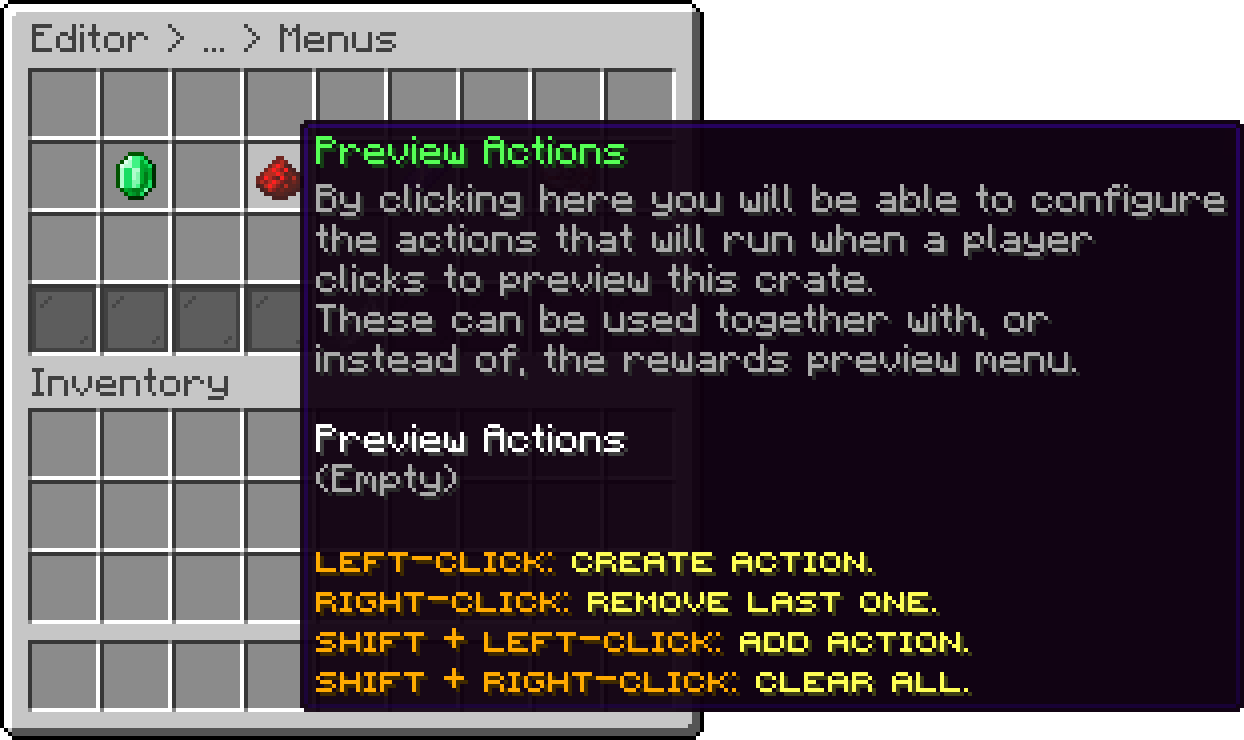
Editor > Crates > Crate > Menus
With the broadcast message option, you can customize the message that is broadcasted to the server when a user wins a reward. Note that for a broadcast message to be sent, the specific reward must have the broadcast option enabled. By default, this feature is disabled. The broadcast message supports multiple lines.
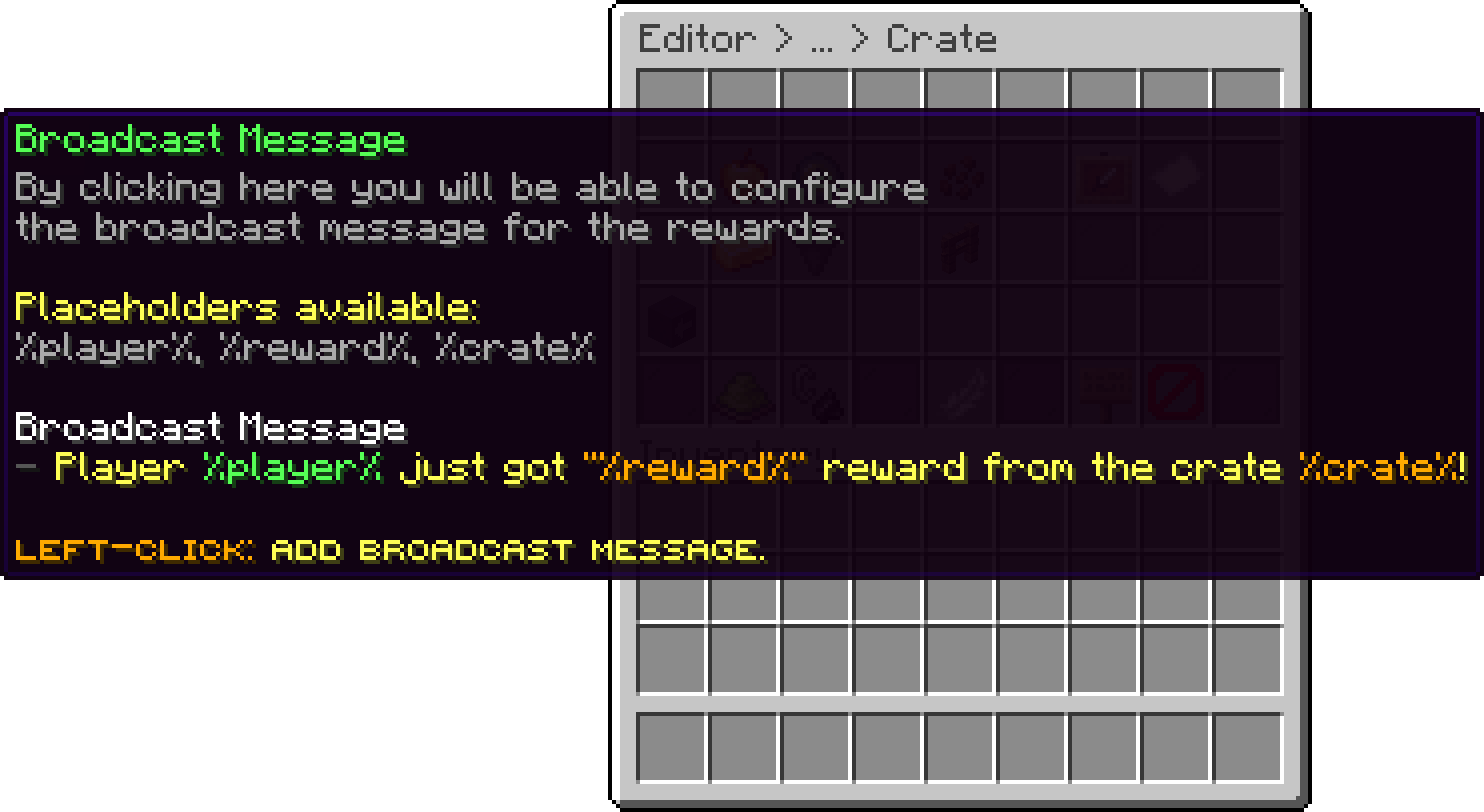
Editor > Crates > Crate
Oops... looks like the spiders padded through here
Add products to your cart and remove them from here Lets buy