Oops... looks like the spiders padded through here
Add products to your cart and remove them from here Lets buy
On this page, you will find all the information about changing the look of your hologram.
With this option, you can raise or lower the hologram from its base position, which is useful for lining it up with a block or a decoration.
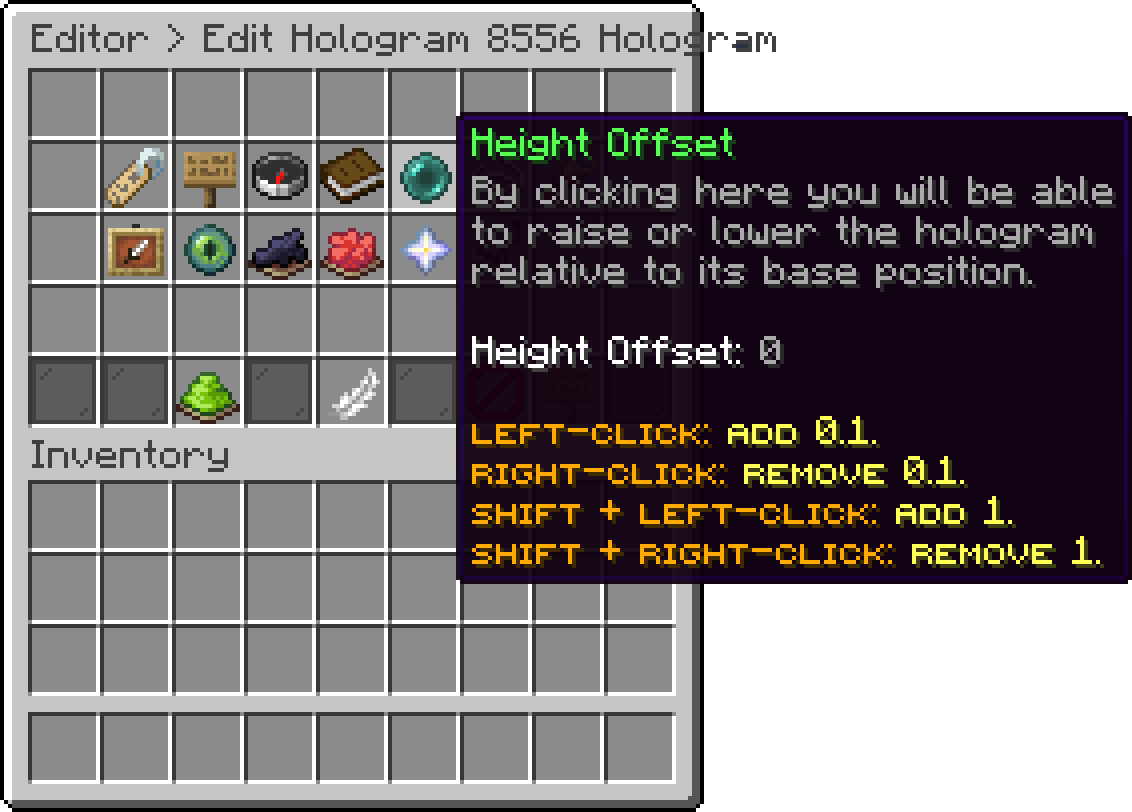
Customize Hologram (Height Offset)
With this option, you can change the spacing between each hologram line. The default is 0.3, a lower value pulls the lines closer together and a higher value spreads them apart.
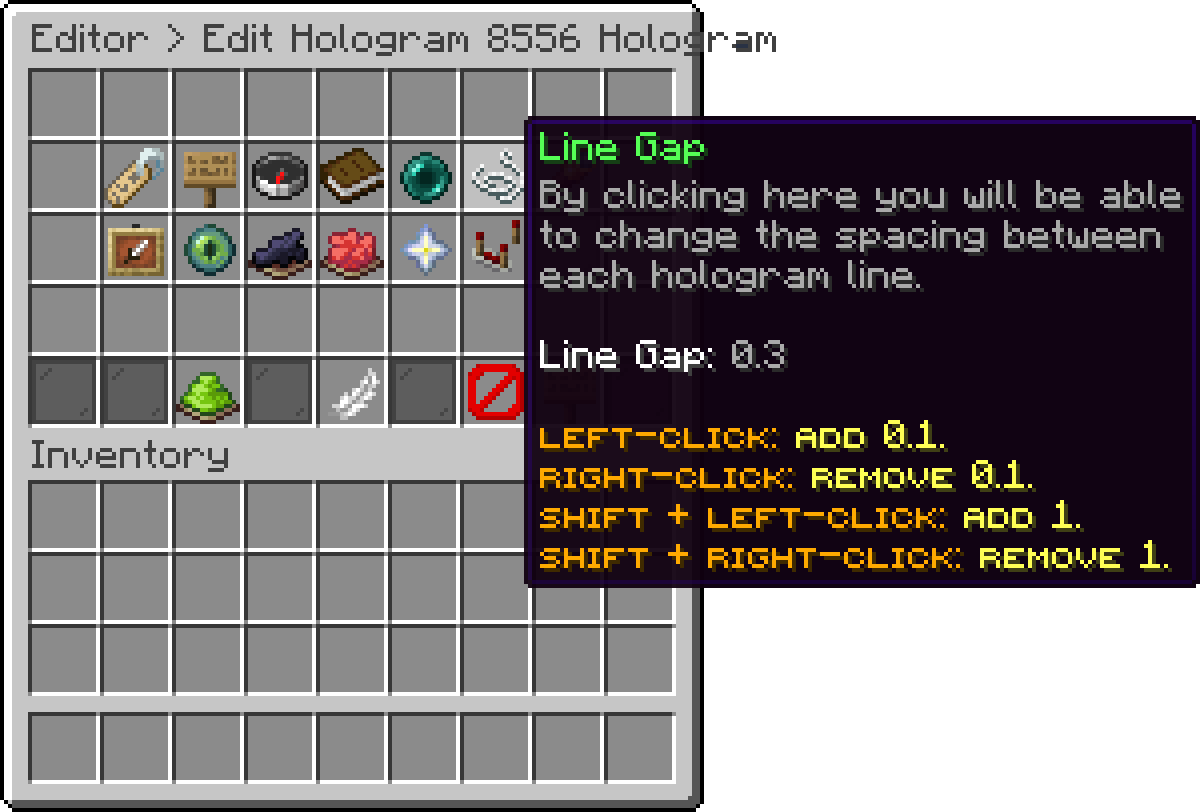
Customize Hologram (Line Gap)
With this option, you can change how the hologram faces players. Four modes are available:
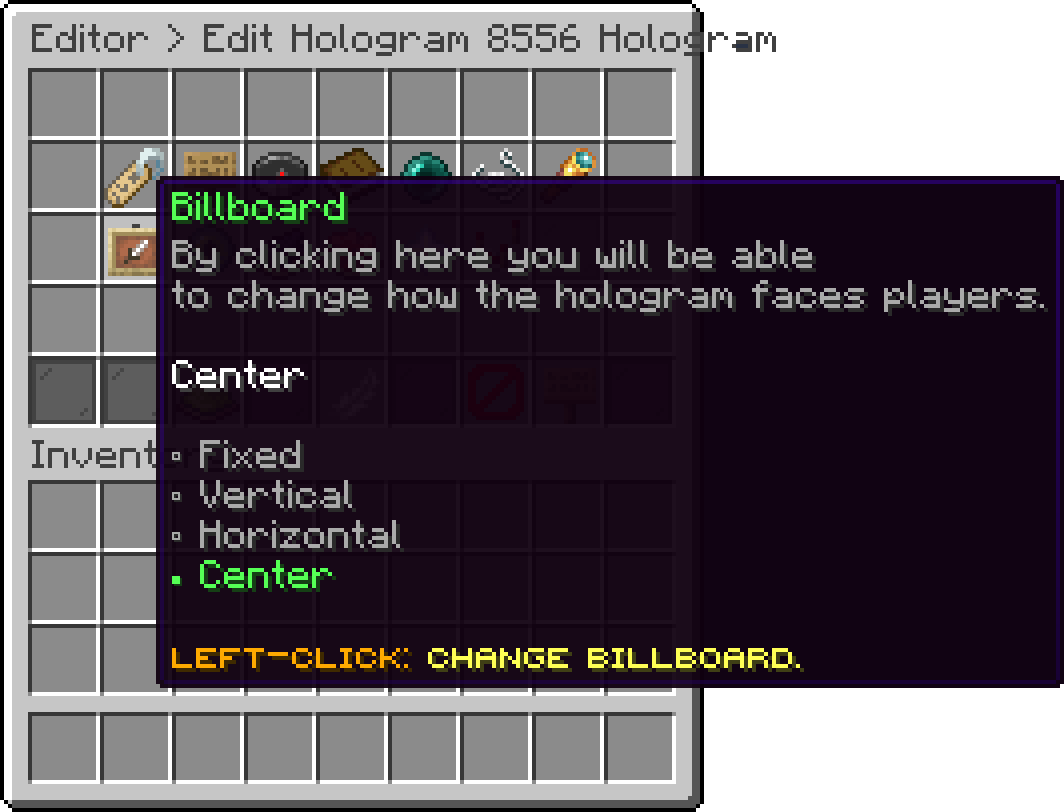
Customize Hologram (Billboard)
With this option, you can change the size of the hologram. The default is 1.
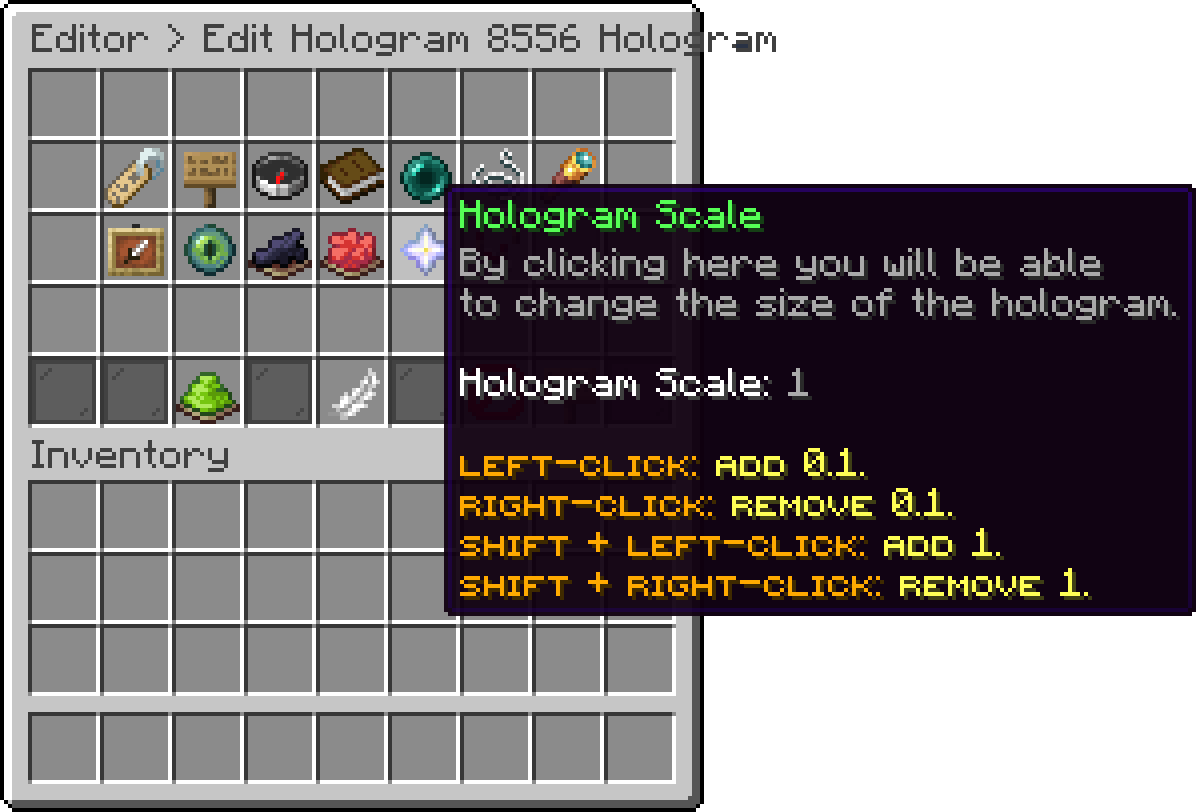
Customize Hologram (Hologram Scale)
With this option, you can change how solid the hologram text is. The value goes up to 255, which is fully solid, and lower values make the text more transparent.
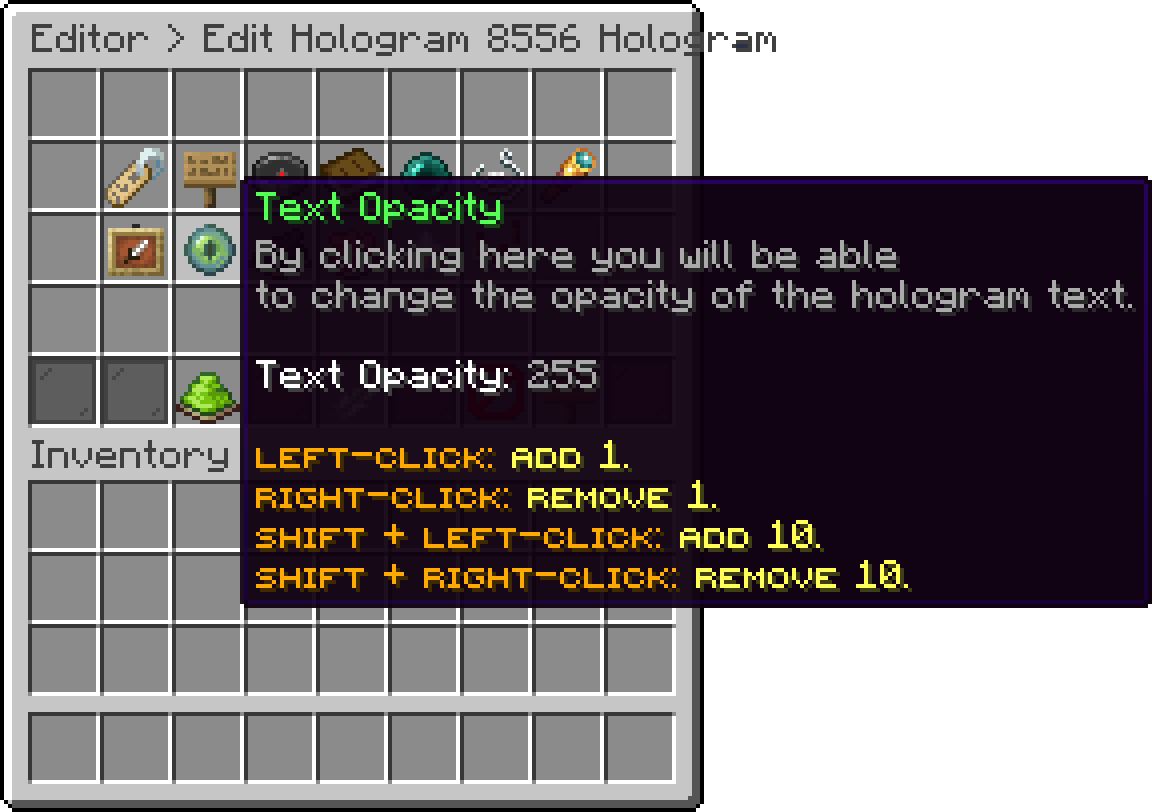
Customize Hologram (Text Opacity)
With this option, you can define whether the hologram is visible through blocks. When it is disabled, the hologram is hidden as soon as a block is between it and the player.
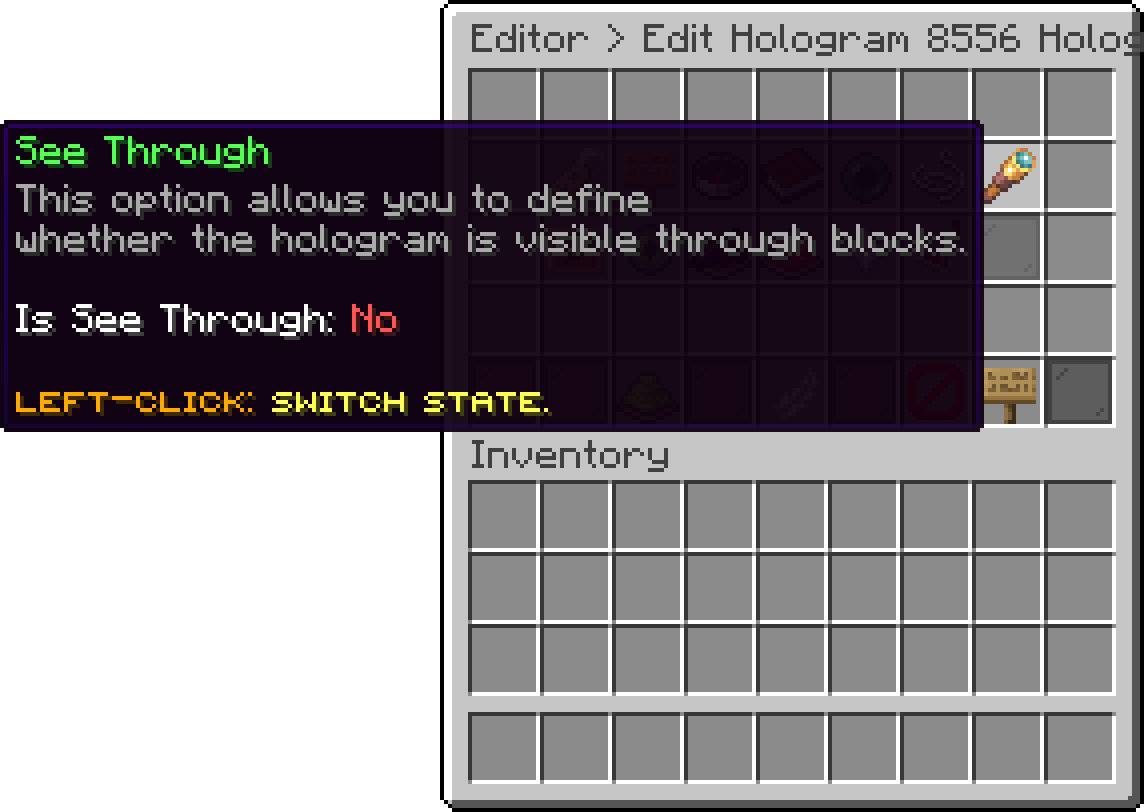
Customize Hologram (See Through)
With this option, you can define whether the hologram casts a text shadow, which helps the text stay readable against a bright background.
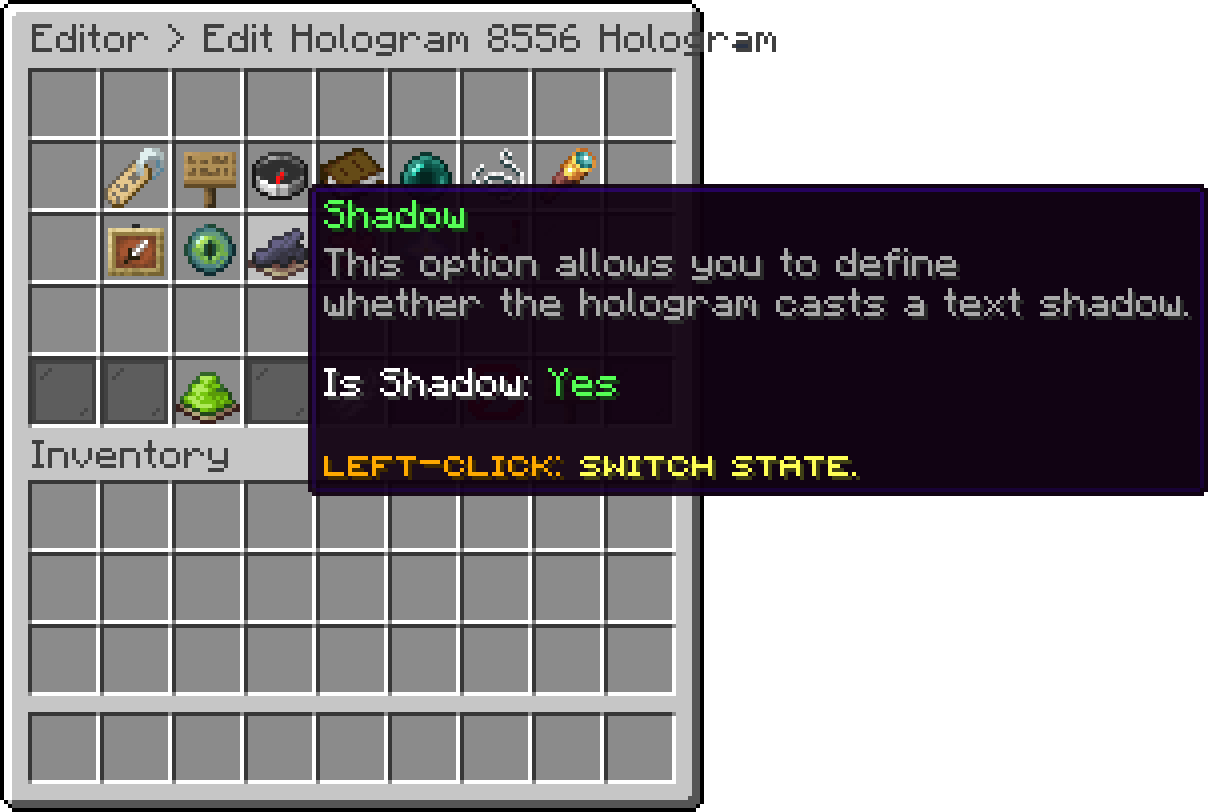
Customize Hologram (Shadow)
With this option, you can change the color of the panel behind the text. It accepts either an a,r,g,b value or a #AARRGGBB hex code, where the first part is the transparency. The default is 0,0,0,0, which leaves the background fully transparent.
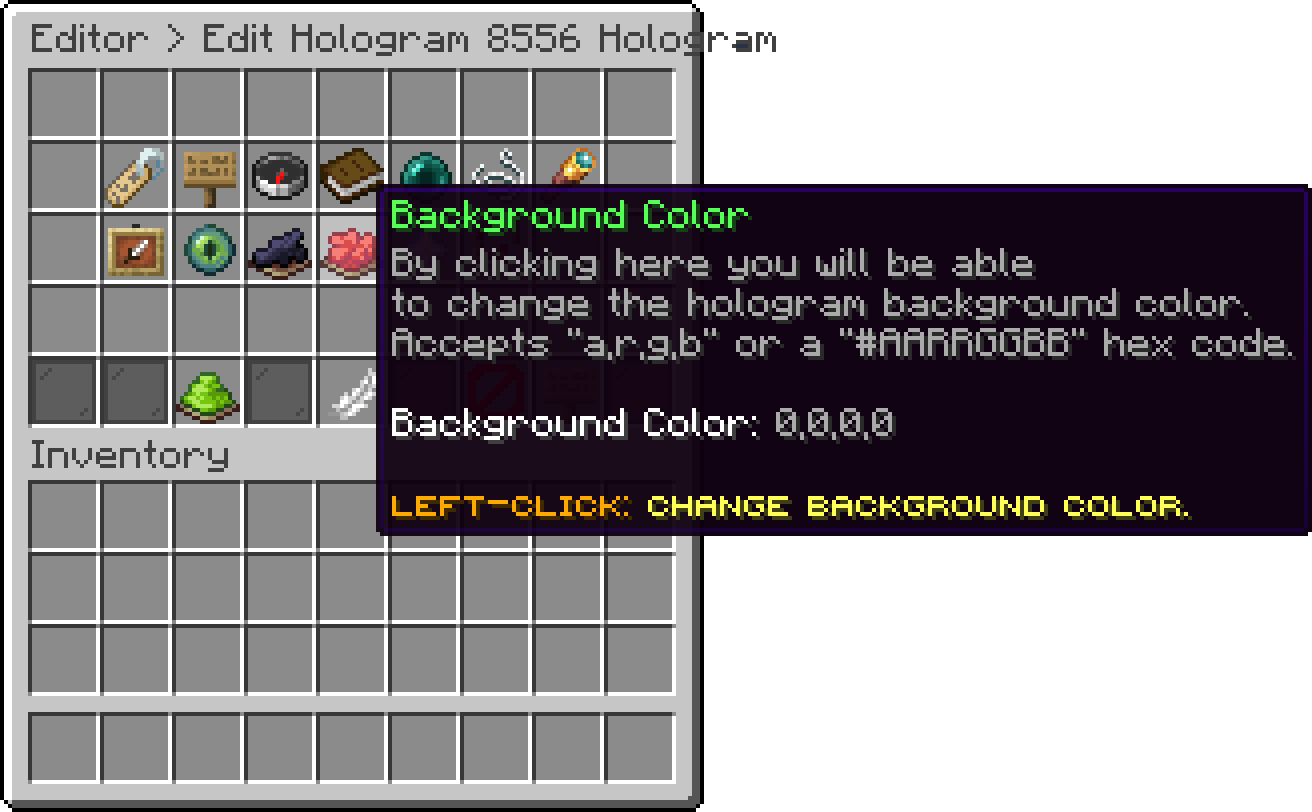
Customize Hologram (Background Color)
Oops... looks like the spiders padded through here
Add products to your cart and remove them from here Lets buy