
Oops... looks like the spiders padded through here
Add products to your cart and remove them from here Lets buy
On this page, you will find information on how to edit a single bar of the bossbar module.
Clicking a bar in Editor > Modules > Boss Bar opens its own settings. Everything here applies to that one bar, so two bars can rotate at different speeds, in different colours, at the same time.
With this option, you can change the colour of the bar. Seven are available: Pink, Blue, Red, Green, Yellow, Purple and White. They are fixed by Minecraft, so a hex colour is not possible here.
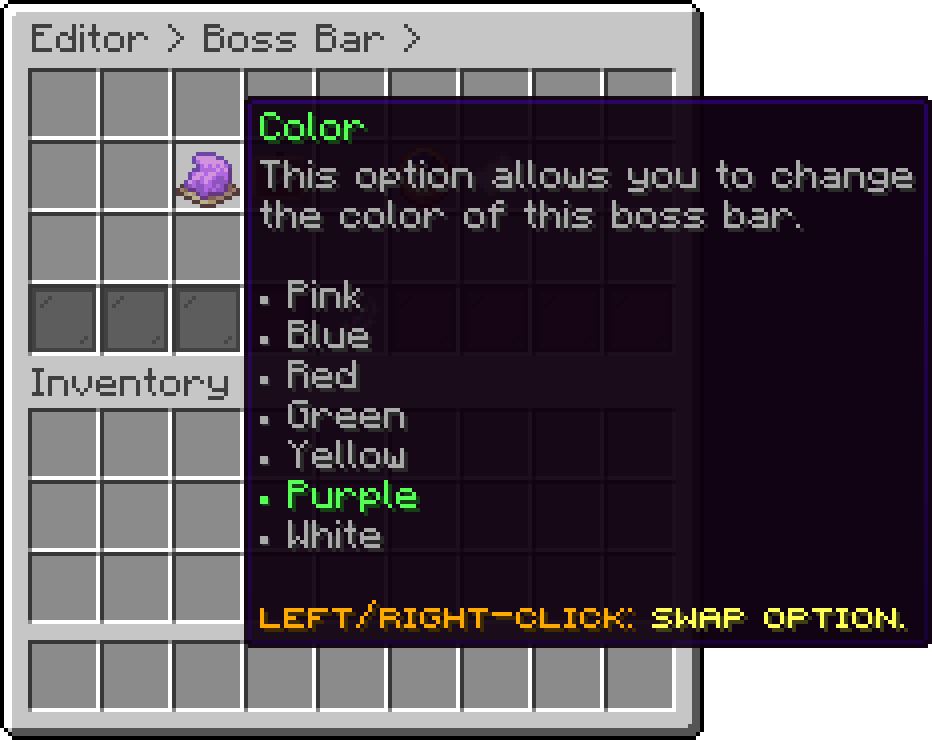
Edit a Boss Bar (Color)
With this option, you can change how many segments the bar is split into. Solid draws it as one unbroken bar, and Segmented 6, Segmented 10, Segmented 12 and Segmented 20 cut it into that many notches.
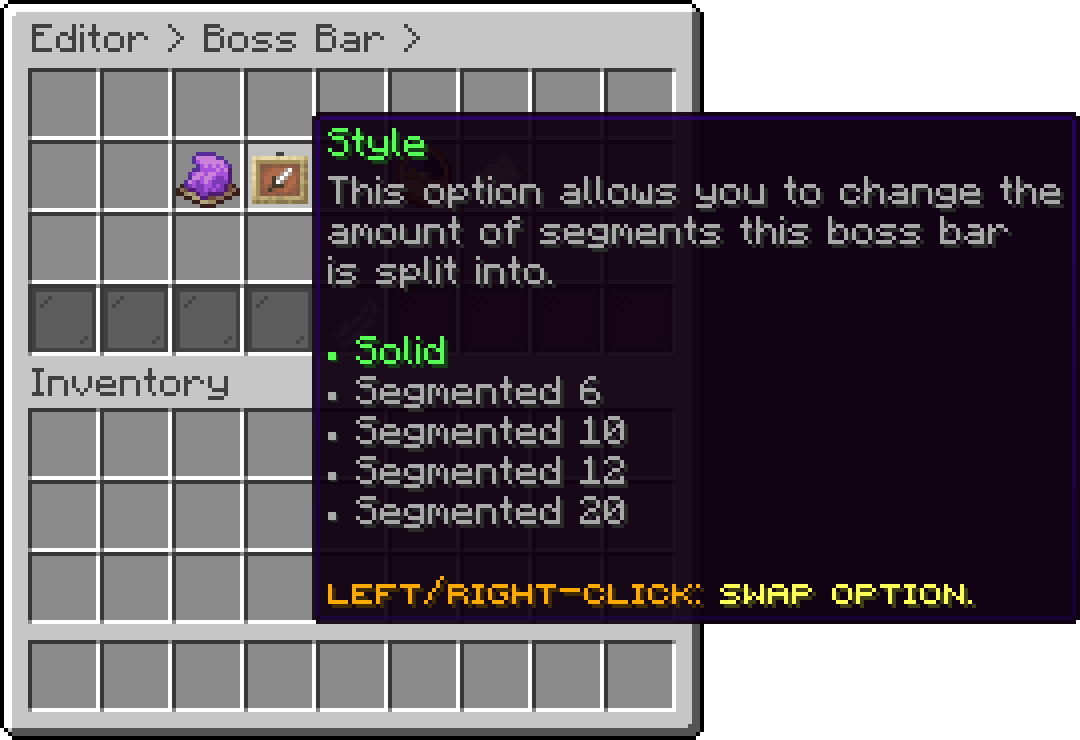
Edit a Boss Bar (Style)
With this option, you can change how many seconds a message stays up before the bar moves to the next one.
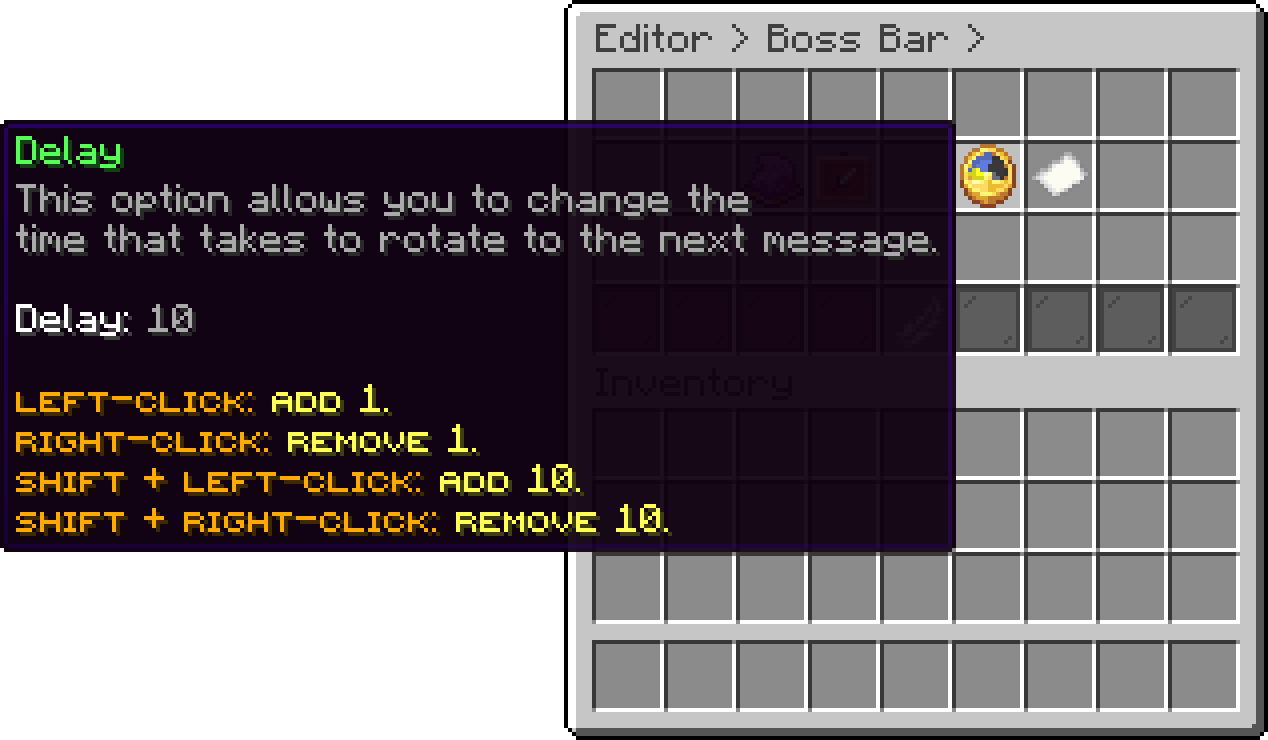
Edit a Boss Bar (Delay)
With this option, you can edit the messages this bar cycles through, in the order they are listed. PlaceholderAPI placeholders work here.
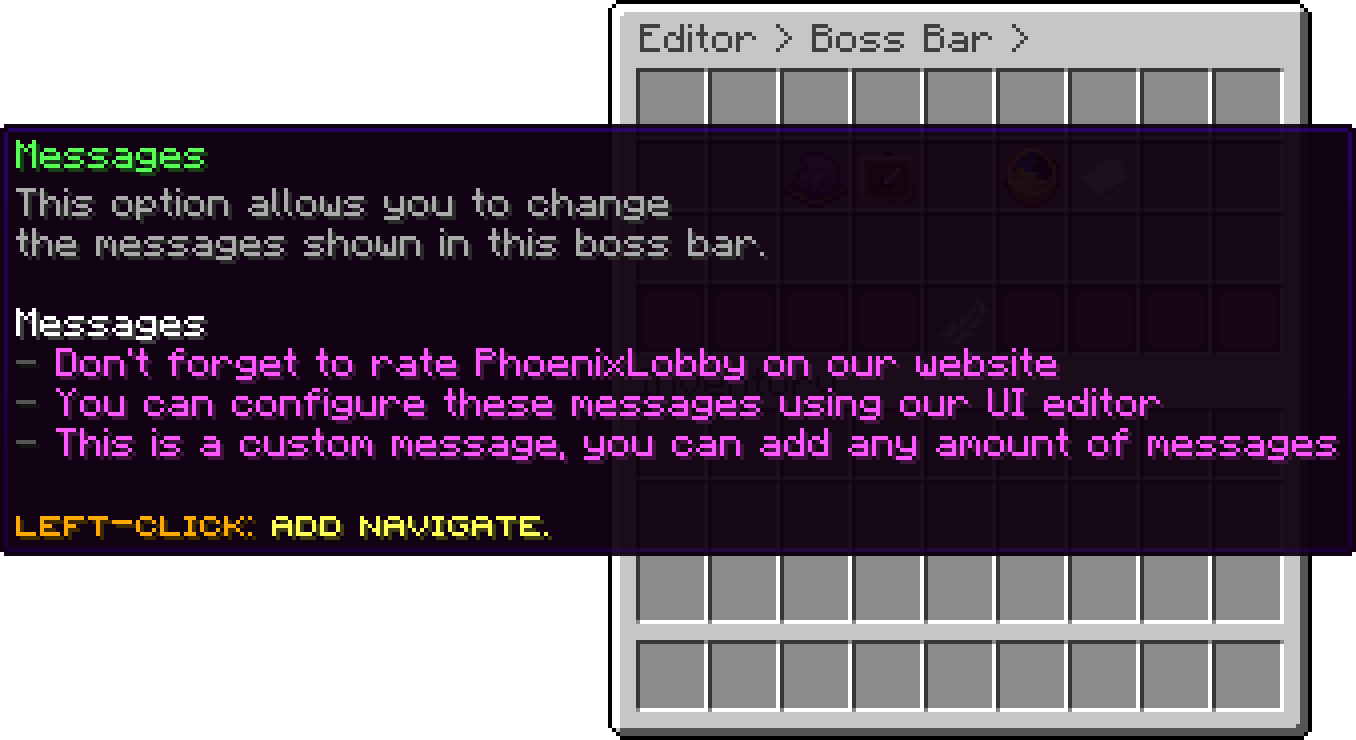
Edit a Boss Bar (Messages)
A bar left with a single message never rotates, so Delay and the module's actions do nothing for it. That is the way to keep one line permanently on screen.
Oops... looks like the spiders padded through here
Add products to your cart and remove them from here Lets buy