
Oops... looks like the spiders padded through here
Add products to your cart and remove them from here Lets buy

Actions that are used on our plugin
In our system's configuration files, you can utilize various action types to perform different actions. These actions enable you to interact with players, broadcast messages, play sounds, set gamemodes, and much more.
You can create interactive menus, NPC interactions, double jump, and other type of interactionsin your plugin using these action types.
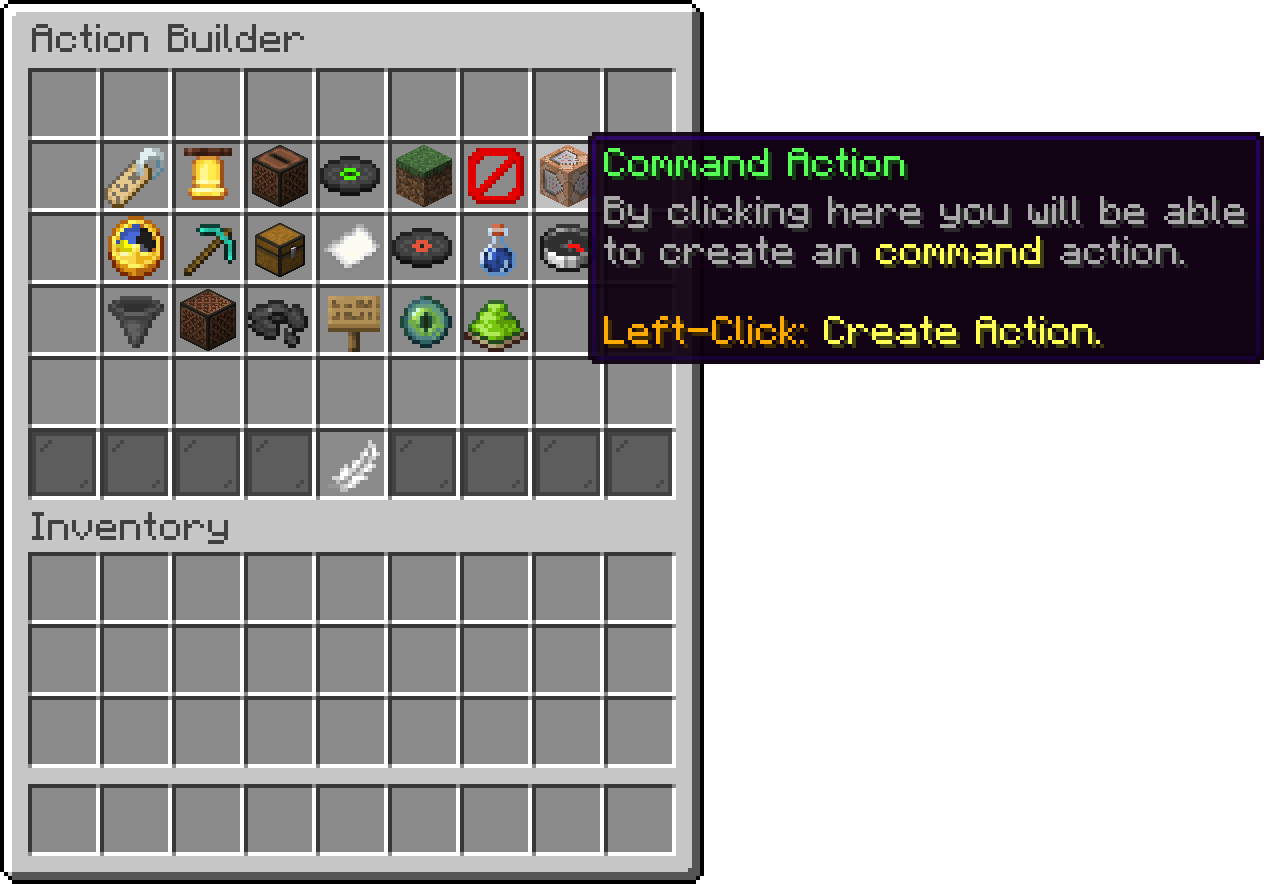
Action Builder
| Action Type | Description |
|---|---|
| [MESSAGE] | Display a custom message to the player |
| [BROADCAST] | Broadcast a message to every online player |
| [BROADCAST_WORLD] | Broadcast a message to the player's world |
| [BROADCAST_SOUND] | Play a sound for every online player |
| [BROADCAST_SOUND_WORLD] | Play a sound for the player's world |
| [TITLE] | Display a custom title message to the player |
| [ACTION_BAR] | This is a custom action bar |
| [PROXY] | Redirect the player to a specific server |
| [TRANSFER] | Send the player to another network |
| [QUEUE] | Put the player in the queue for a server |
| [VISIBILITY] | Change the player's player-visibility state |
| [CLOSE_INVENTORY] | Close the player's current inventory |
| [COMMAND] | Execute a command (console or player) |
| [GAMEMODE] | Set the player's gamemode |
| [POTION_EFFECT] | Apply a potion effect to the player |
| [SOUND] | Play a sound for the player |
| [PLAY_DISC] | Play a music disc for the player |
| [STOP_DISC] | Stop the music disc the player is hearing |
| [MENU] | Open a custom menu |
| [DELAY] | A way to delay some actions |
Explore each action type to learn more about its syntax and usage. Examples are provided to illustrate how to use these actions effectively in your system or application.
This action sends a custom message to the player.
[MESSAGE] <message>
[MESSAGE] &aThis is a custom message
This action sends a message to every player online.
[BROADCAST] <message>
[BROADCAST] &a%player% just joined the lobby
This action sends a message to every player in the world the player is in.
[BROADCAST_WORLD] <message>
[BROADCAST_WORLD] &aThe event is starting
This action plays a sound for every player online.
[BROADCAST_SOUND] <sound>; <volume>; <pitch>
[BROADCAST_SOUND] entity_player_levelup; 1; 1
This action plays a sound for every player in the world the player is in.
[BROADCAST_SOUND_WORLD] <sound>; <volume>; <pitch>
[BROADCAST_SOUND_WORLD] entity_player_levelup; 1; 1
This action displays a custom title message to the player.
[TITLE] <title>; <subtitle>; <fadein>; <stay>; <fadeout>
[TITLE] &aCustom title;&7Custom Subtitle; 20; 40; 20
This action displays a custom action bar message to the player.
[ACTION_BAR] <message>
[ACTION_BAR] This is a custom action bar
This action redirects the player to a specified server using your proxy (BungeeCord & Velocity).
[PROXY] <serverName>
[PROXY] lobby
[BUNGEE] is the old name for this action and still works, so an existing config does not need rewriting. It is hidden from the action builder, but you will meet it in the default menus/servers.yml. New actions should use [PROXY].
This action sends the player to a completely different server address, without a proxy.
[TRANSFER] <host>; <port>
[TRANSFER] play.example.com; 25565
This one needs Paper 1.20.5 or newer, and the player has to be on 1.20.5 or newer as well.
Two things can stop a transfer, and each tells the player why:
accepts-transfers set to true in its server.properties, so that is the first thing to check.This action puts the player in the queue for a server instead of connecting right away. Requires the proxy plugin with the queue enabled.
[QUEUE] <serverName>
[QUEUE] skyblock
This action changes whether the player can see other players.
[VISIBILITY] <on/off/toggle>
[VISIBILITY] toggle
This action closes the inventory the player has open.
[CLOSE_INVENTORY]
[CLOSE_INVENTORY]
This action executes a command either from the console or as a player.
[COMMAND] <target>; <command>
[COMMAND] console; mvtp %player% world [COMMAND] player; warp spawn
%player% is replaced with the player's name, which is what lets a console command act on them.
A player command is run the way the player typing it would be, so other plugins see it exactly as they see a real command. The queue commands are the one exception: behind a proxy, queue, joinqueue and leavequeue are forwarded to the proxy instead, so [COMMAND] player; queue survival works from a lobby even though the command only exists on the proxy.
This action sets the gamemode for the player.
[GAMEMODE] <gamemode>
[GAMEMODE] adventure
This action gives the player a potion effect.
[POTION_EFFECT] <effect>; <duration>; <amplifier>
[POTION_EFFECT] speed; 5; 2
This action plays a sound for the player.
[SOUND] <sound>; <volume>; <pitch>
[SOUND] entity_arrow_hit_player; 1; 1
This action plays a music disc for the player. Any disc already playing is stopped first.
[PLAY_DISC] <disc>
[PLAY_DISC] cat
[PLAY_DISC] pigstep
This action stops the music disc the player is currently hearing.
[STOP_DISC]
[STOP_DISC]
This action opens a custom graphical user interface (GUI) menu.
[MENU] <menu_name>
[MENU] servers
[MENU] lobbies
The name is the file name of the menu, without the .yml. Building one of your own is covered on Menus.
This action will make a short pause until it continues executing actions.
[DELAY] <seconds>
[DELAY] 3
Oops... looks like the spiders padded through here
Add products to your cart and remove them from here Lets buy